Free for Mac
Download the Remarkable Minds app
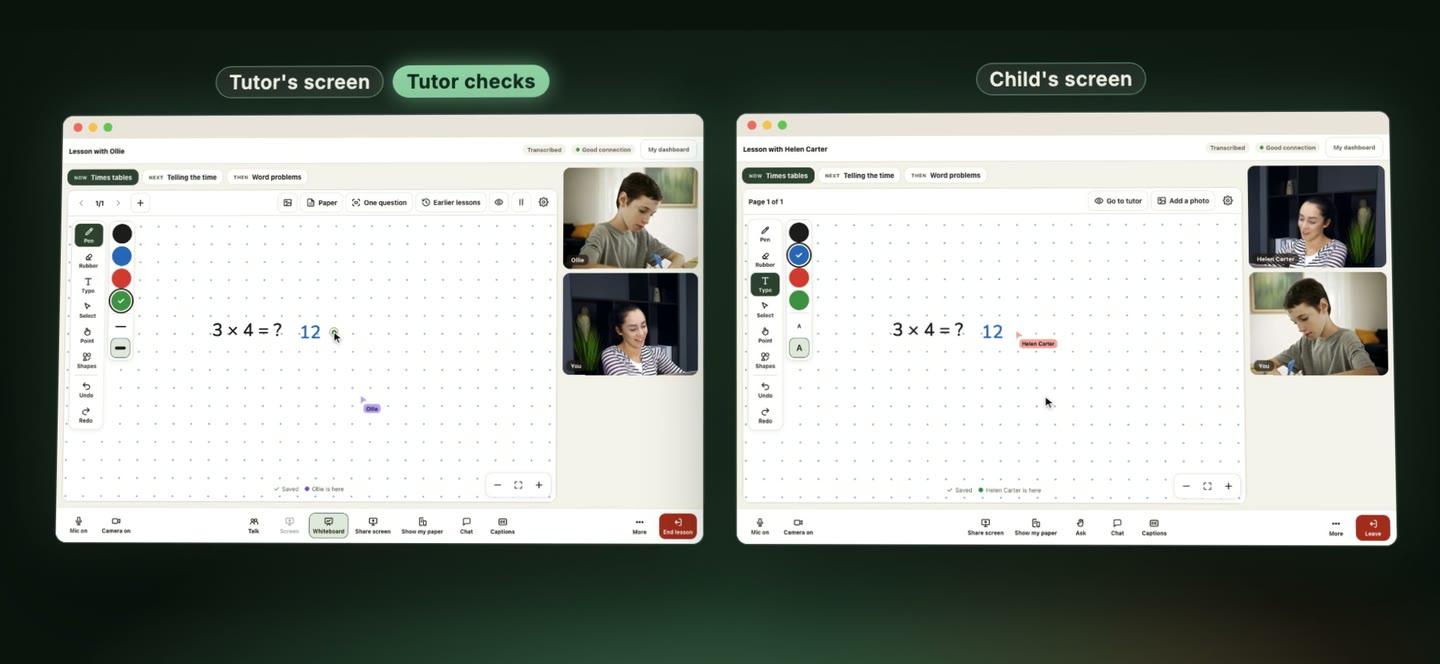
Live one-to-one lessons with your child’s tutor, in their own window. Lessons open in your browser too; the app is the best way.
Version 1.0.4
All downloads
Pick the one for your computer
Installing
How to install it
Follow the steps for your computer below. If you can’t open the app, you can still join your lesson in your browser from your dashboard.
Mac
- 1Open the file you downloaded and drag Remarkable Minds into Applications.
- 2Open Remarkable Minds from Applications. The first time, your Mac asks if you’re sure you want to open an app from the internet. Click Open.
- 3Allow the camera and microphone when it asks.
What you need
Computers it works on
- Mac
- macOS 12 Monterey or later, Apple silicon or Intel
- All
- A camera, a microphone and an internet connection
Questions
Common questions
Do we need the app?
No. Every lesson also opens in your browser, with the same tools. The app keeps the lesson in its own window, away from other tabs, and lets the tutor draw on their whole screen.
Is the app free?
Yes. The app is free. Lessons are £80 a session, with no registration fee and no subscription.
How do we join a lesson?
Open your lesson from your dashboard when it’s time, and choose Open in the app or Continue in this browser. Sign in with your Remarkable Minds account.
Is there a Windows app?
Not at the moment. On a Windows computer, every lesson opens in your browser with the same tools. Only drawing on the whole screen needs the app.
What about iPads, Chromebooks and phones?
The app is for Mac computers. On an iPad or Chromebook, lessons open in the browser with the same tools. On a phone you get video and sound only.
Which Mac download do I need?
Most Macs from late 2020 on have Apple silicon. To check, open the Apple menu and choose About This Mac. If it says Chip: Apple M1, M2, M3 or later, use Apple silicon. If it says Processor: Intel, use the Intel download.