For parents
Join your child’s online lesson
Use a computer or tablet: a phone only gets the basic video call. Then follow these four steps to join your child’s online lesson from your dashboard.
Music: “Rise” by Corporate Music Zone, from Free Stock Music, licensed under CC BY 4.0.
Step 1
Open your child’s lesson
On your dashboard, open your child’s lesson.
From 10 minutes before the start, press Join session on the green card. Earlier, from 1 hour before (30 minutes for a free intro), the button says Join video session. Either one works.
- The green card stays until shortly after the end
- Both buttons open the same choice
Step 2
Continue in your browser
When “Join your lesson” appears, press Continue in this browser.
- The camera check opens next
- Whole-screen drawing needs the app
Step 3
Check your camera and microphone
Your browser may ask to use your camera and microphone. If it does, choose Allow.
To blur what’s behind you, press Blur my background.
- You can see your picture
- Choose your camera, microphone and speaker
Step 4
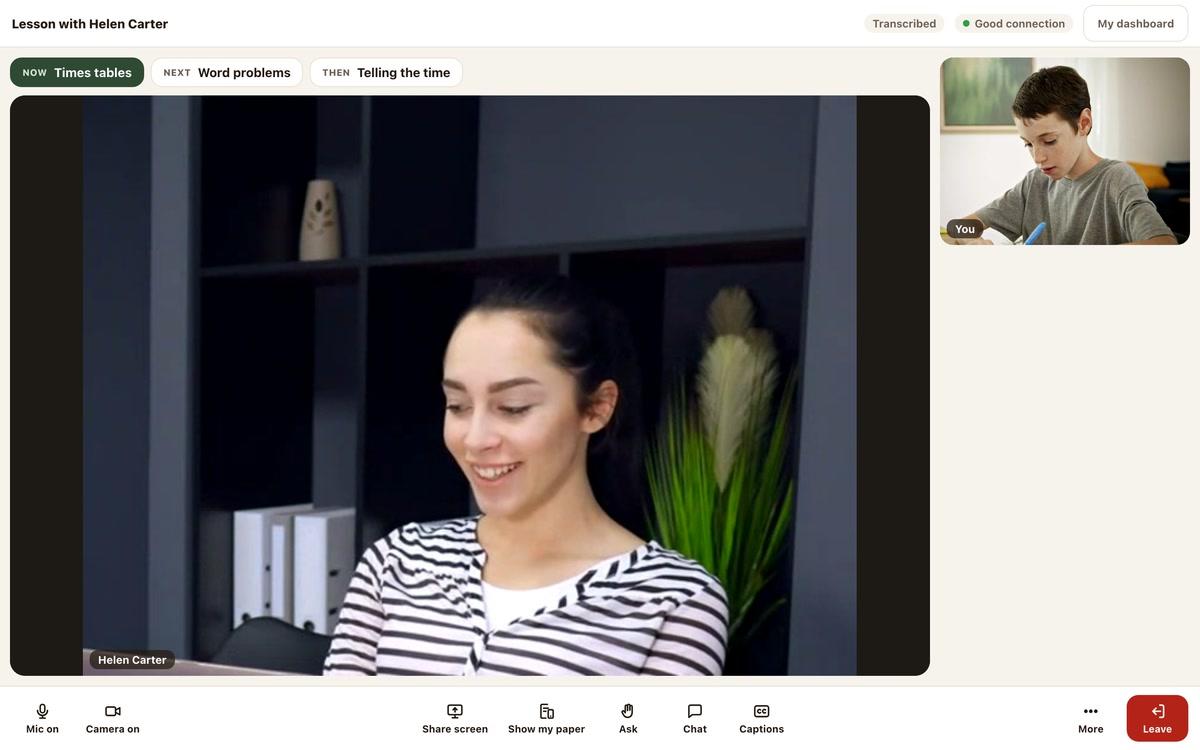
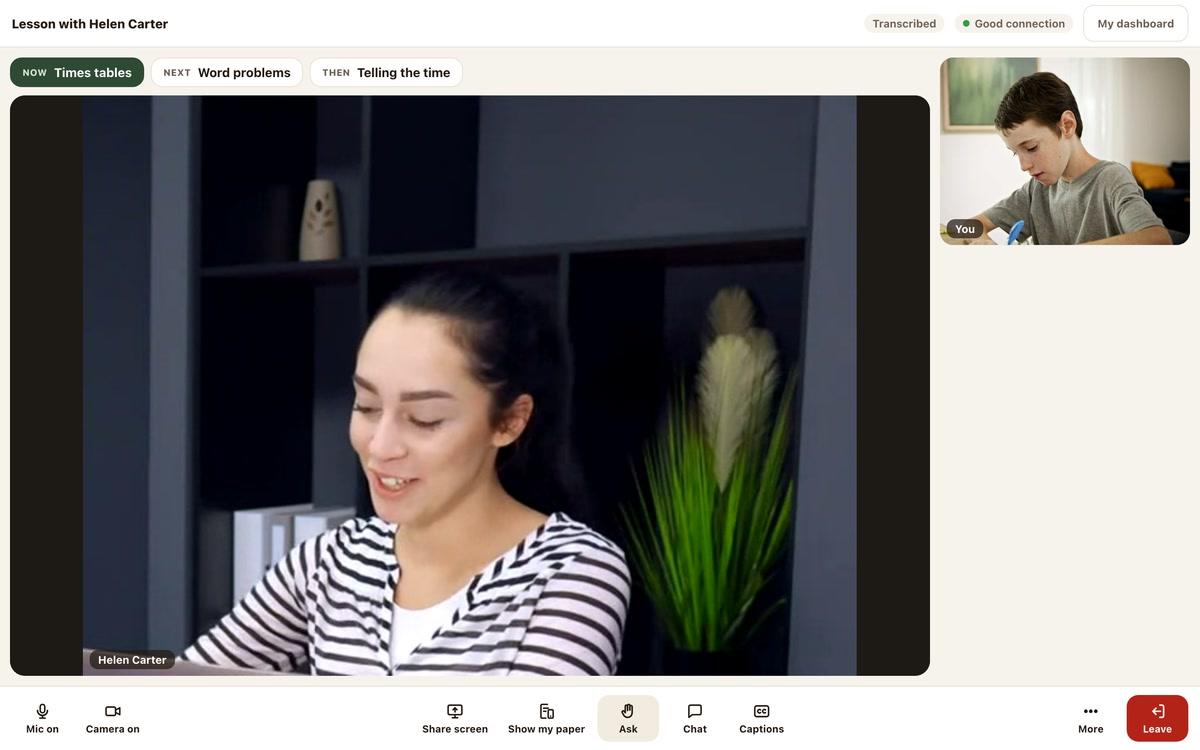
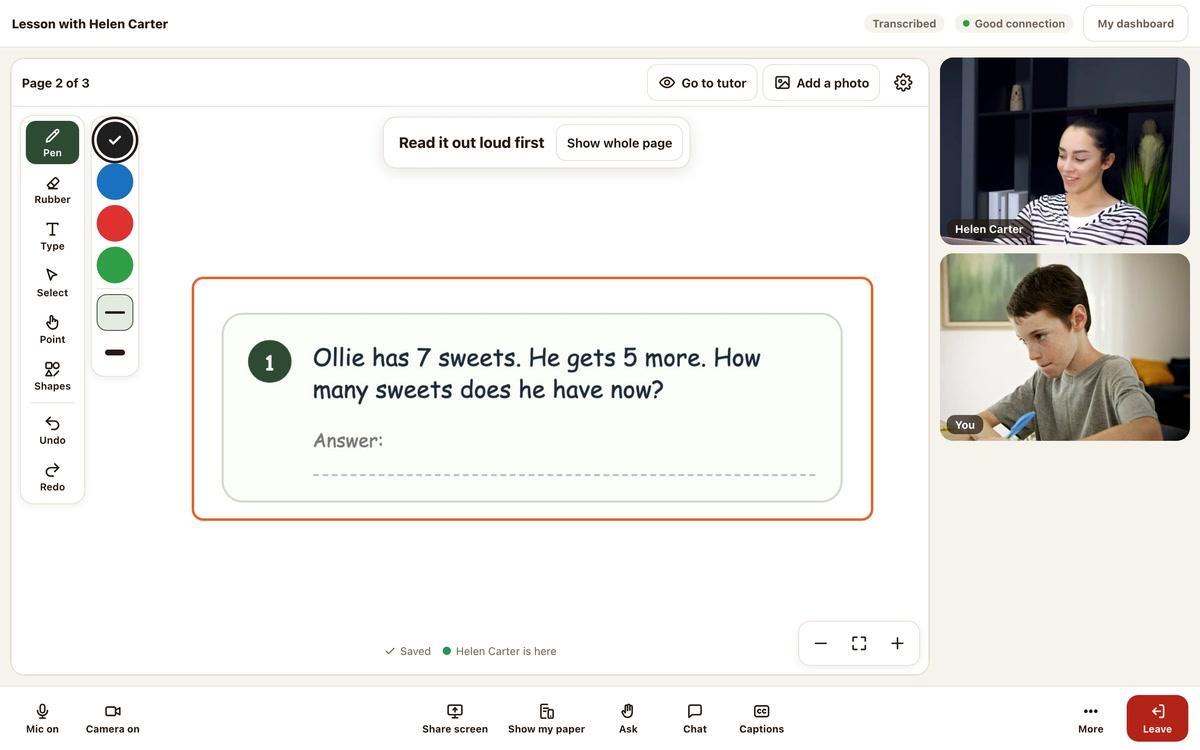
Open the lesson on your screen
When you’re ready, press Join the lesson.
- Your child’s lesson opens on your screen
- Same lesson in the browser or app
Good to know
Got the Mac app?
Your child’s own device
Computers, tablets and phones
Still stuck?
We will sort it out with you
Tell us what you pressed, what you saw, and which device and browser you are using.