For parents
Join your free intro session
Have your intro link and a device with a camera ready. The call is free and usually lasts 20 minutes. No account needed.
Music: “Rise” by Corporate Music Zone, from Free Stock Music, licensed under CC BY 4.0.
Step 1
Open your intro link
Open your intro link from your confirmation email or message. On Your intro session, check who the call is with. Check the When card for the date and time.
It is a free video call, usually 20 minutes. You do not need an account or a download.
- Meet your tutor before tutoring starts
- No account, download or payment needed
Step 2
Join when the room opens
The Join the intro session button appears from 30 minutes before the start. Press it to open the call screens.
- The button appears automatically
- You can join before your tutor
Step 3
Continue in your browser
On a Mac computer, Join your lesson appears. Press Continue in this browser to open the camera check. If you already have the app, you can press Open in the app.
Other computers and tablets go straight to the camera check.
- On a Mac, choose browser or app
- Other computers and tablets skip this choice
Step 4
Check your camera and microphone
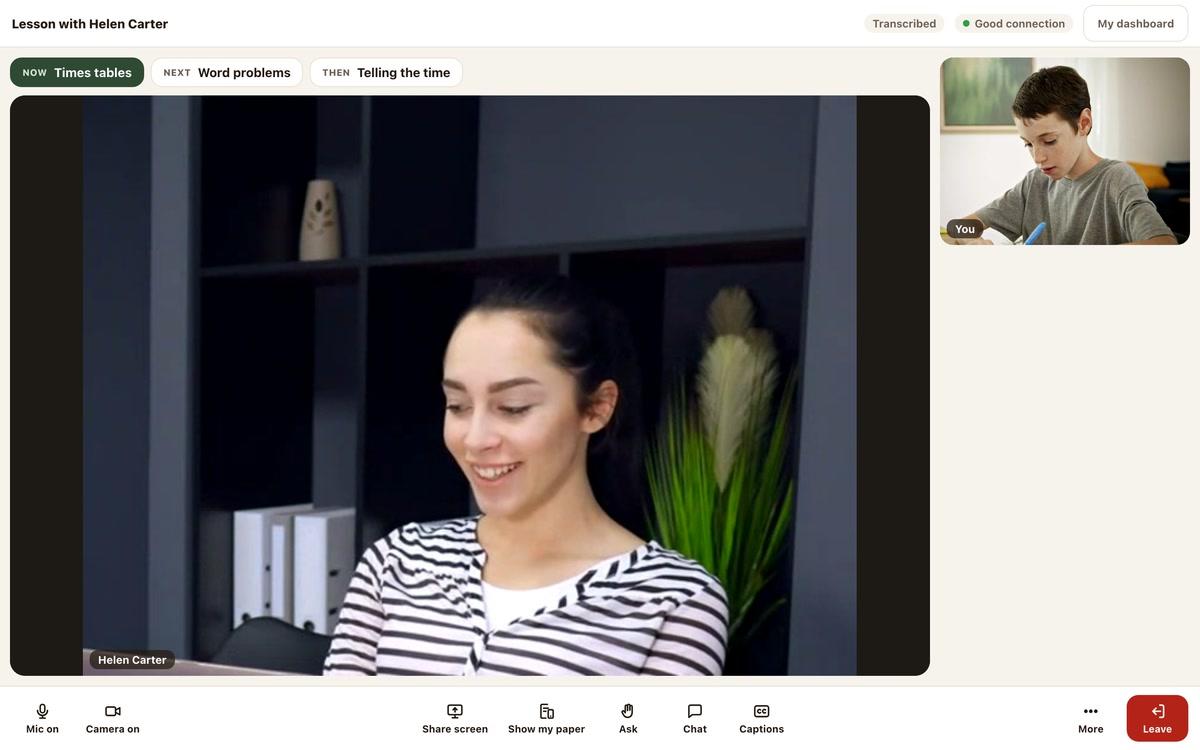
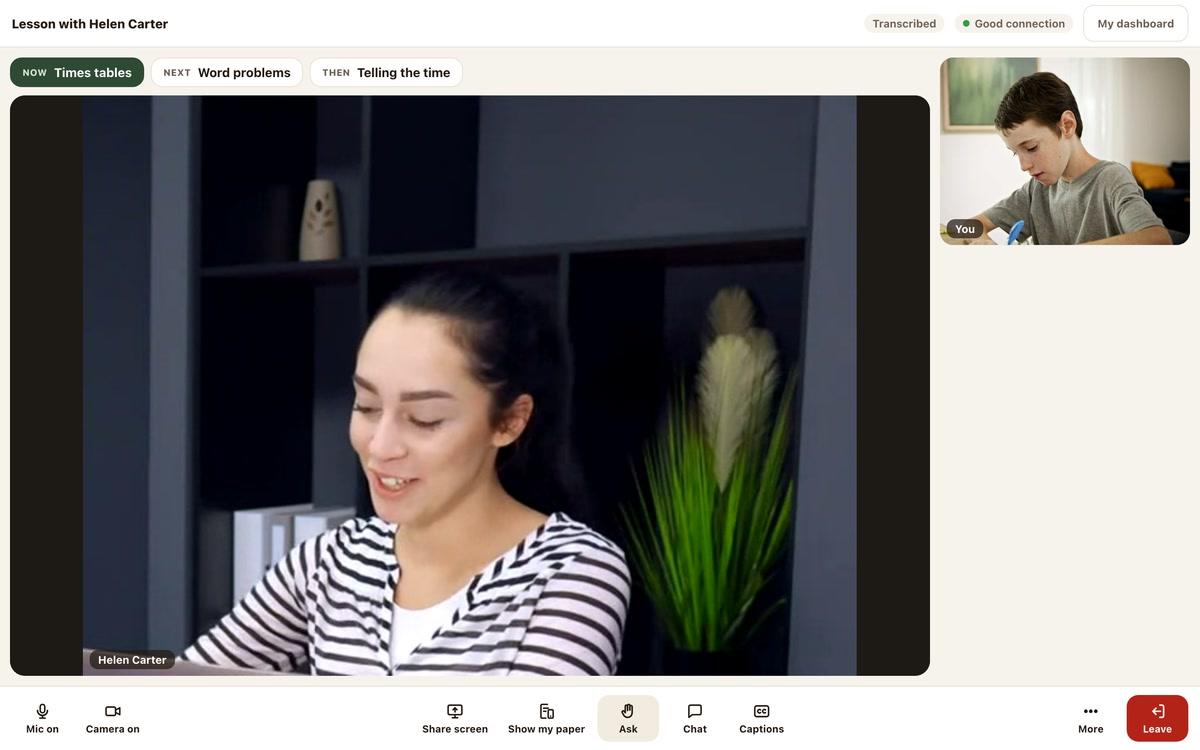
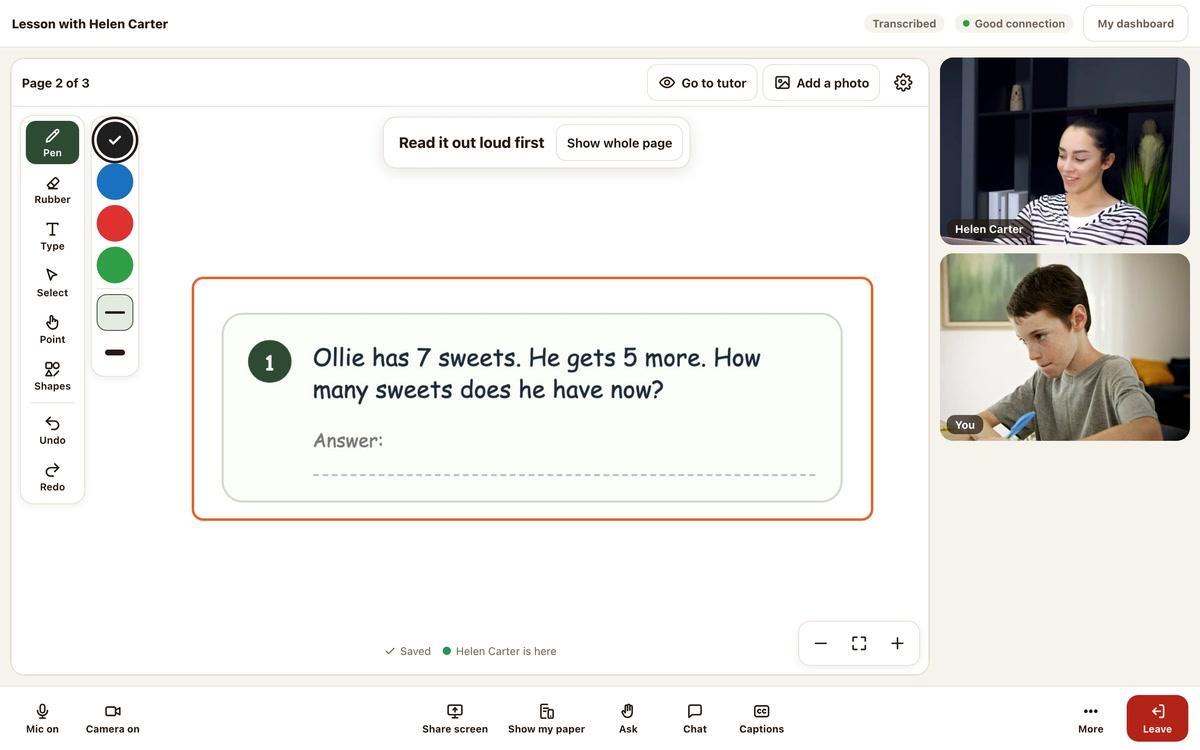
The camera check says Your lesson. The call screens use the word lesson for your intro.
Check you can see yourself. Use the Microphone, Camera and Speaker boxes to choose your devices. If your browser asks to use your camera and microphone, choose Allow.
When you are ready, press Join the lesson.
- Check your picture and sound
- Join when you are ready
Step 5
Set up your account any time
On your intro link, find Want this on a dashboard? and press Set up your account.
You can do this before or after the call. If you wait until afterwards, open the same intro link again.
- Use the same intro link
- Keep messaging and bookings in one place
Good to know
Joining on a phone
Your call is transcribed
Check the time
Still stuck?
We will sort it out with you
Tell us what you pressed, what you saw, and which device and browser you are using.