During a call

Blur your background

Hide the room behind you during an online session. One click blurs it, and there are pictures to choose from if you would rather have a different backdrop.
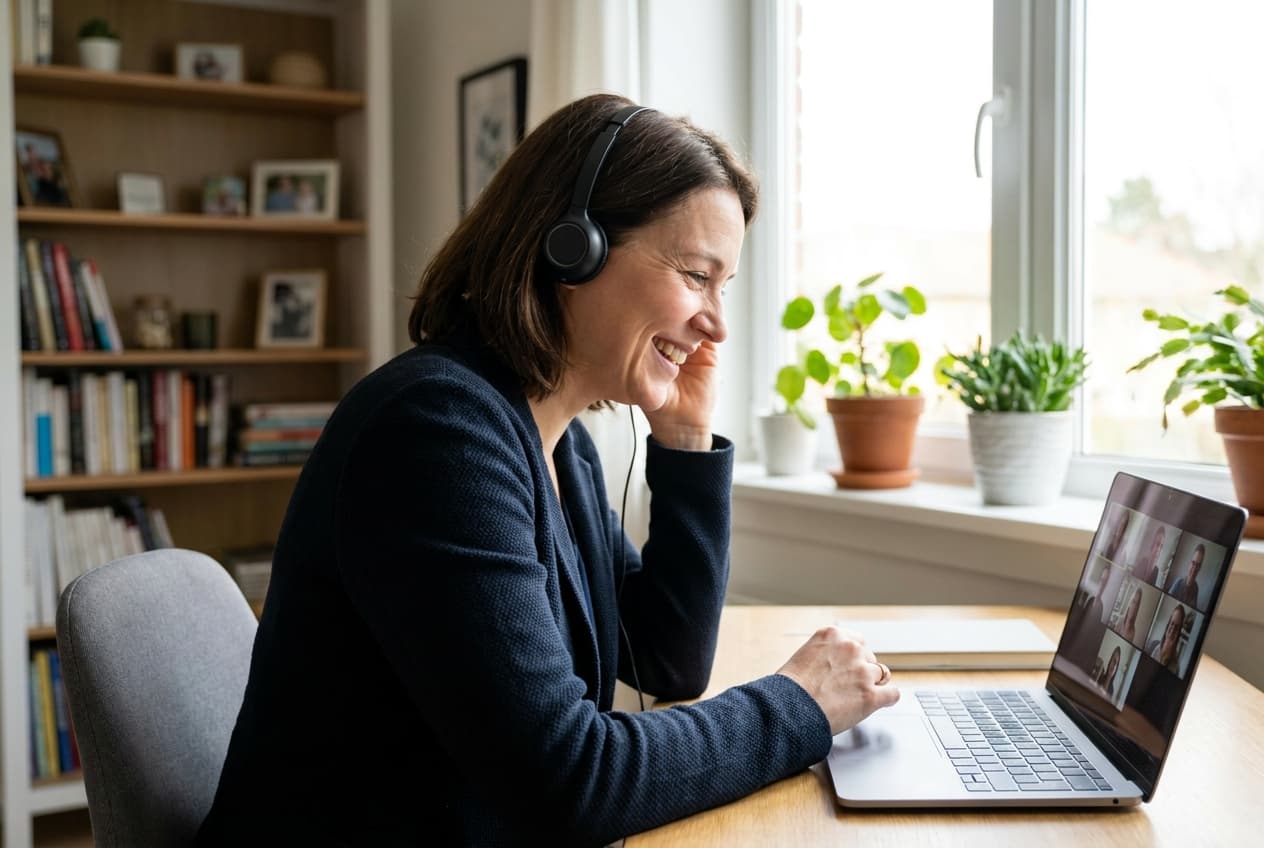
A woman with a headset on a video call at home.

Use a laptop or desktop computer

Background effects work in Chrome, Edge, Firefox and Safari on a computer. Phones and tablets cannot run them, so the button does not appear there. The steps are the same on Windows and Mac.

Which computer are you using?

The quick way: one click to blur

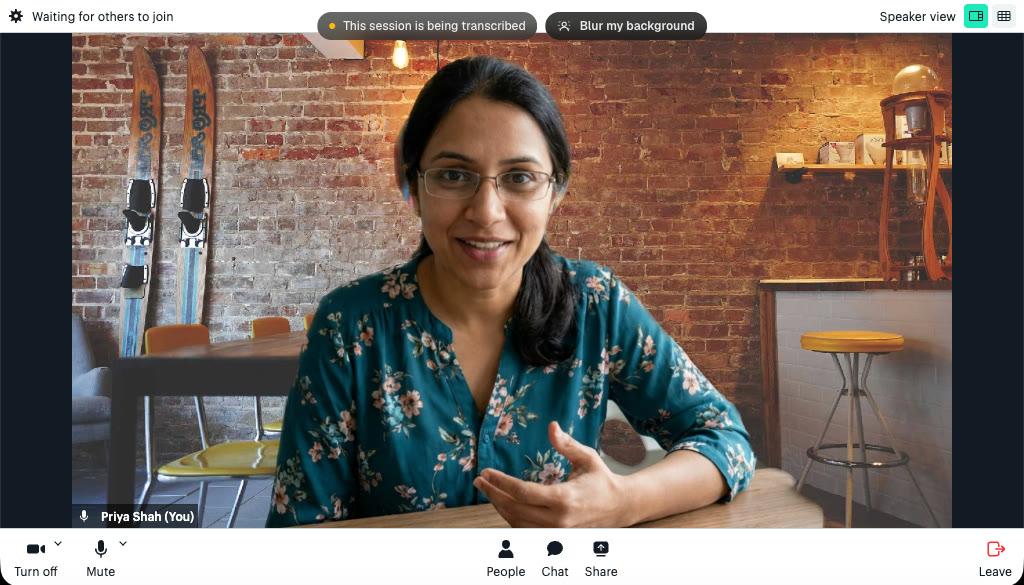
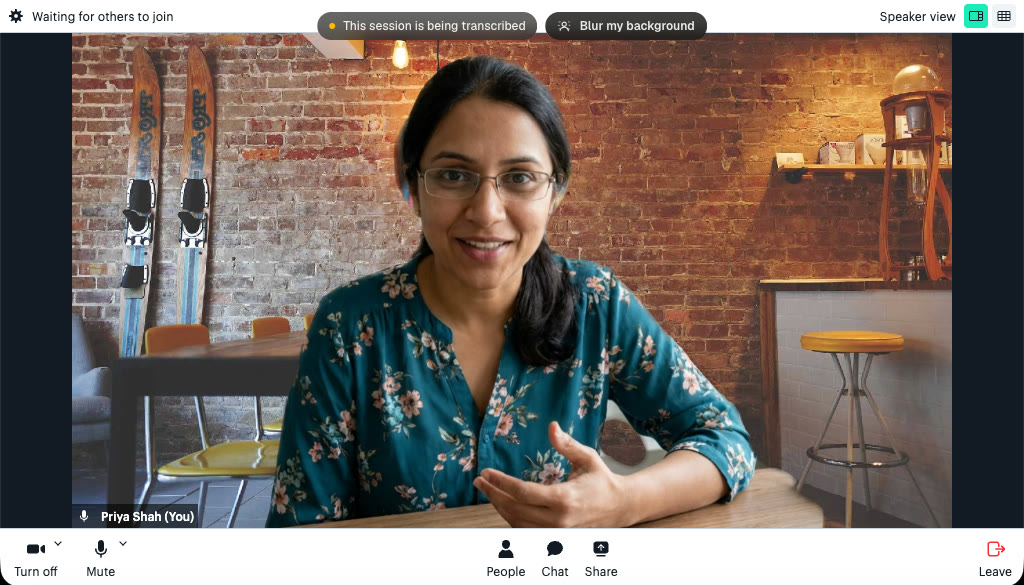
  1. Press Blur my background

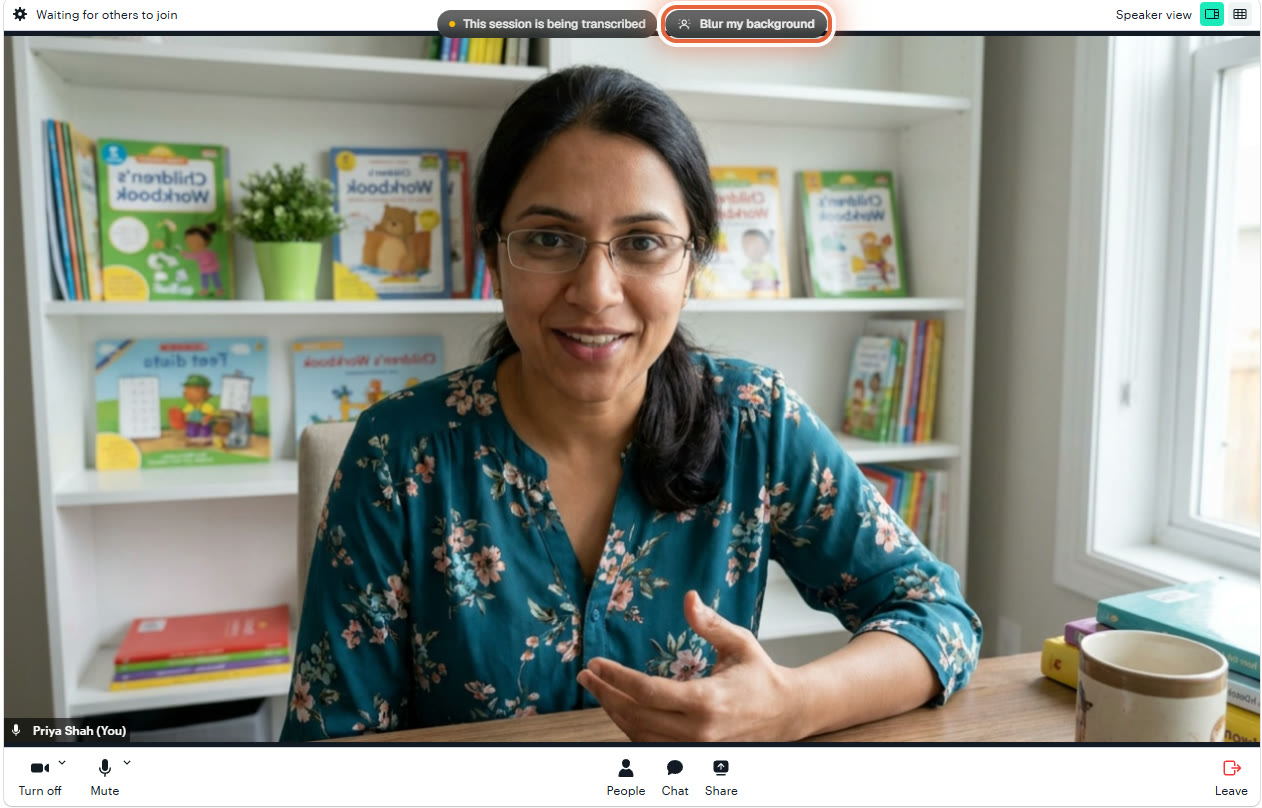
    Once you are in the session, the Blur my background button is at the top of the call. It is in the same place in a real session and in the Test video practice room.
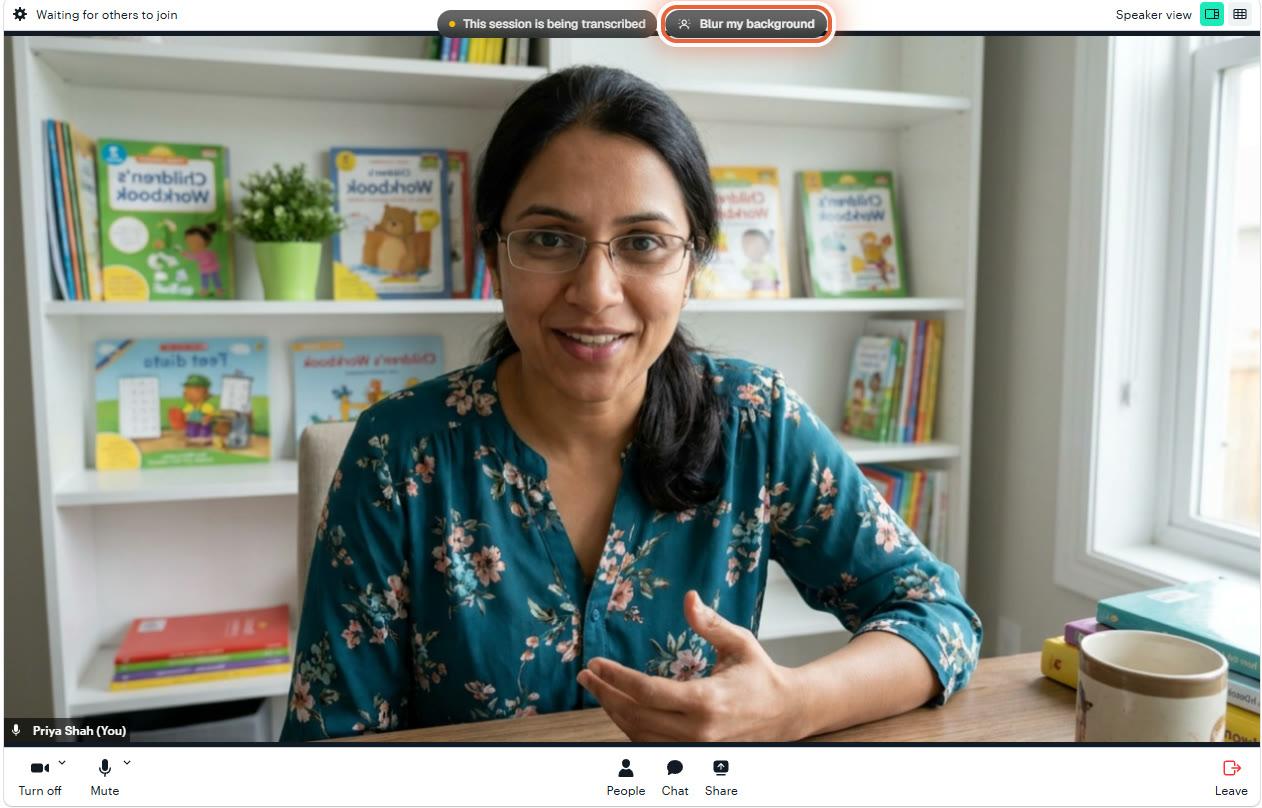

    Microsoft Edge on Windows: a video session with the Blur my background button highlighted at the top of the call
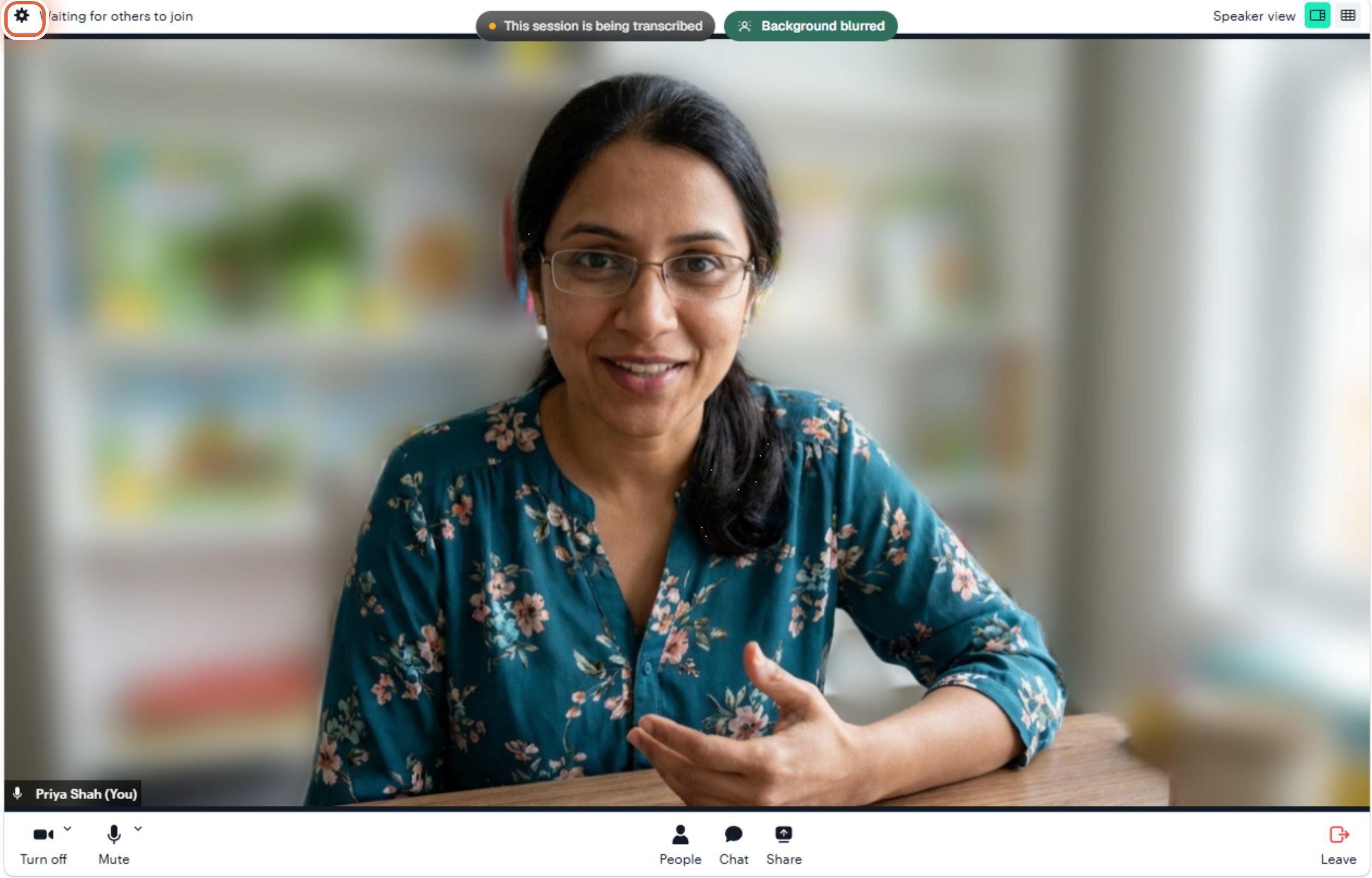
  2. Your room is hidden

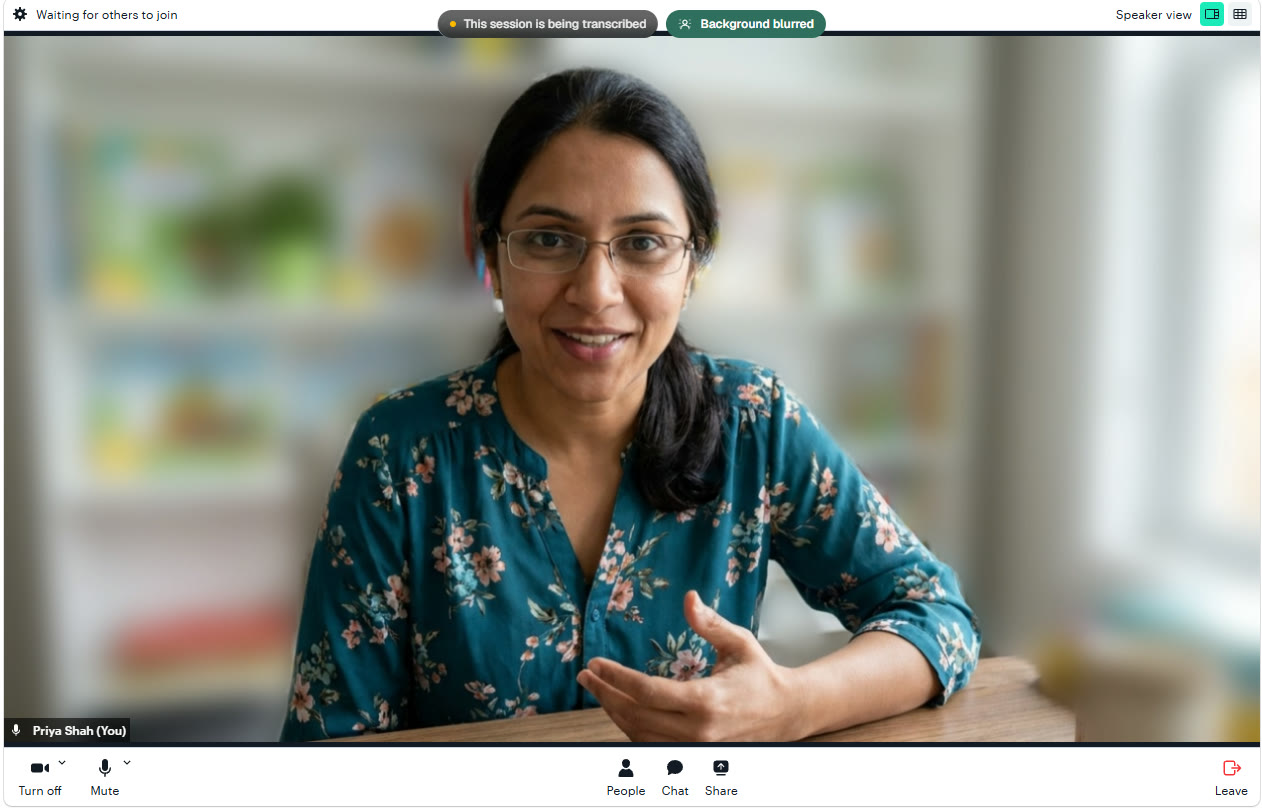
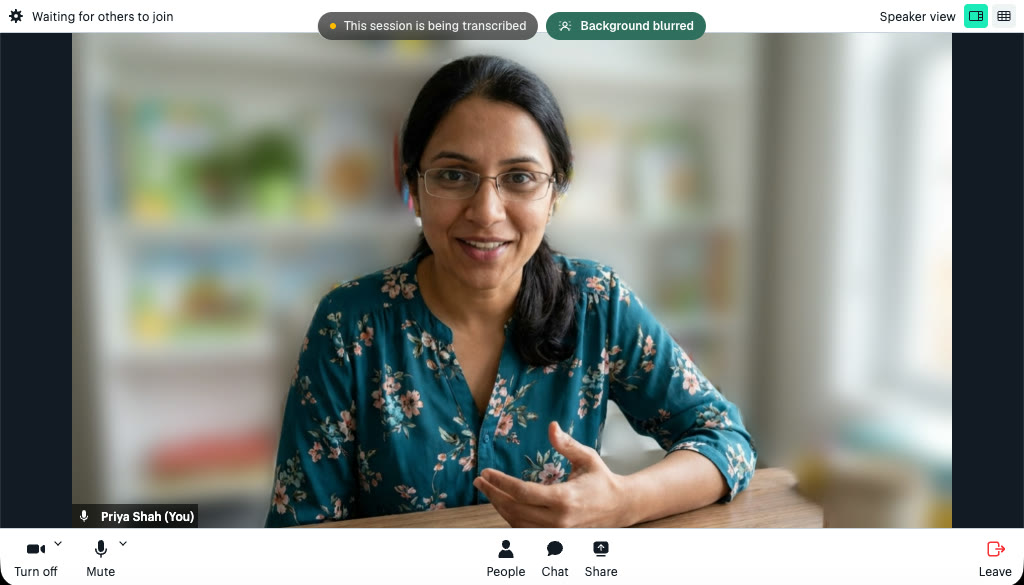
    The button turns green and reads Background blurred. You stay sharp and everything behind you is softened. The other person sees exactly what you see here.
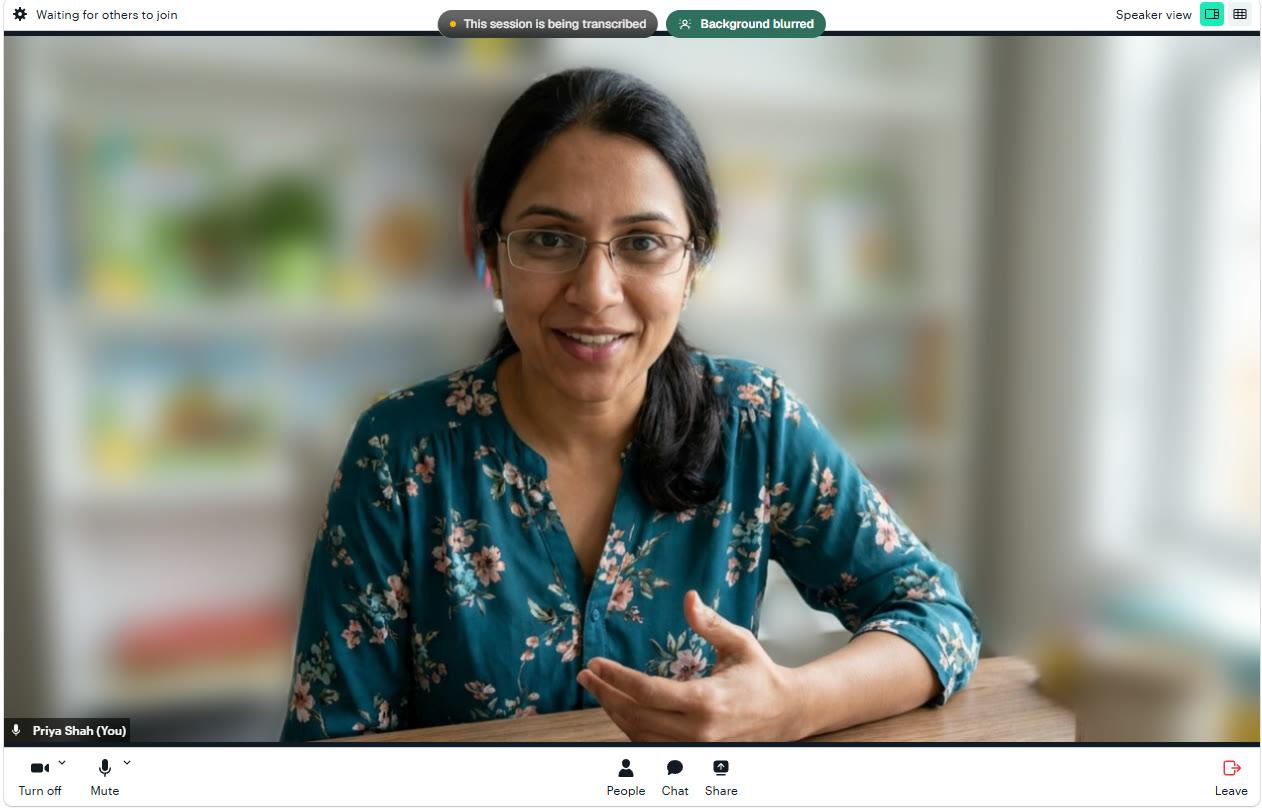
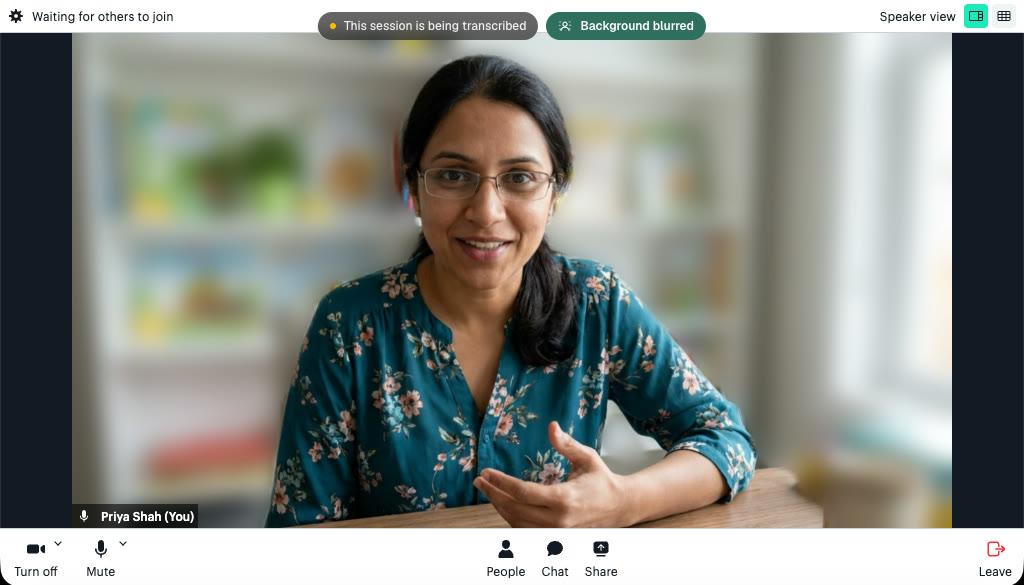
    Microsoft Edge on Windows: the same call with the background blurred and the button reading Background blurred

    Press the button again to turn the blur off. Your choice is remembered on this computer, so your next session starts the same way.

More choice: softer blur or a picture

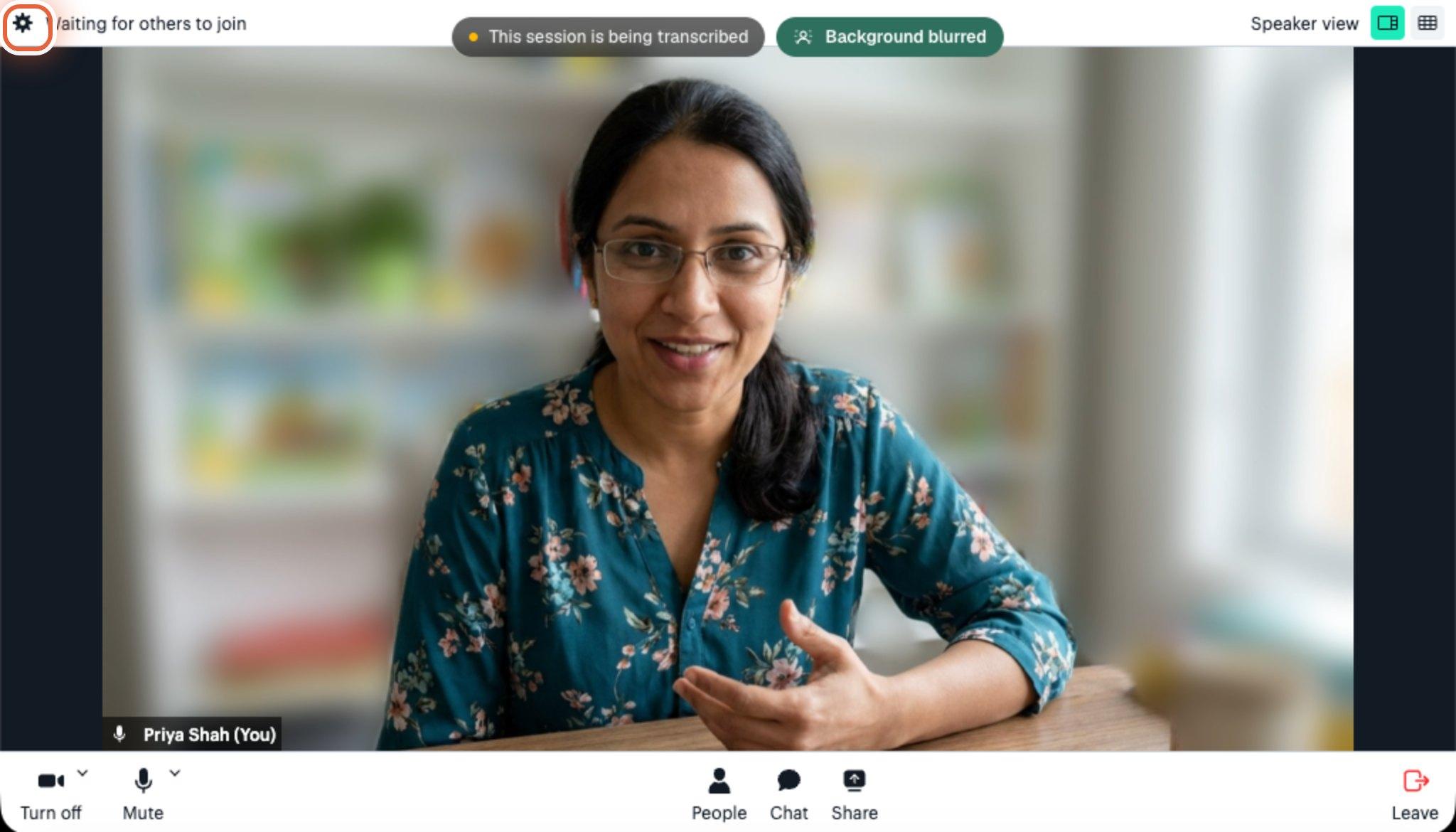
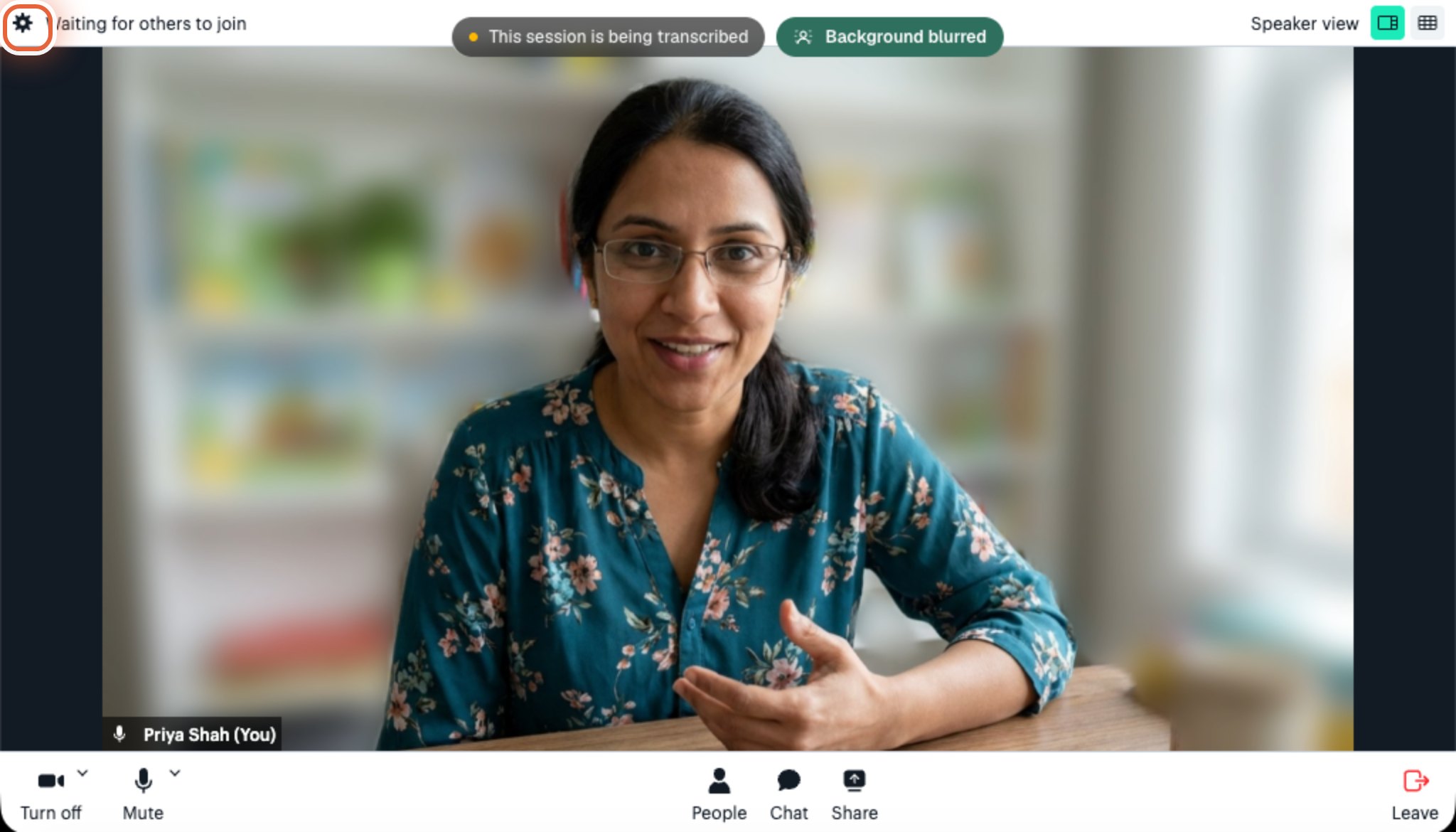
  1. Press the cog at the top left of the call

    The cog opens the call settings.
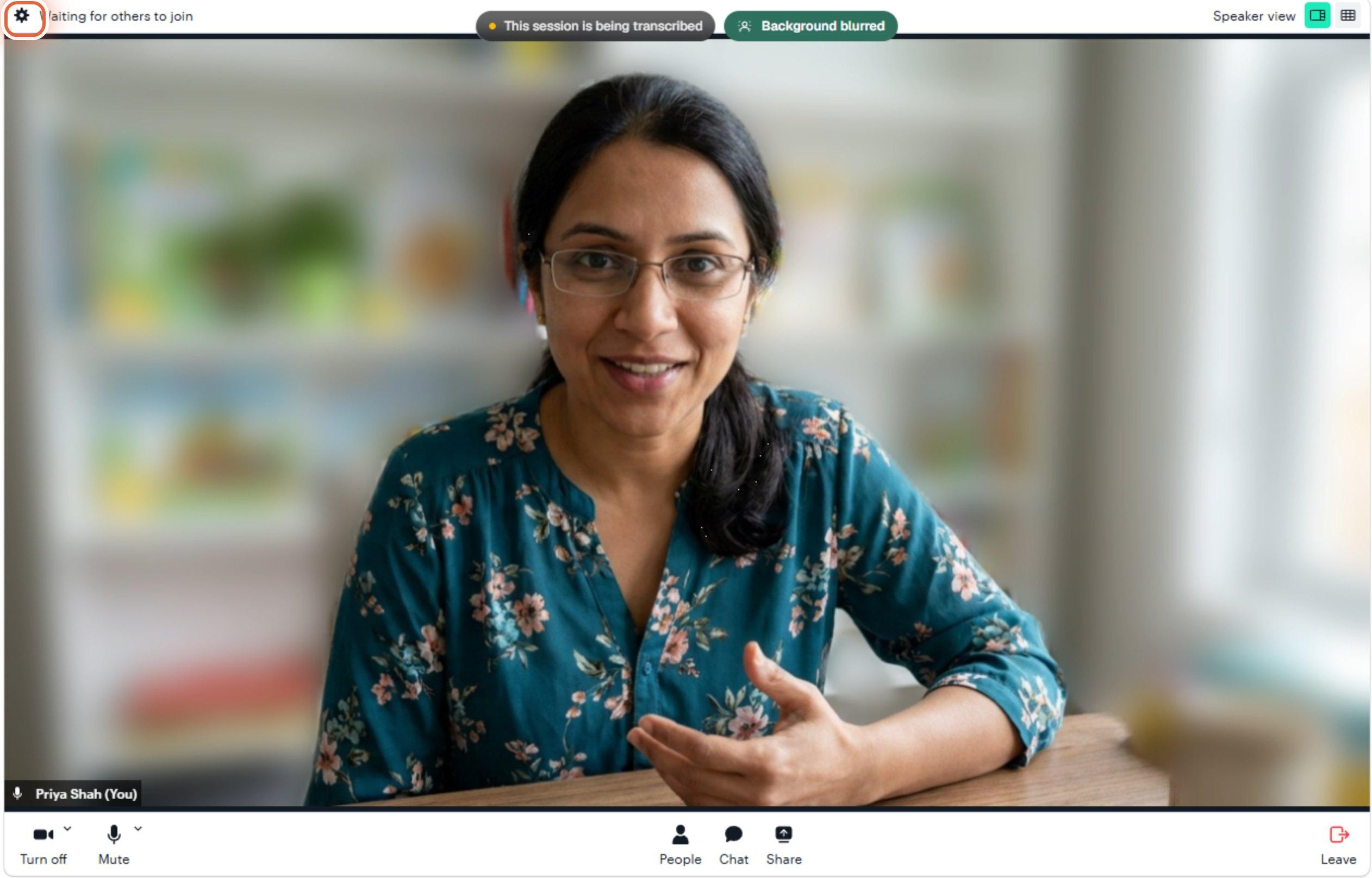
    Microsoft Edge on Windows: the top left corner of the call with the cog highlighted
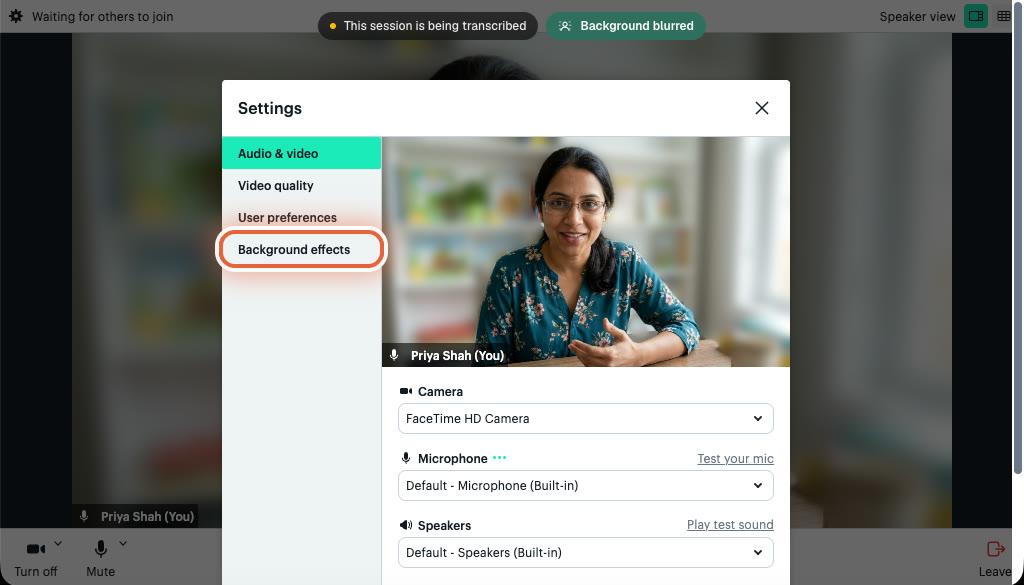
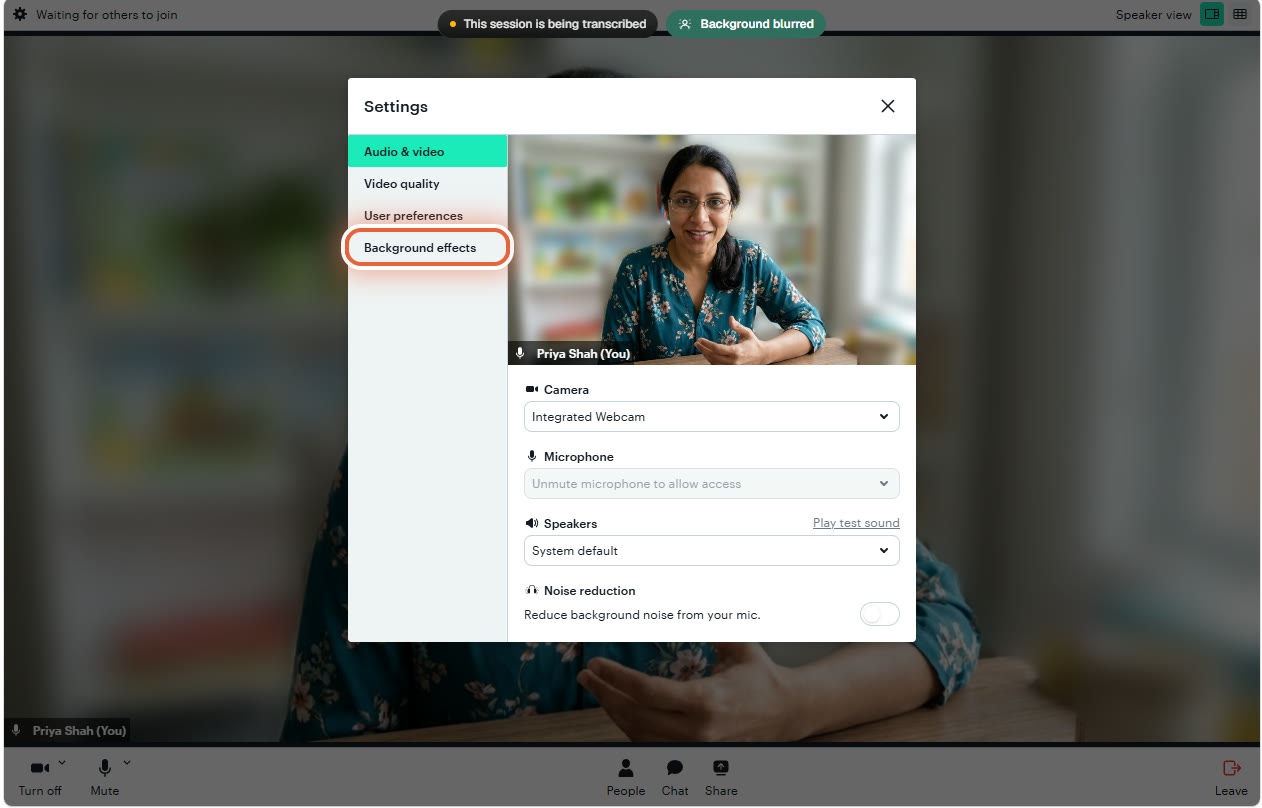
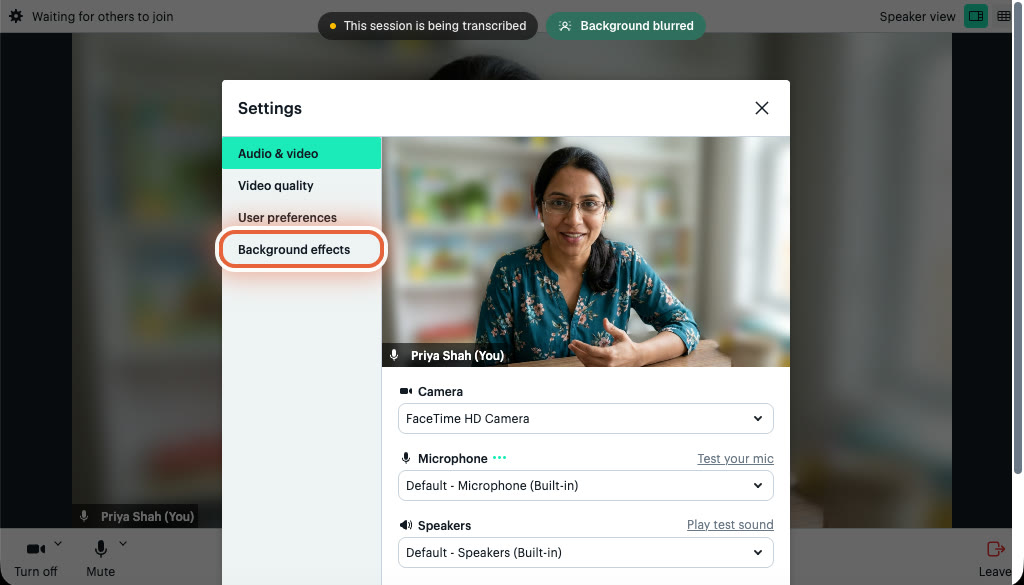
  2. Choose Background effects

    It is the last item in the list on the left.
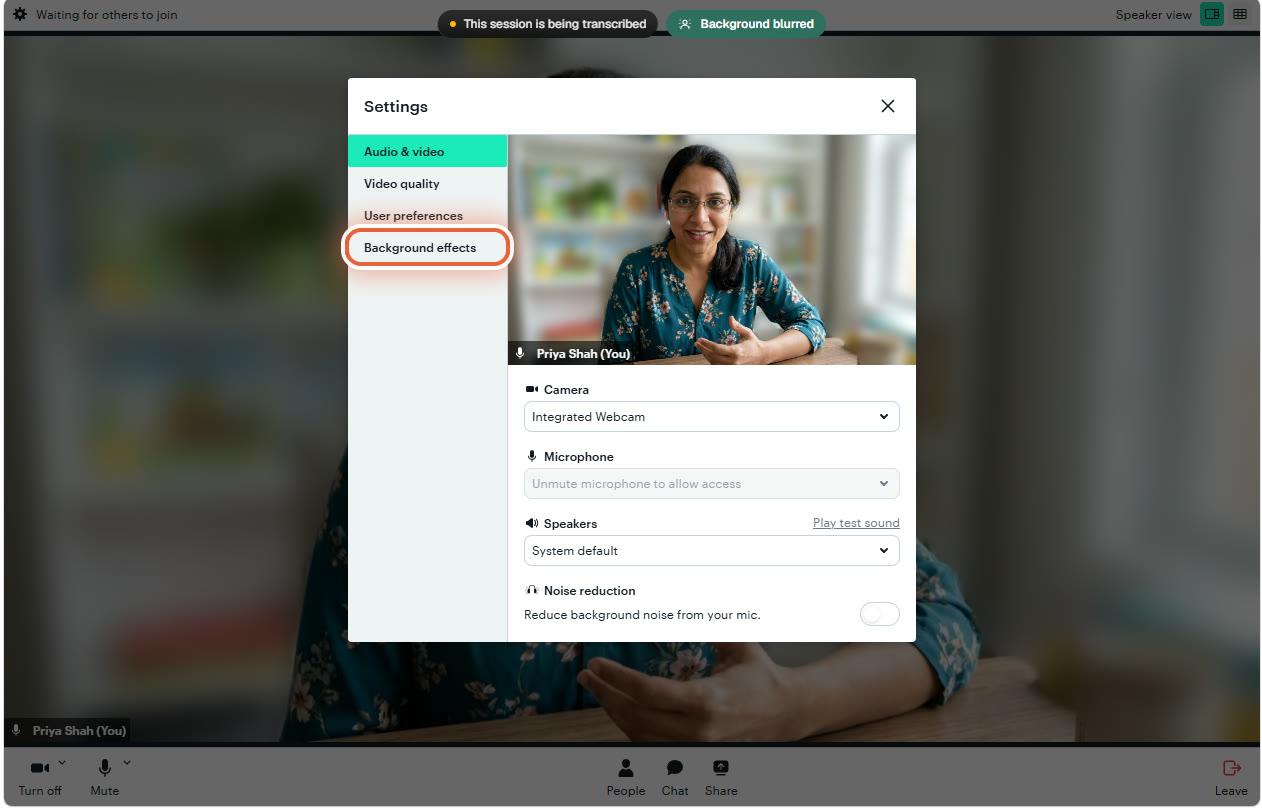
    Microsoft Edge on Windows: the call settings with Background effects highlighted in the list on the left
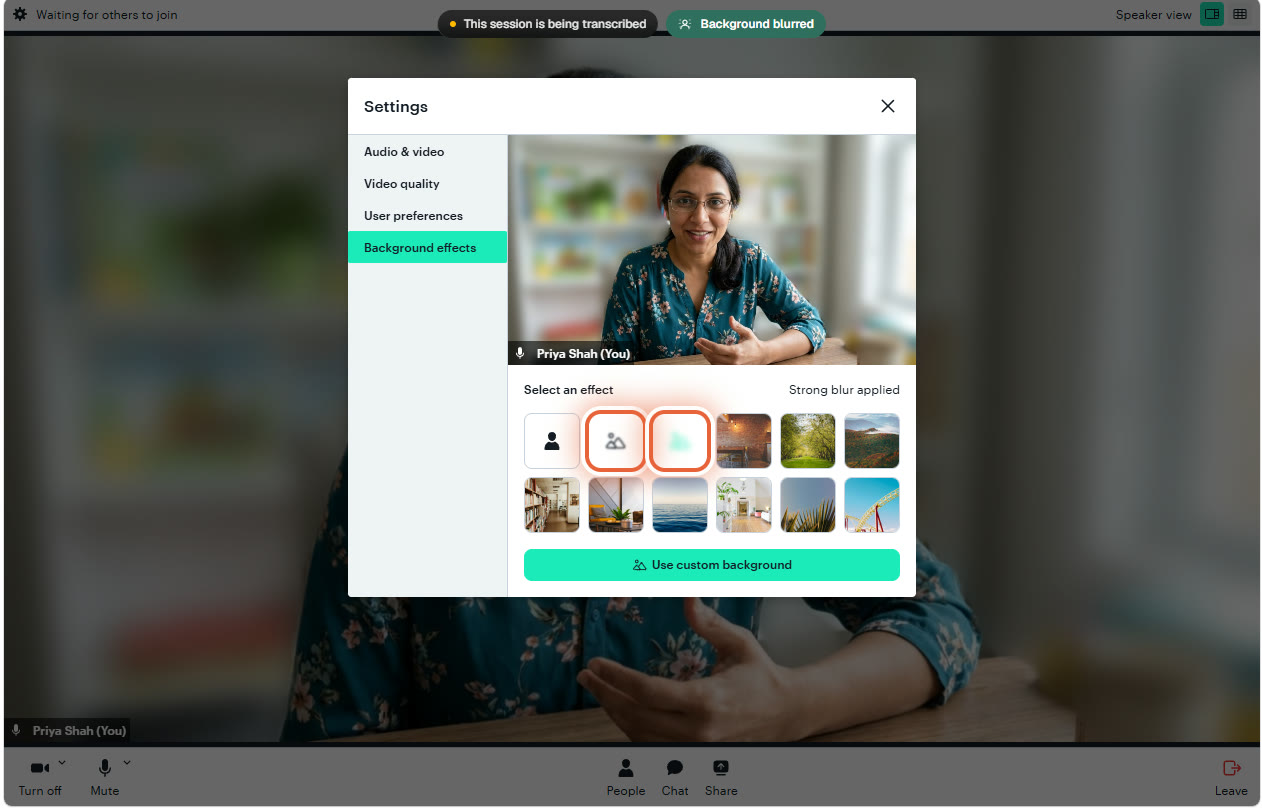
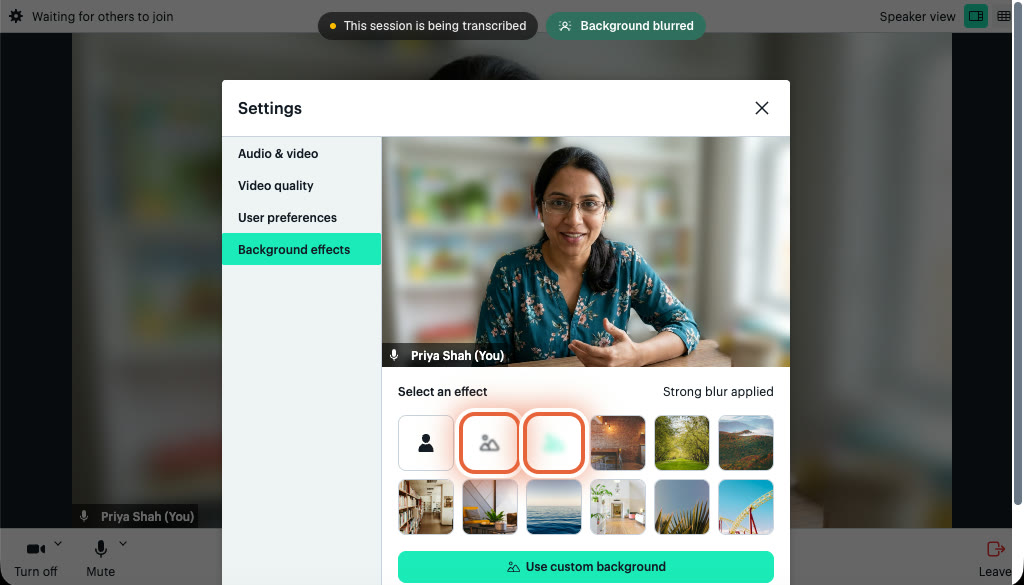
  3. Pick an effect

    You see yourself at the top, so you can try each one before anybody else notices. The first tile turns effects off. The next two are soft blur and strong blur. The pictures replace your room completely.
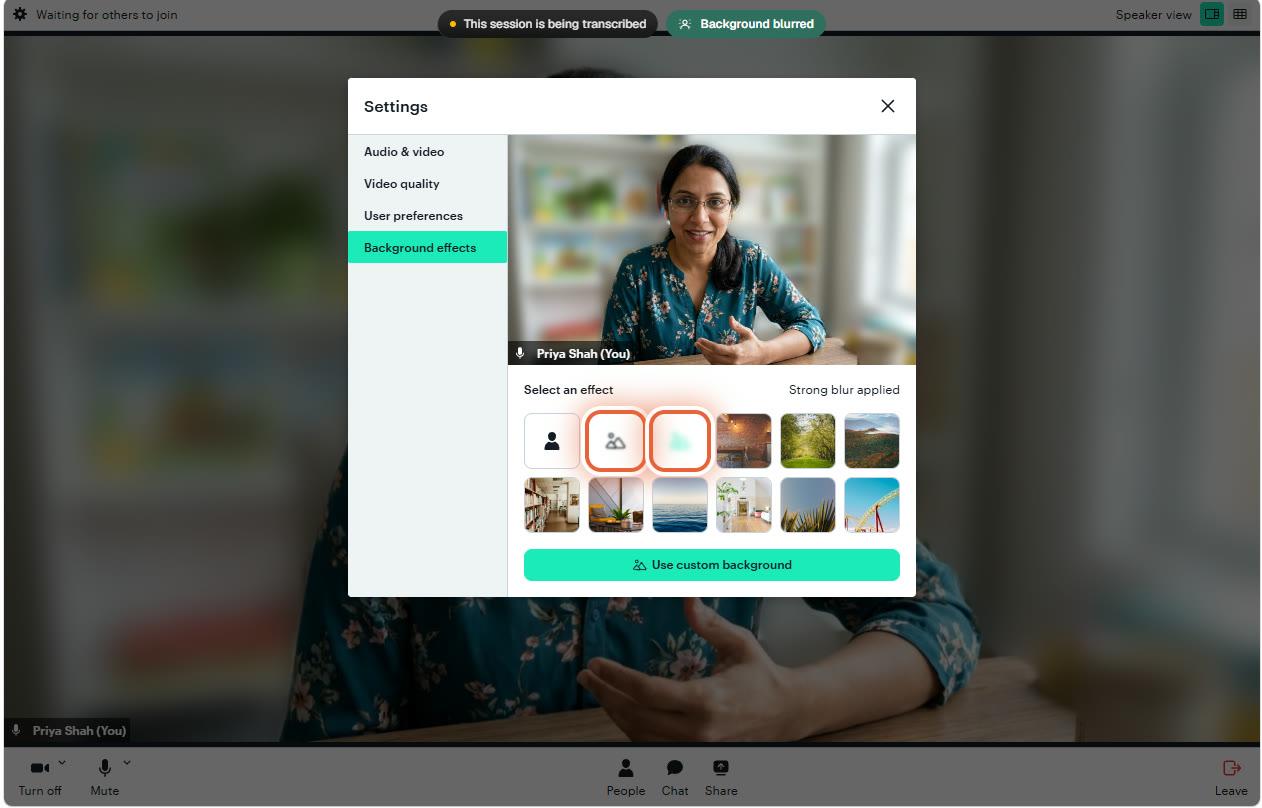
    Microsoft Edge on Windows: the Background effects panel with the soft blur and strong blur tiles highlighted, followed by rows of picture backgrounds
    Soft blur and strong blur are highlighted. The first tile switches effects off.
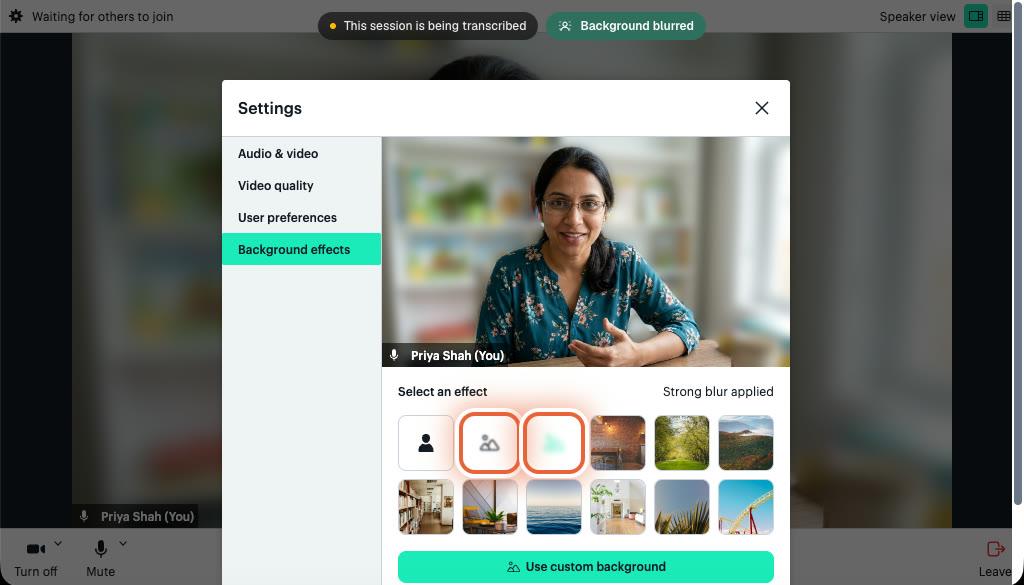
    Use custom background lets you upload your own picture, for example a plain wall or a tidy bookshelf.

  4. Close the panel and carry on

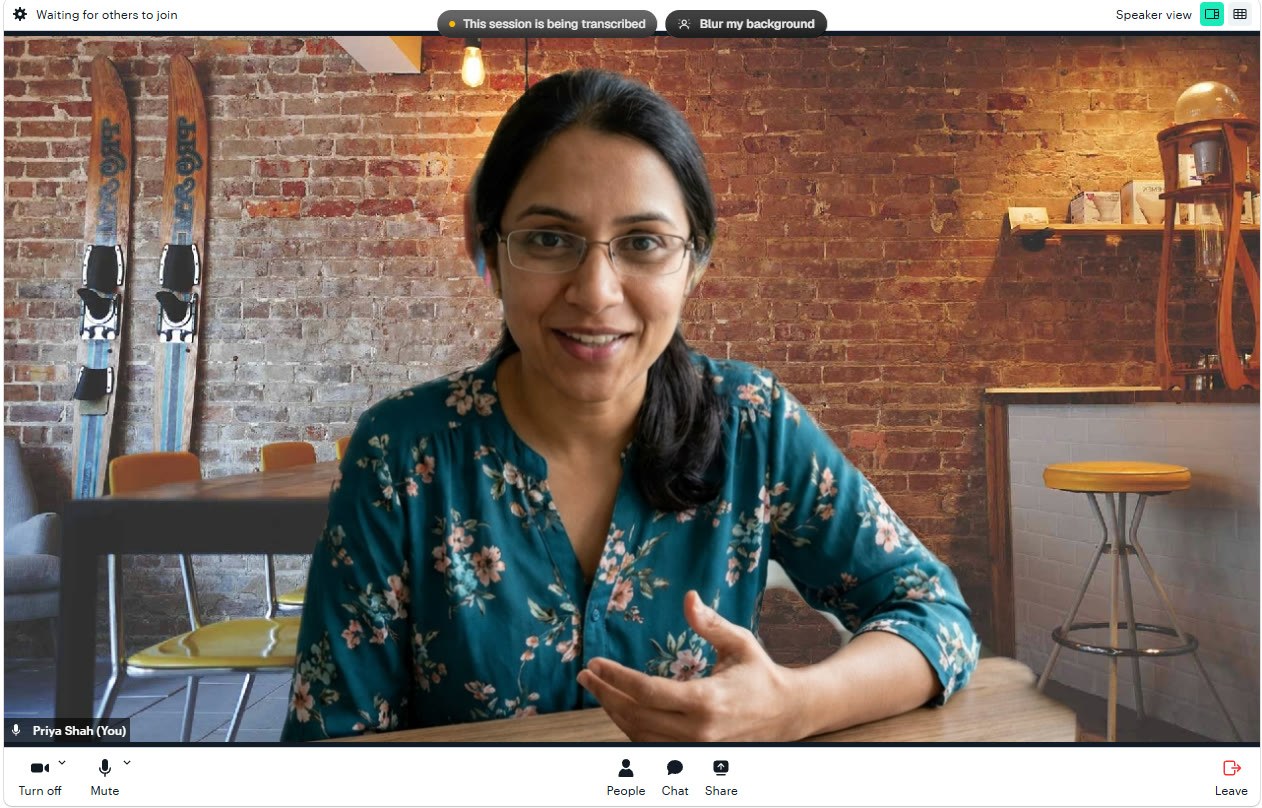
    Press the cross at the top right of the panel. The effect stays on for the rest of the session.
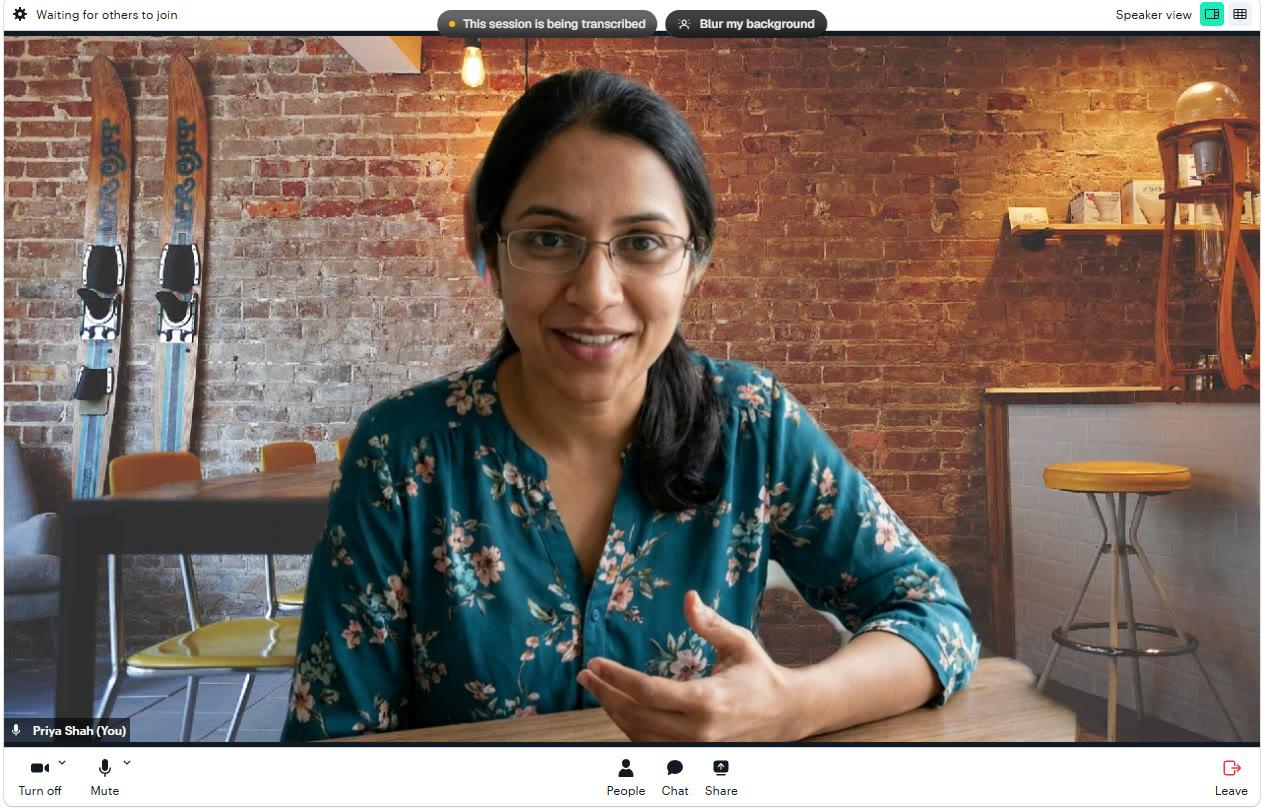
    Microsoft Edge on Windows: the call with a picture of a brick-walled cafe replacing the room behind the tutor

If it does not work

I cannot see the Blur my background button

You are probably on a phone or tablet, or an older browser. Join from a computer using an up to date Chrome or Edge.

There is no Background effects in my settings

The video tool only offers that panel when your browser's graphics acceleration is switched on. The Blur my background button still works without it, so use that.

To get the full panel, open your browser's own settings, search for graphics acceleration, switch on Use graphics acceleration when available, then restart the browser.

Background effects is greyed out

Your camera is off, or the browser has not been allowed to use it. Turn the camera on with the button at the bottom left of the call, then open the settings again.

My video has become slow or jerky

Background effects make your computer work harder. On an older laptop, turn the effect off, or try soft blur, which is lighter than a picture. Closing other tabs and programs helps too.

Parts of me disappear, or my hands flicker

The effect works best with plain light on your face and some distance between you and the wall. Face a window or a lamp rather than sitting with one behind you.

I want to check it before a real session

Tutors and specialists can open Test video in the dashboard sidebar. It is a private practice room with the same camera menu, so you can try every effect on your own.

A background effect only changes what your camera shows. When you share your screen, the other person sees that screen exactly as it is.

Still stuck?

We will sort it out with you

Tell us what you pressed, what you saw, and which device and browser you are using.
Email us