During a call
Share your screen
Show a worksheet, document or website during your call. Everyone in the session can share.

Which computer are you using?
Join your session
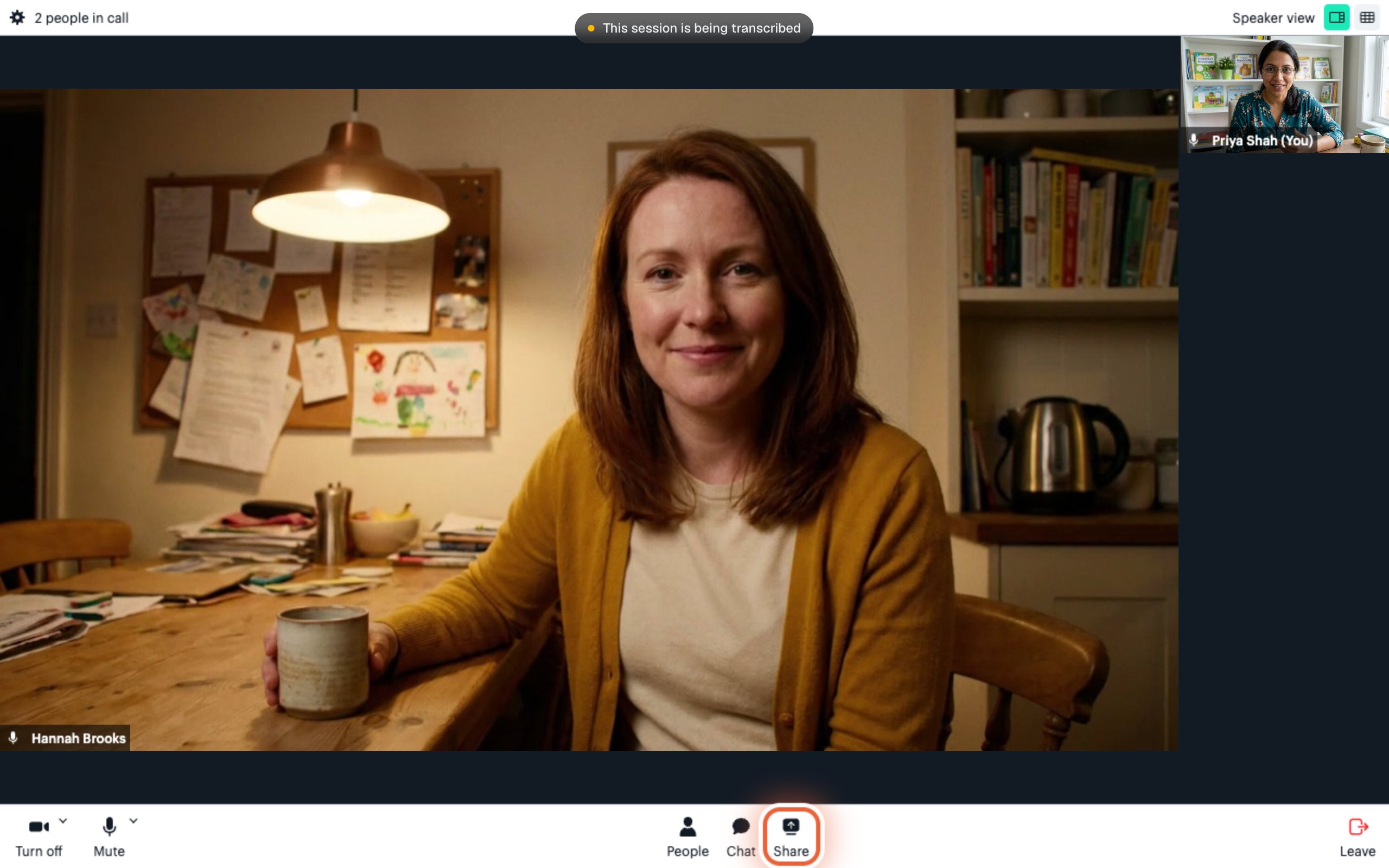
Press Share in the bottom bar
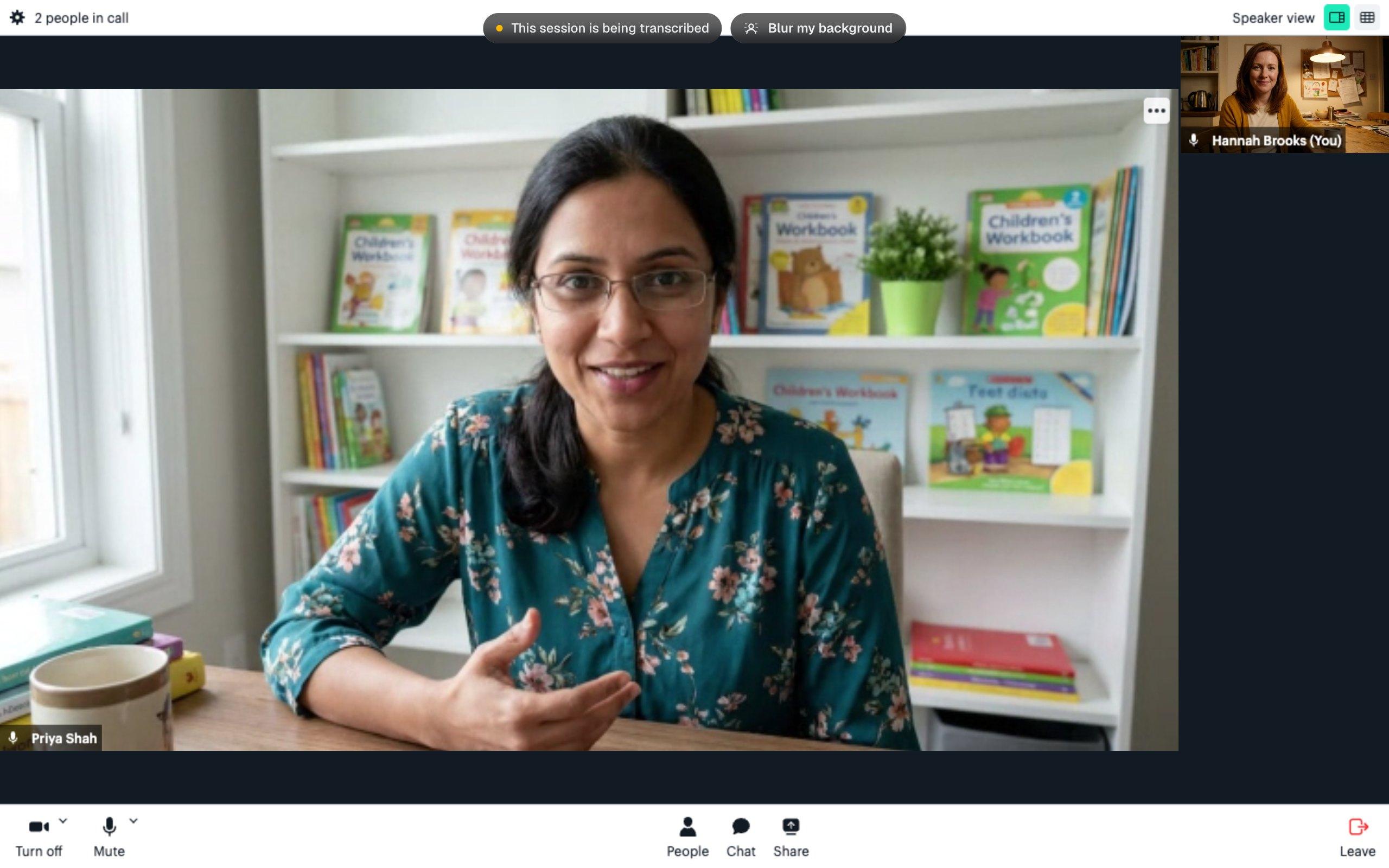
The buttons along the bottom of the call are Camera, Mute, People, Chat, Share and Leave. Press Share.
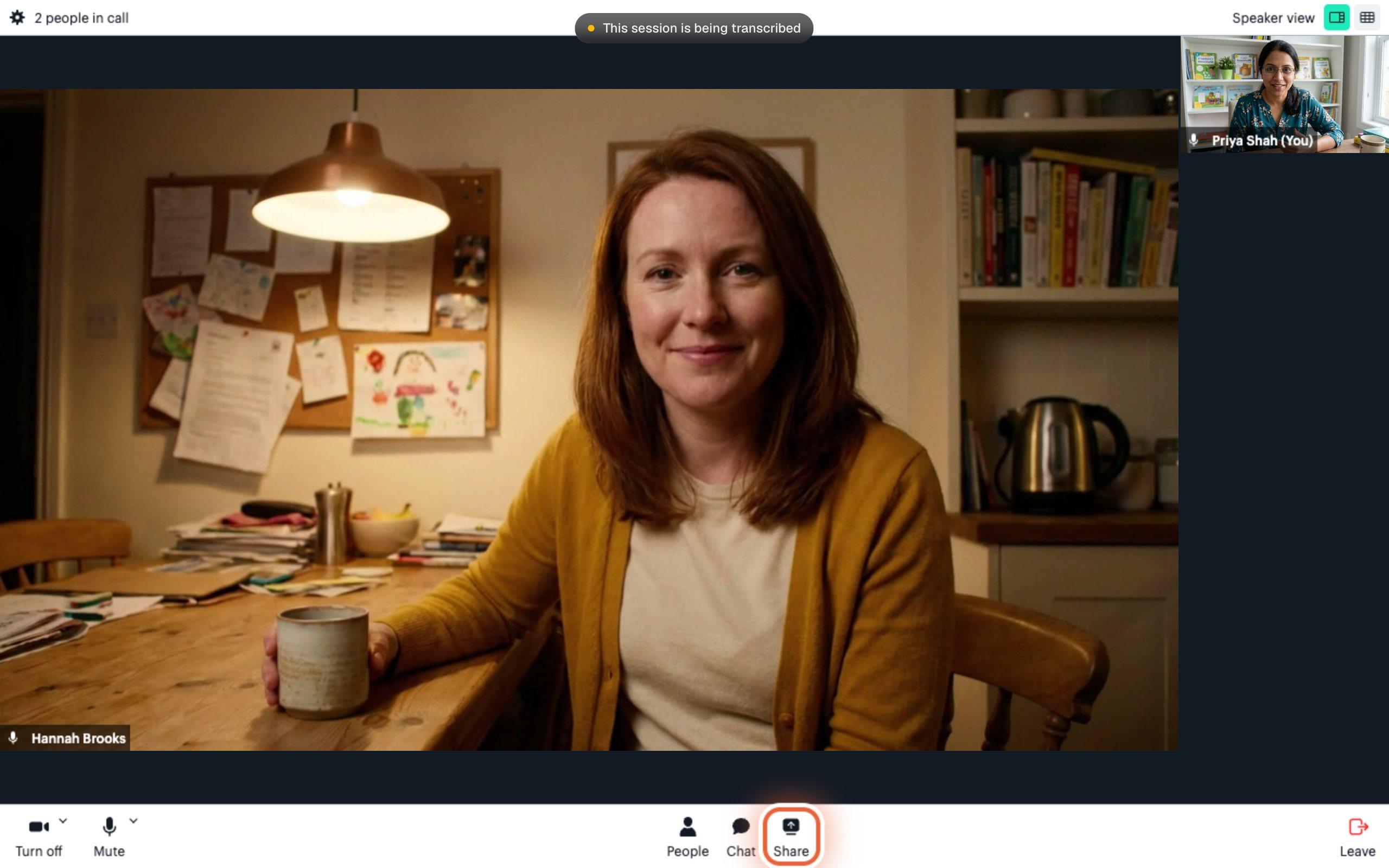

Close-up: Share sits next to Chat Click what you want to show, then press Share in the pop-up
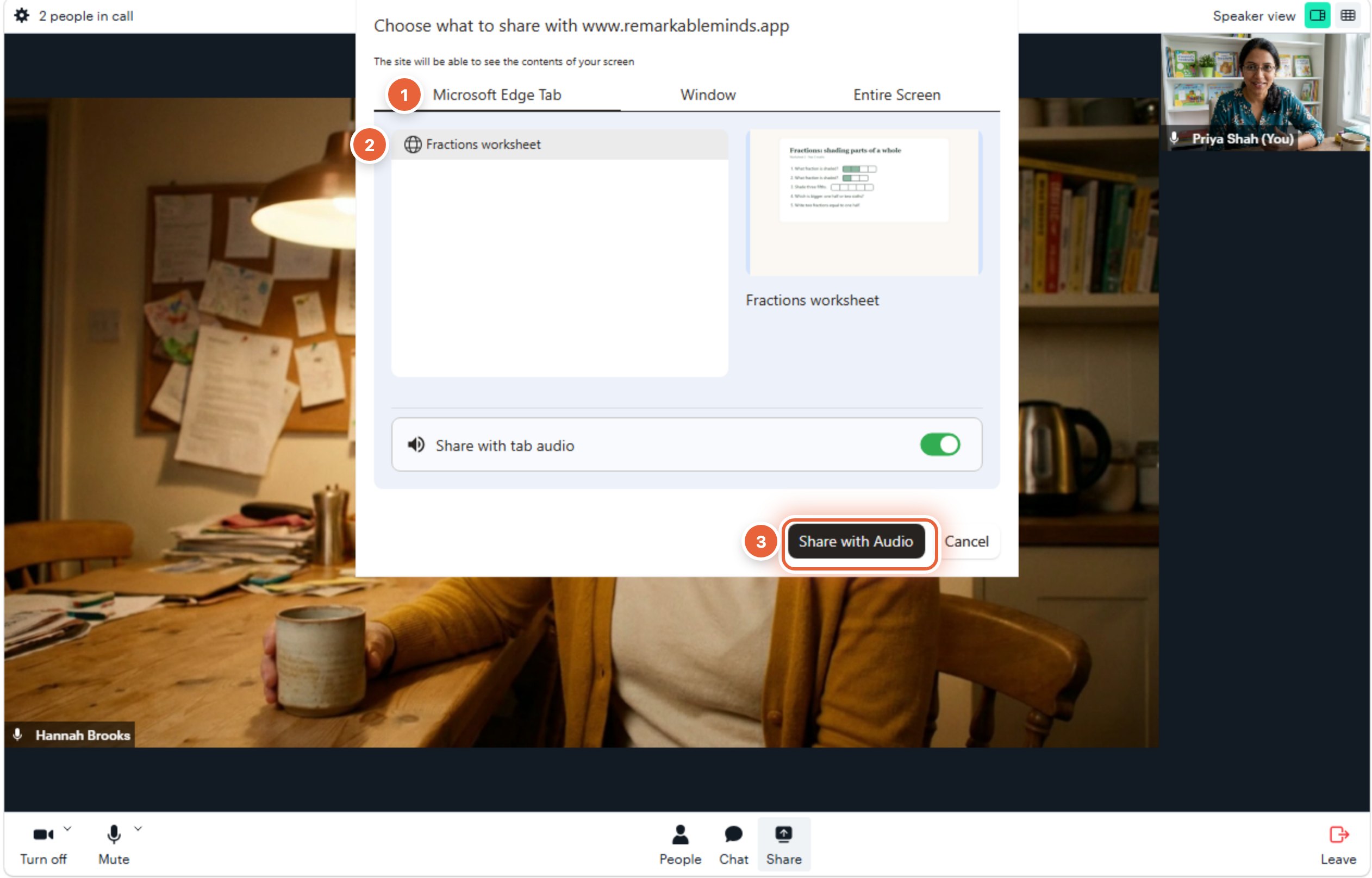
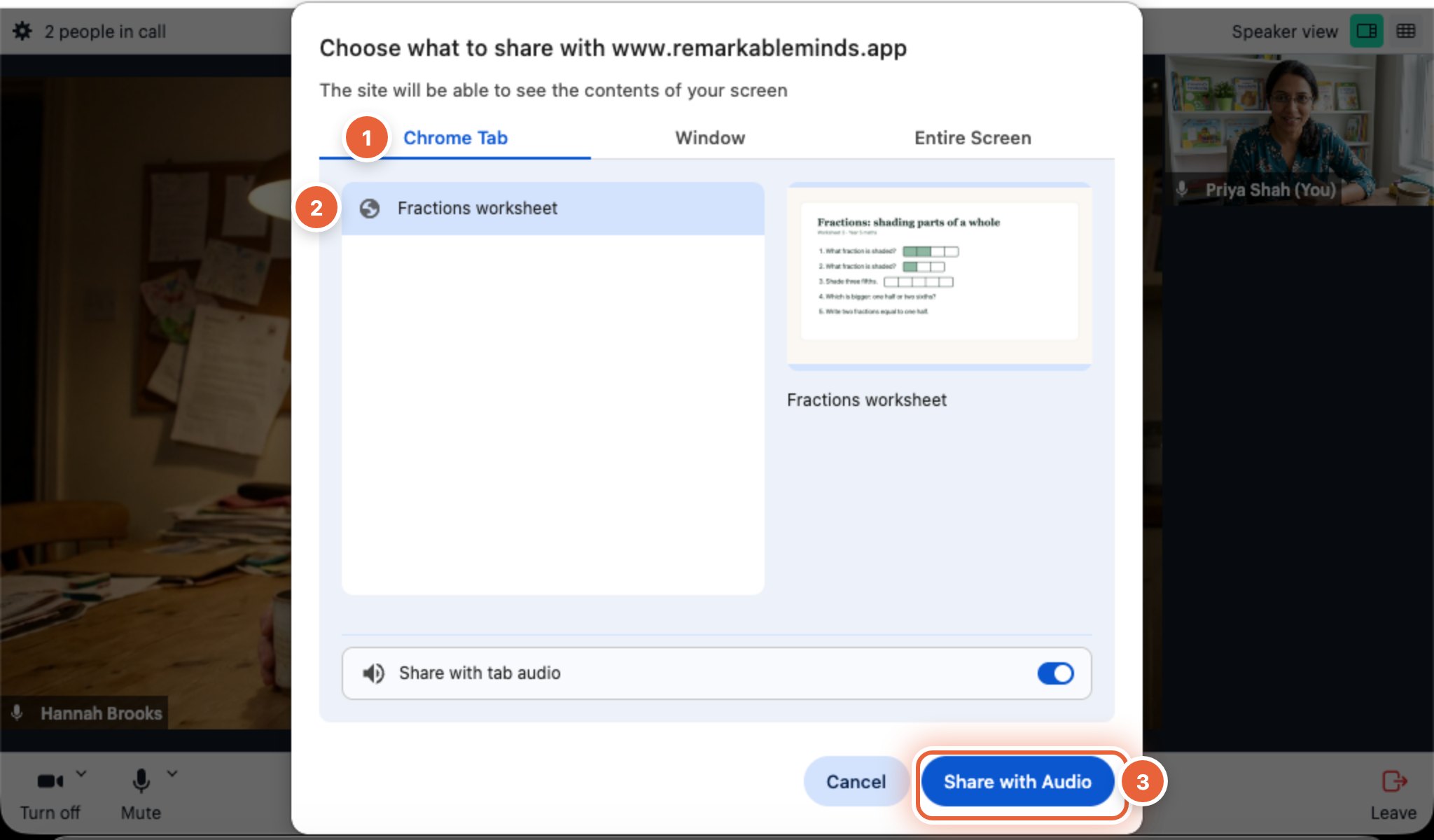
Your browser opens its own pop-up asking what to share. Nothing is shared yet.
- Pick a type along the top. A browser tab is best for a website or an online document. A window is best for a PDF or Word file. Entire screen shows everything you can see.
- Click the thing you want to show. A small preview appears beside it.
- Press the Share button in the pop-up. It says Share or Share with Audio. In Safari and Firefox it says Allow.
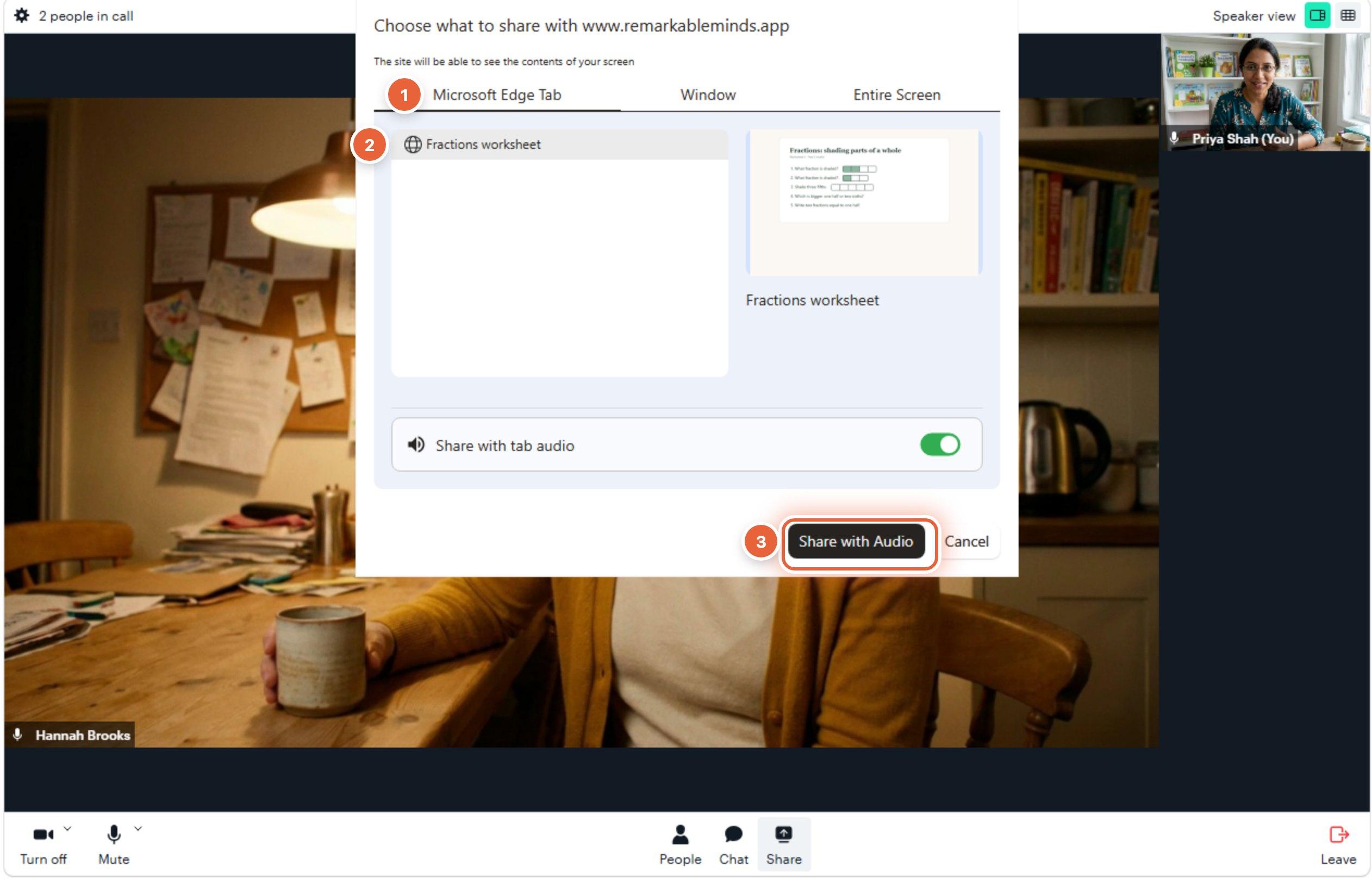
Microsoft Edge on Windows. Chrome on Windows looks almost the same. 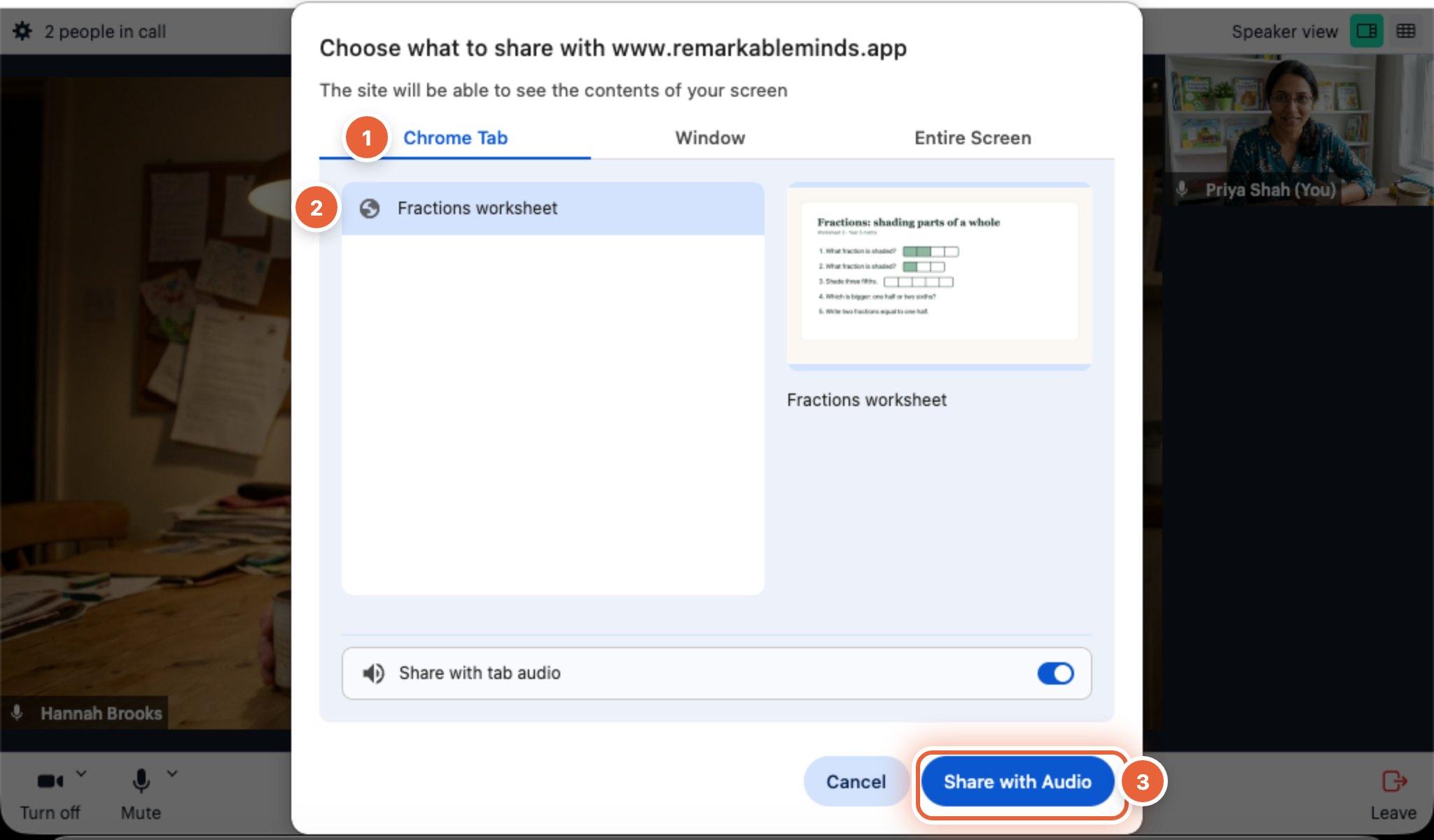
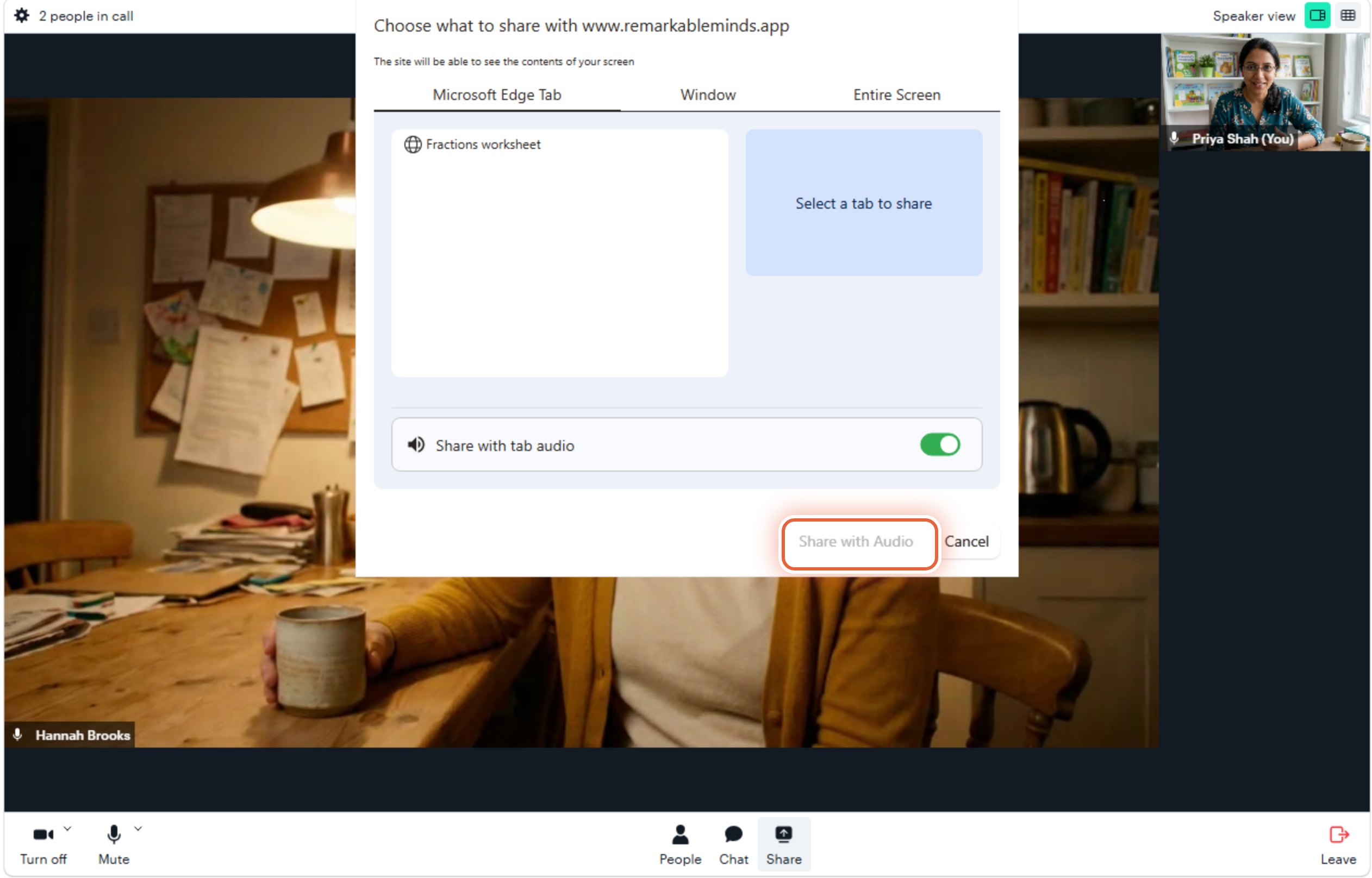
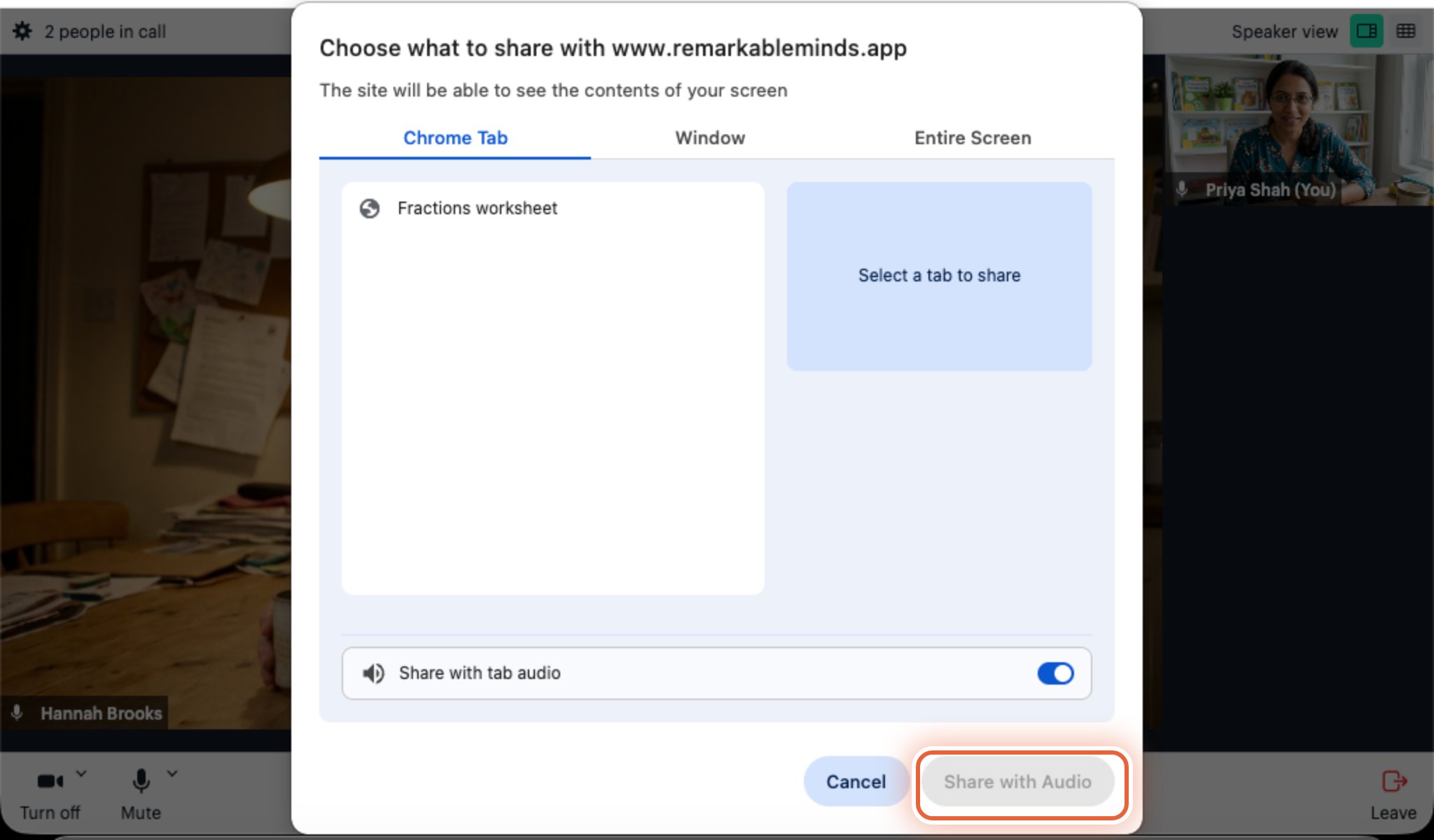
Chrome on a Mac. Edge on a Mac looks almost the same. The Share button stays grey until you click something. This is where most people get stuck. If the only button you can press is Cancel, you have not chosen a tab, window or screen yet. Click one in the list first.
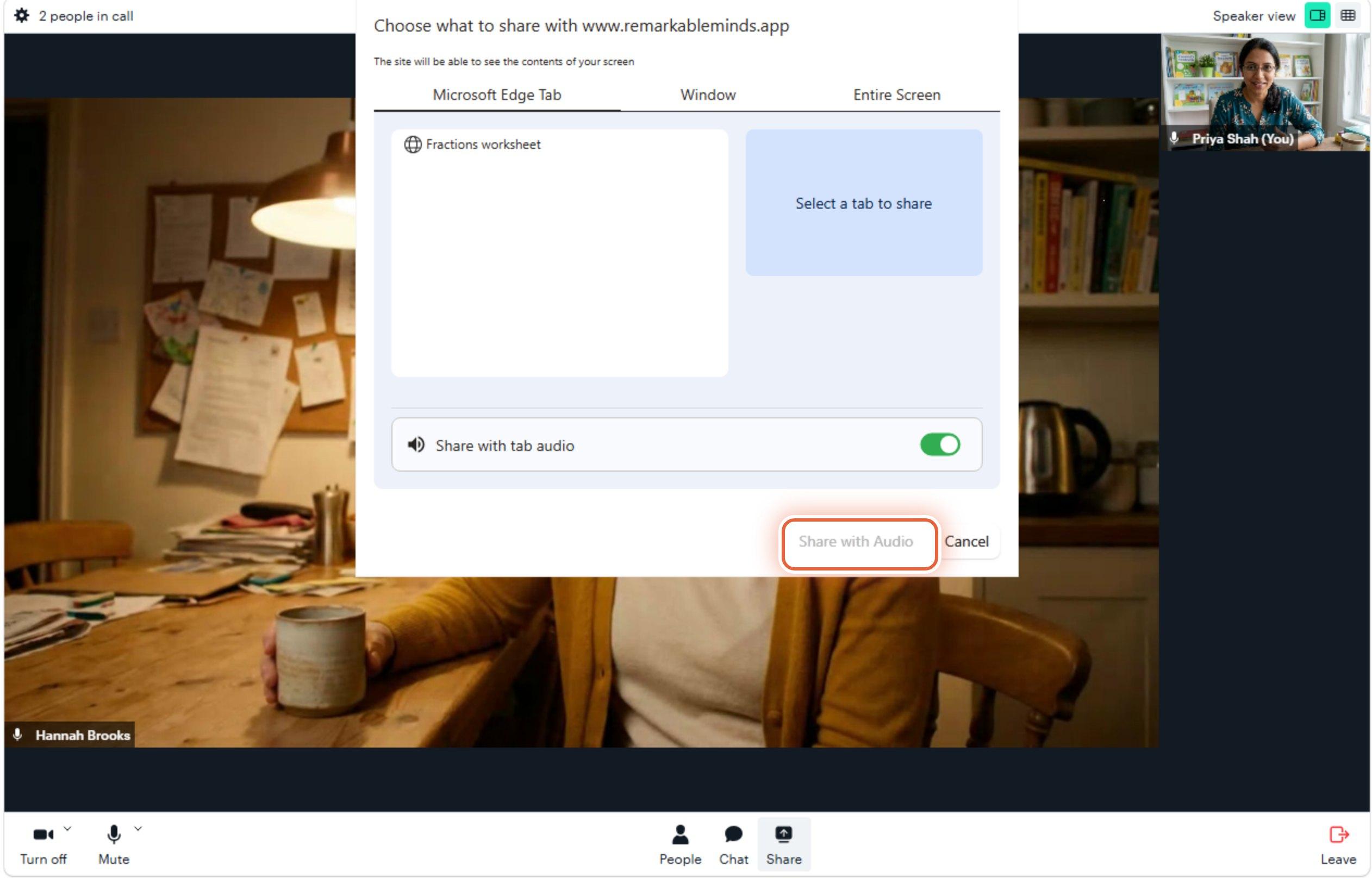
Nothing selected yet, so the button is greyed out 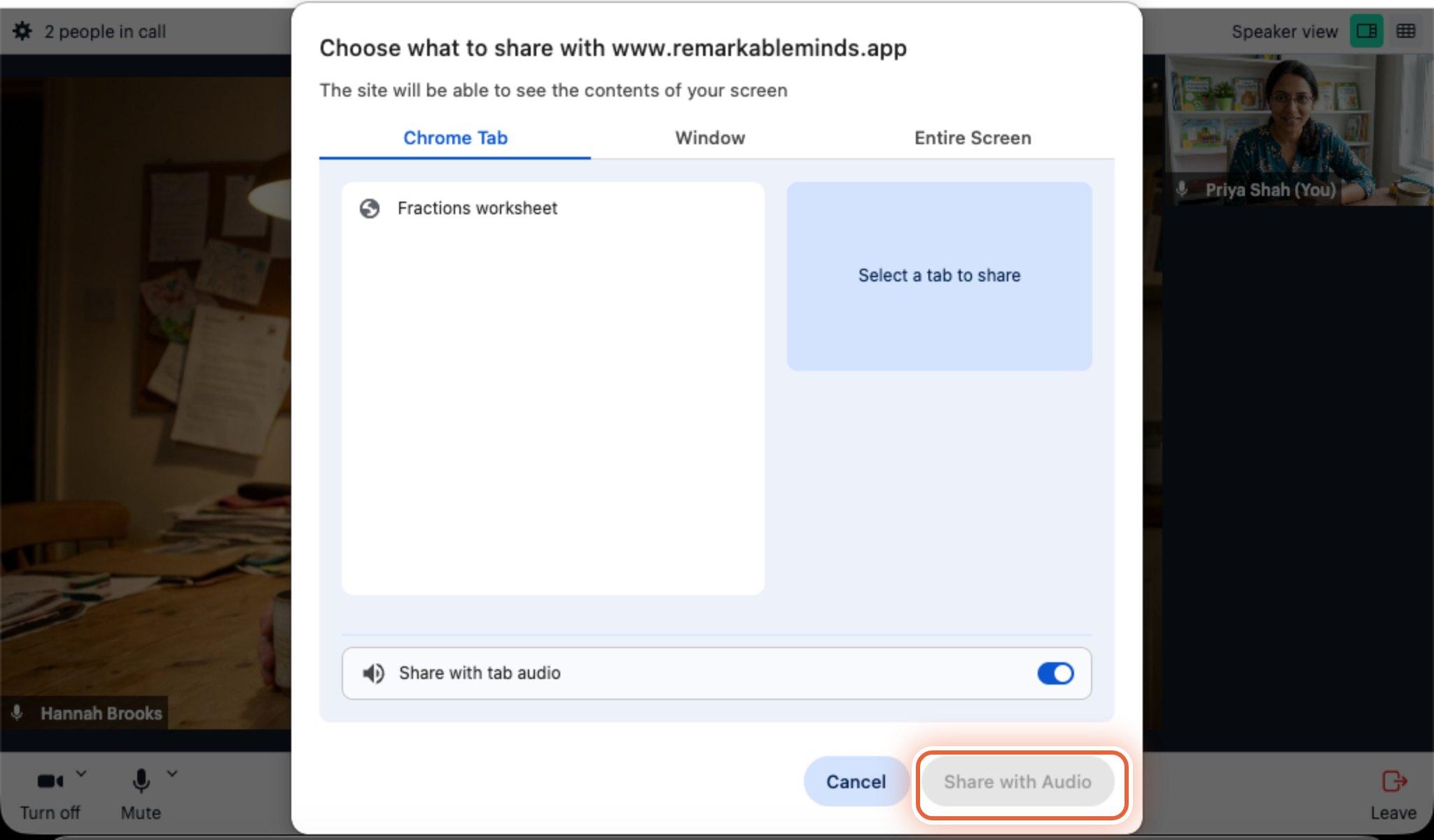
Nothing selected yet, so the button is greyed out Using Safari? Safari asks whether to allow screen sharing instead. Choose to share a window or the whole screen, then click the one you want.
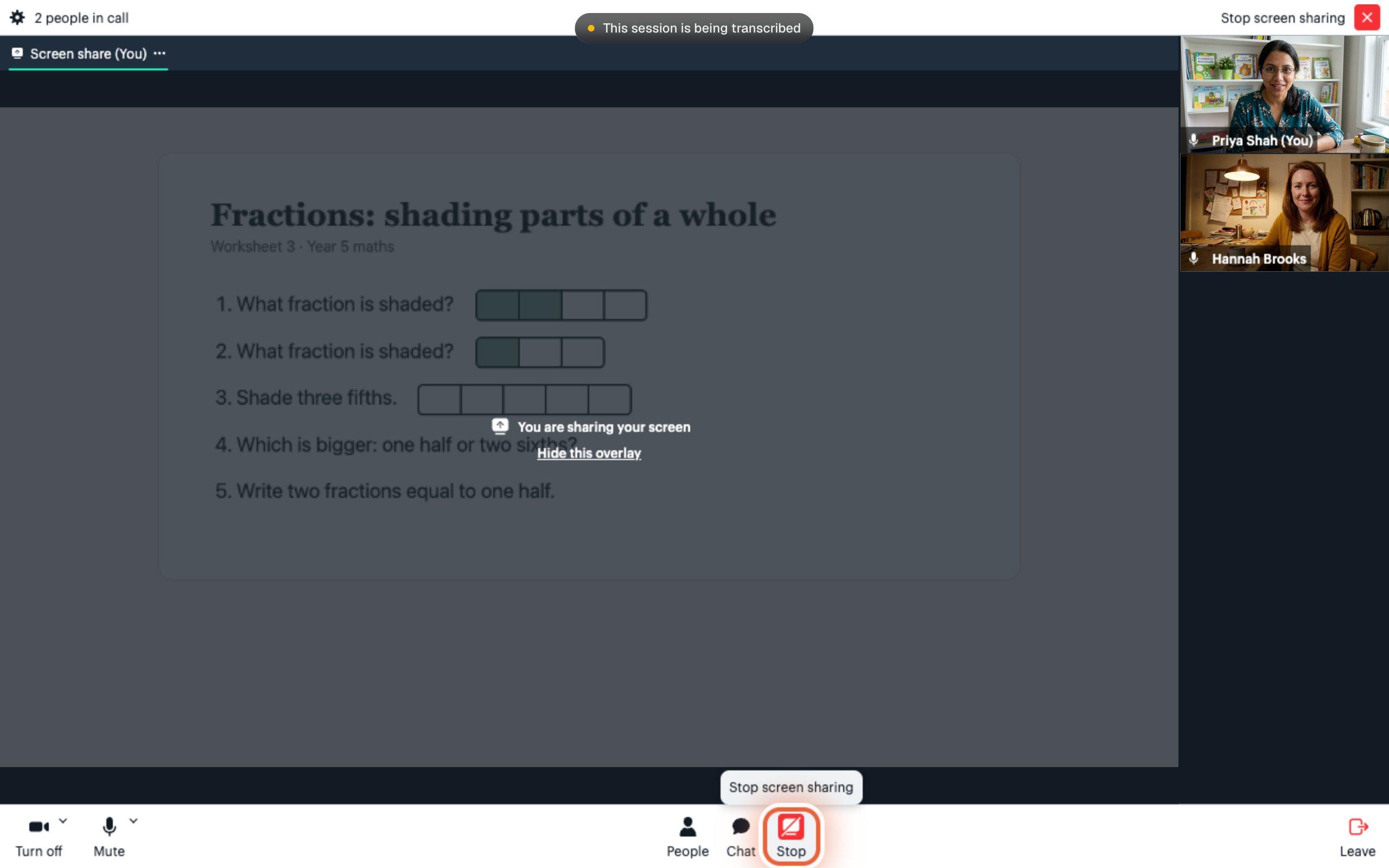
You are now sharing
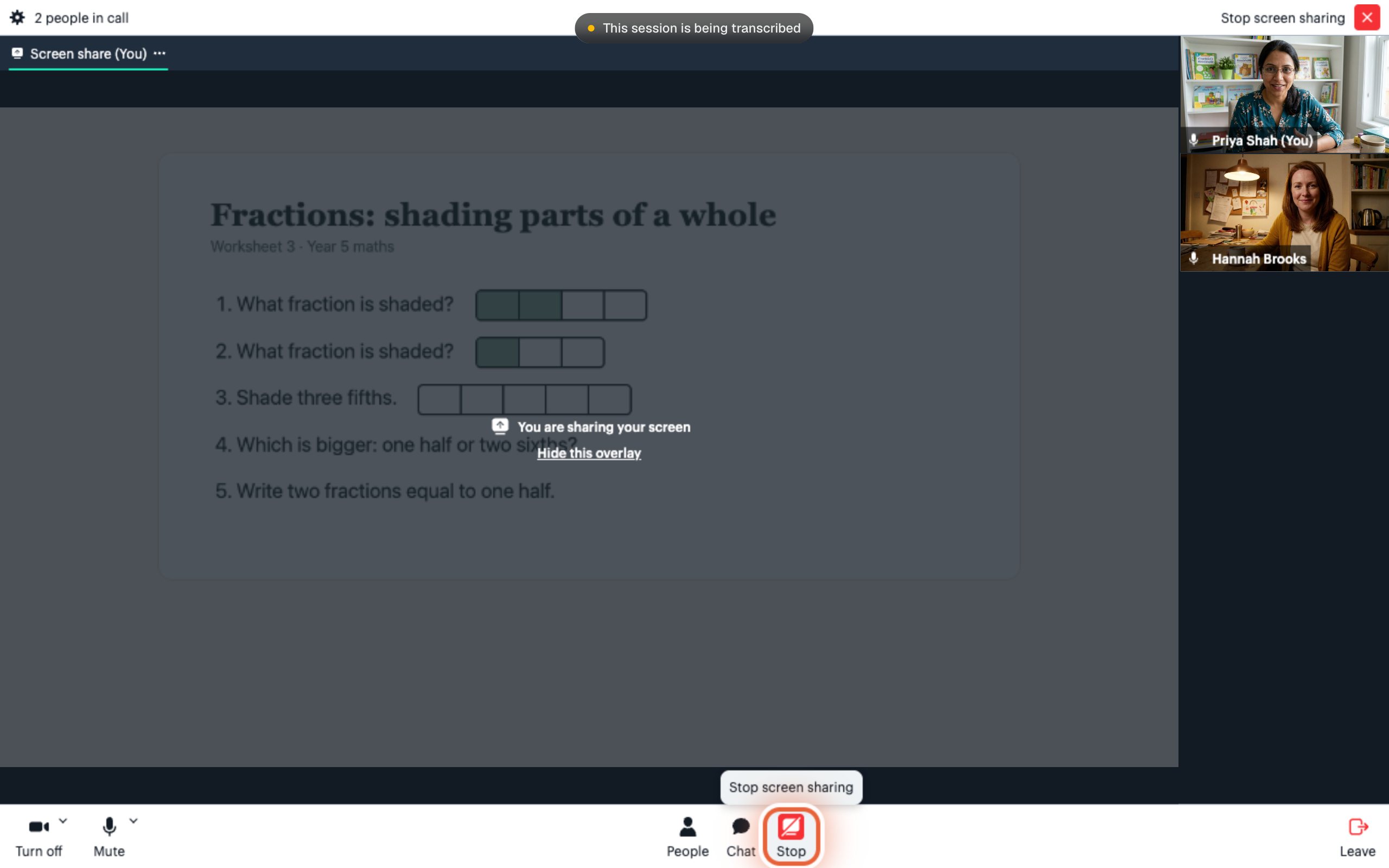
The call shows You are sharing your screen. Your own view is dimmed on purpose. The other person sees it clearly. Switch to the tab or window you shared and carry on as normal; they can still hear you and see your camera.
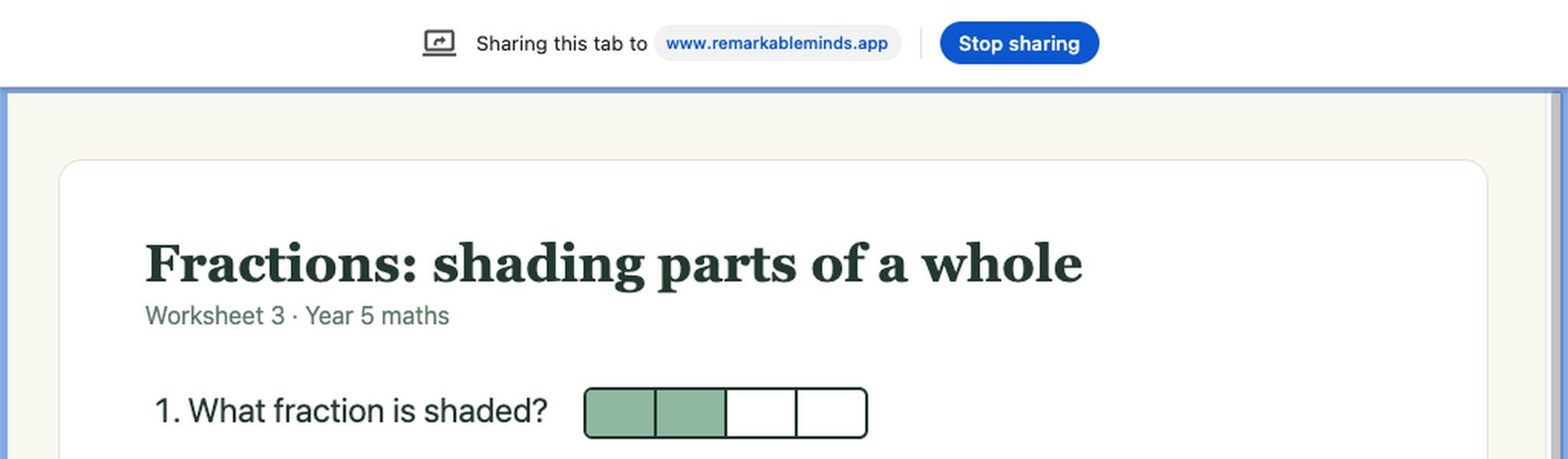
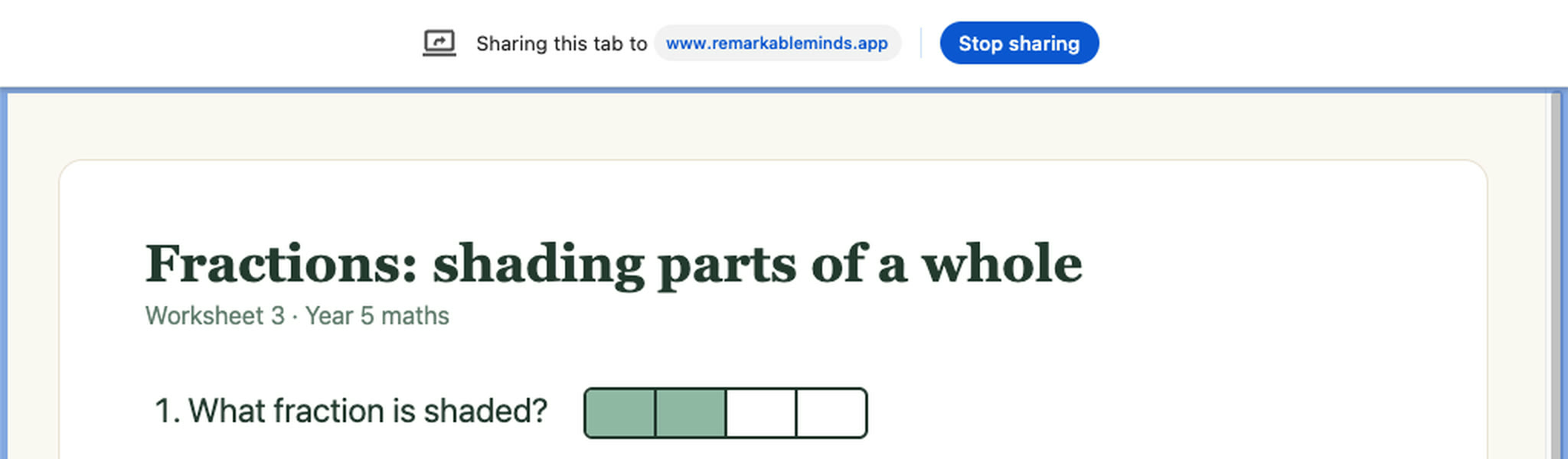
If you shared a browser tab, your browser jumps to that tab and shows a bar across the top. Work in that tab as normal. The Stop sharing button on the bar ends the share.

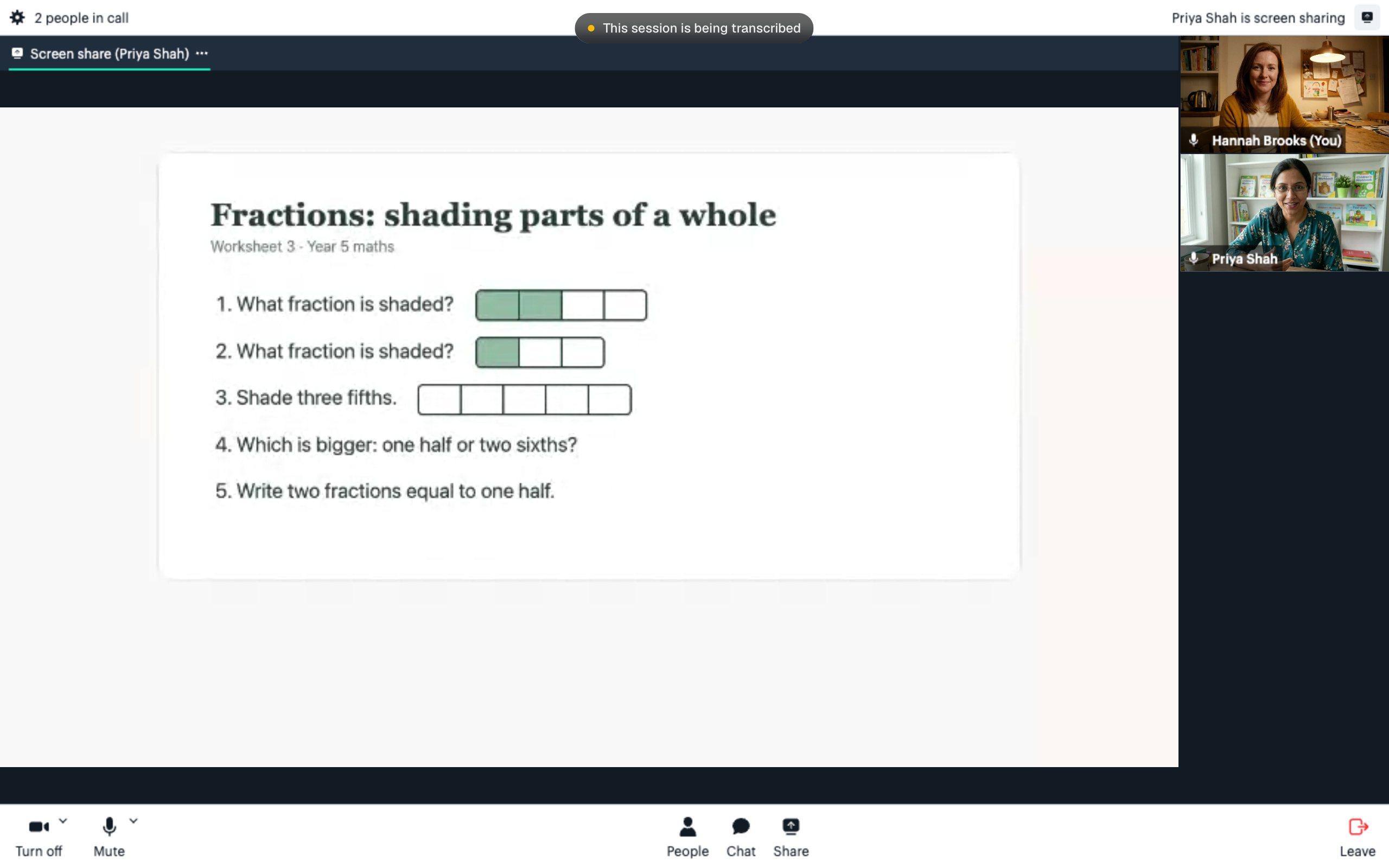
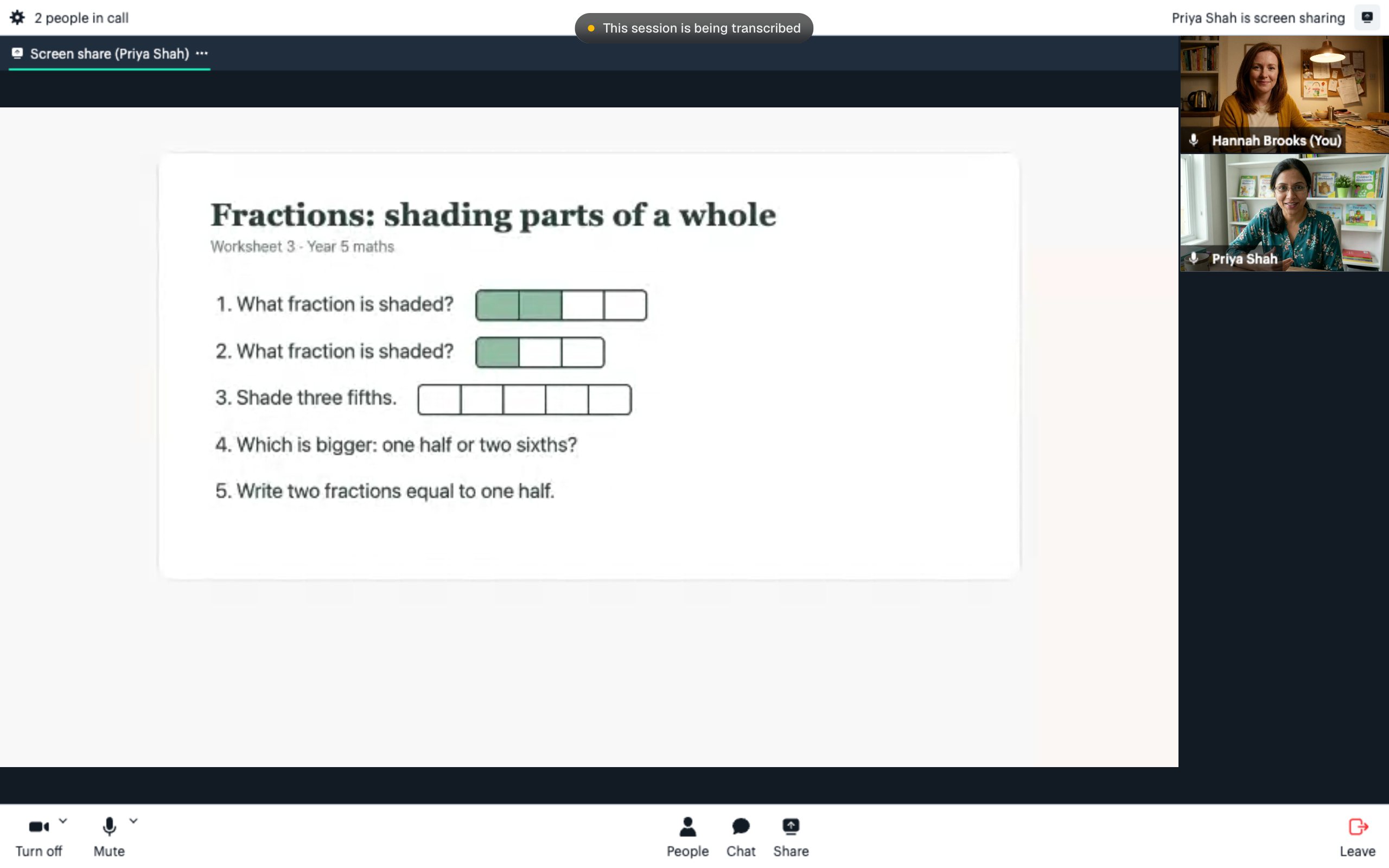
This is what the other person sees:
Stop sharing when you are done


If screen sharing does not work
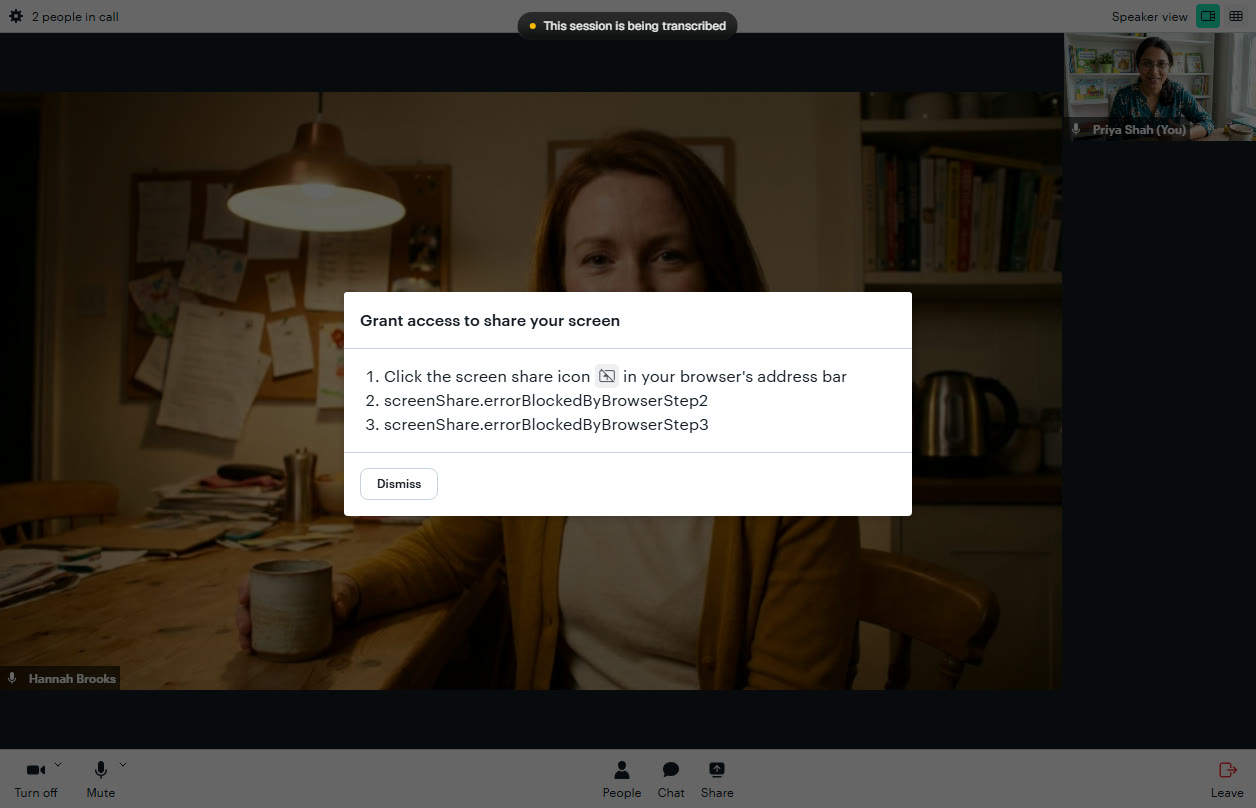
A box appeared saying Grant access to share your screen
Microsoft Edge shows this box when the pop-up from step 3 was closed or cancelled before anything was shared. It looks alarming and some of its text is gibberish, which is a fault in the video tool, not something you did. Nothing is blocked and you do not need to change any settings.
Press Dismiss, press Share again, click the tab or window you want, then press the Share button in the pop-up.
I pressed Share in the call and nothing happened
I cannot pick a window or my whole screen
My browser says sharing is blocked
I cannot see a Share button at all
The other person cannot hear the video I am showing
Online sessions are transcribed in writing and never recorded as video or audio. Anything on a shared screen is not captured. See our recording and transcription policy.
Still stuck?
We will sort it out with you
Tell us what you pressed, what you saw, and which device and browser you are using.