Messages
Send a file
Send worksheets, photos of finished work, reports or any other document through your messages. Only you and the person you are matched with can open them.
Which computer are you using?
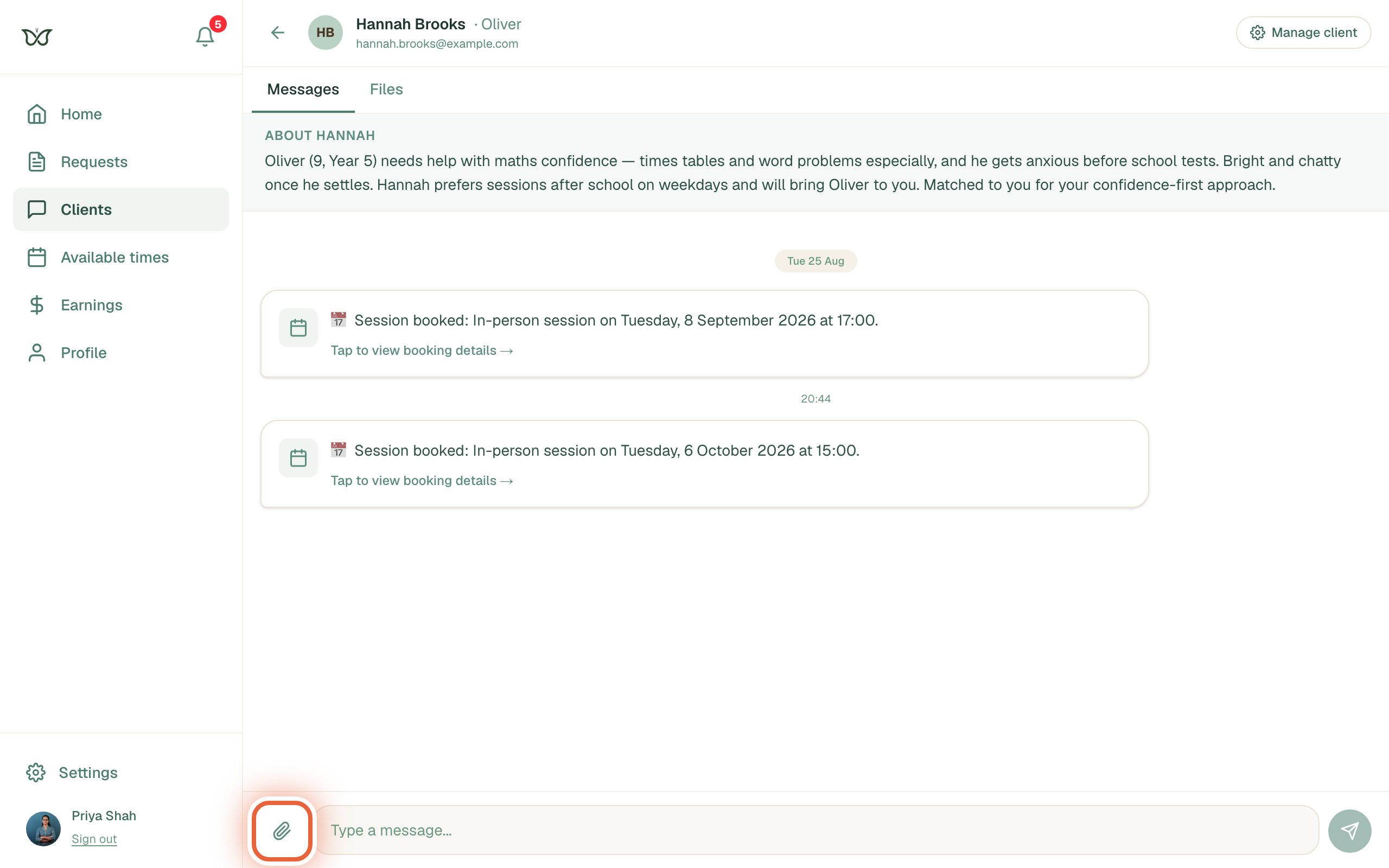
Open your messages and press the paperclip
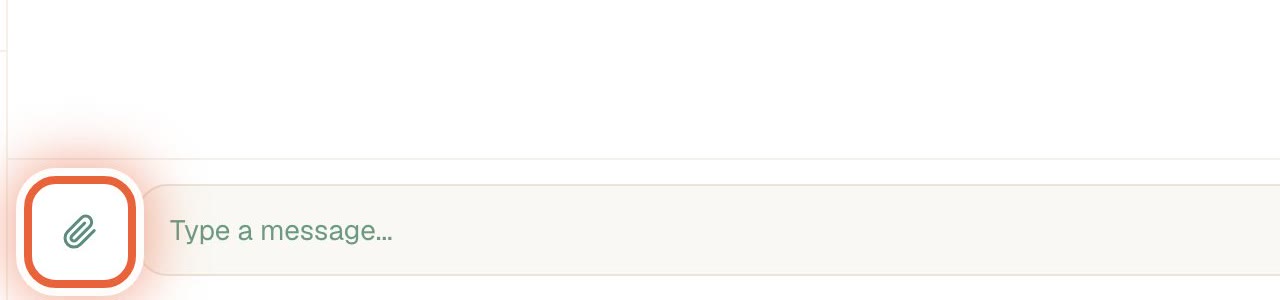
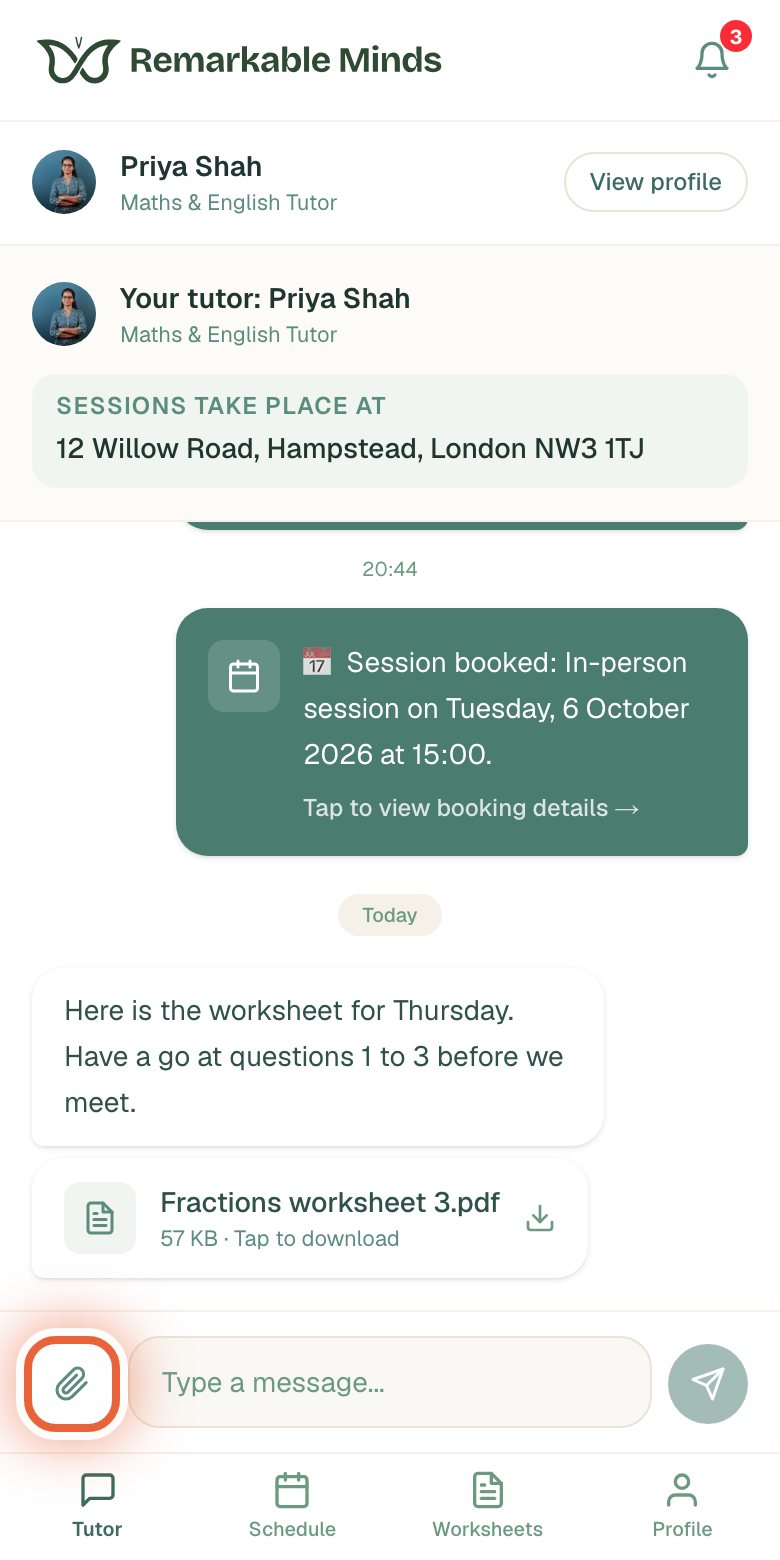
Tutors and specialists: open Clients and choose the person. Parents and learners: your messages are on your dashboard home. The paperclip is at the bottom left, next to the message box.
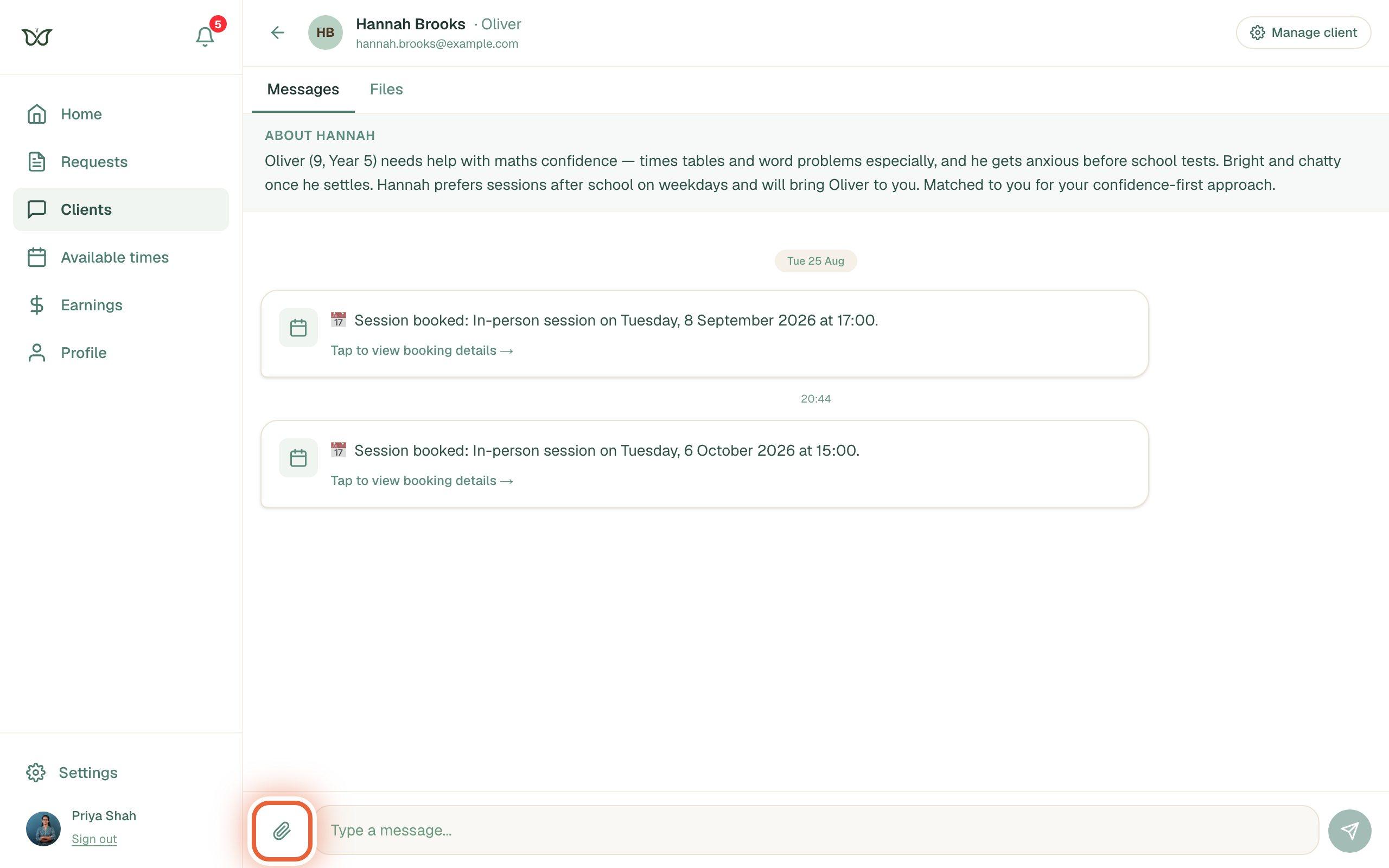
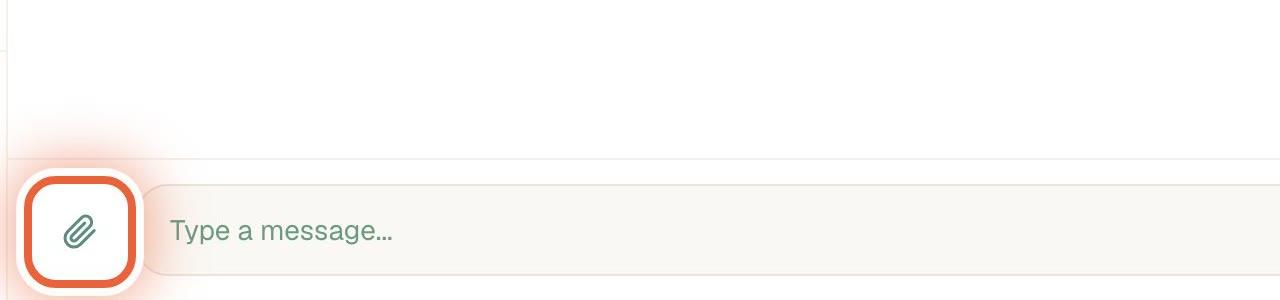
Close-up: the paperclip, left of the message box Choose your file in the window that opens
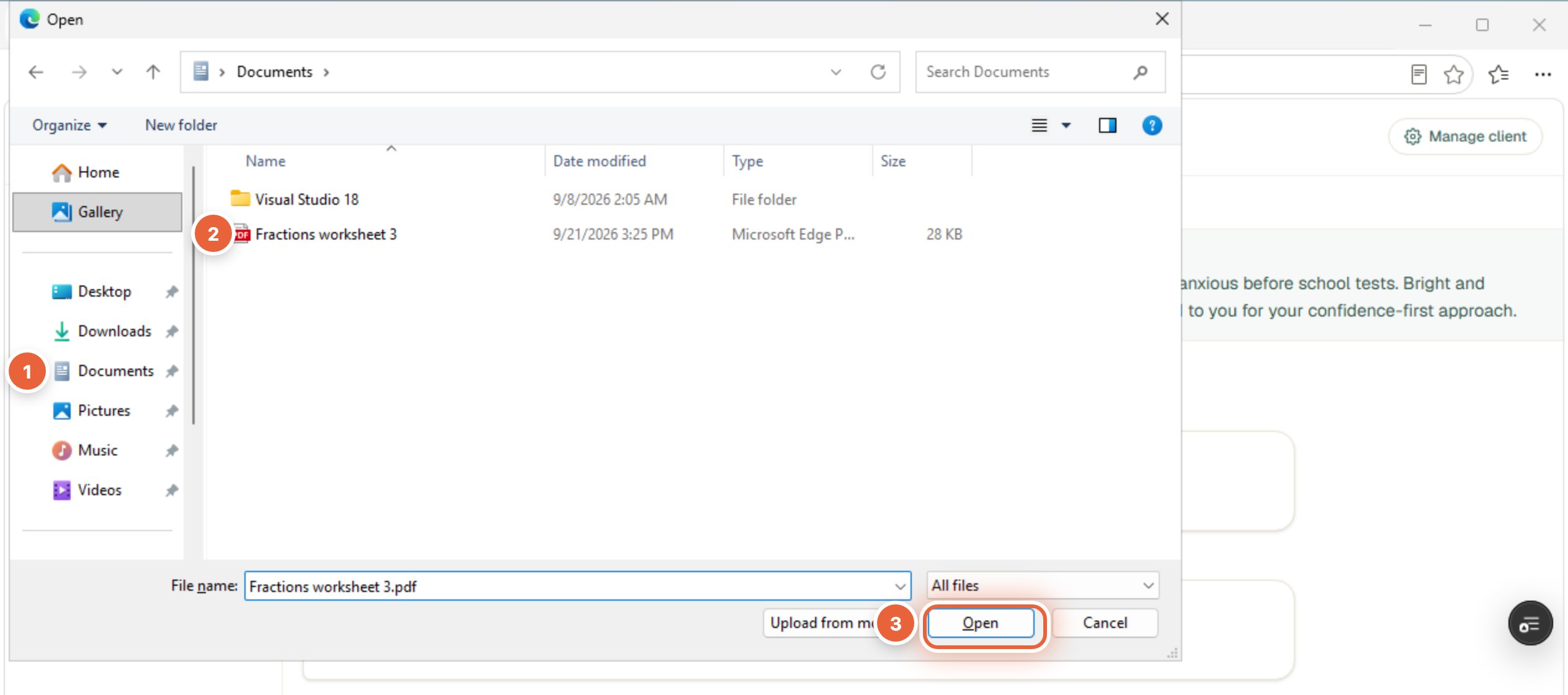
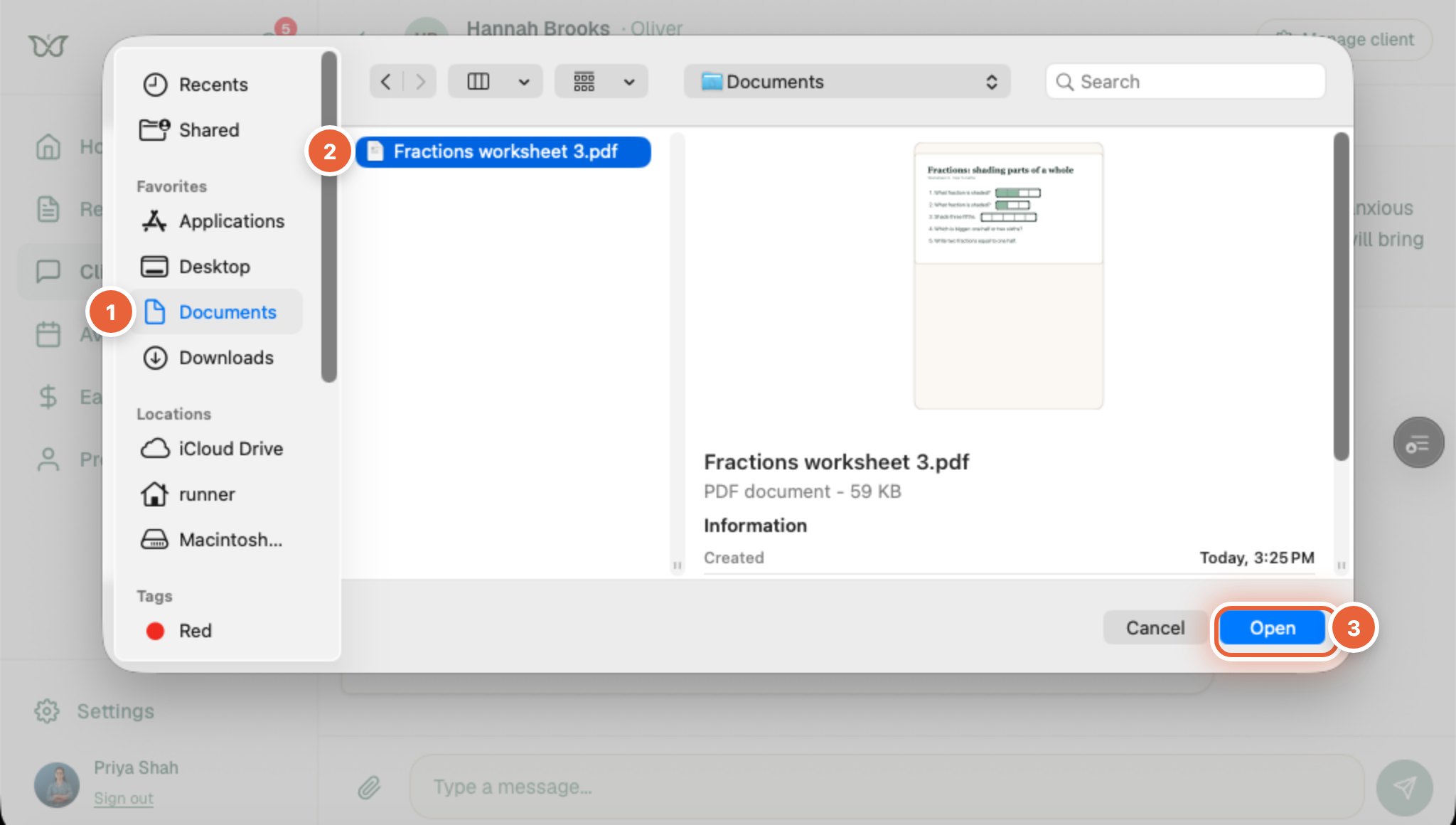
Your computer opens its own file window. Go to the folder where the file is saved, click the file, then press Open.
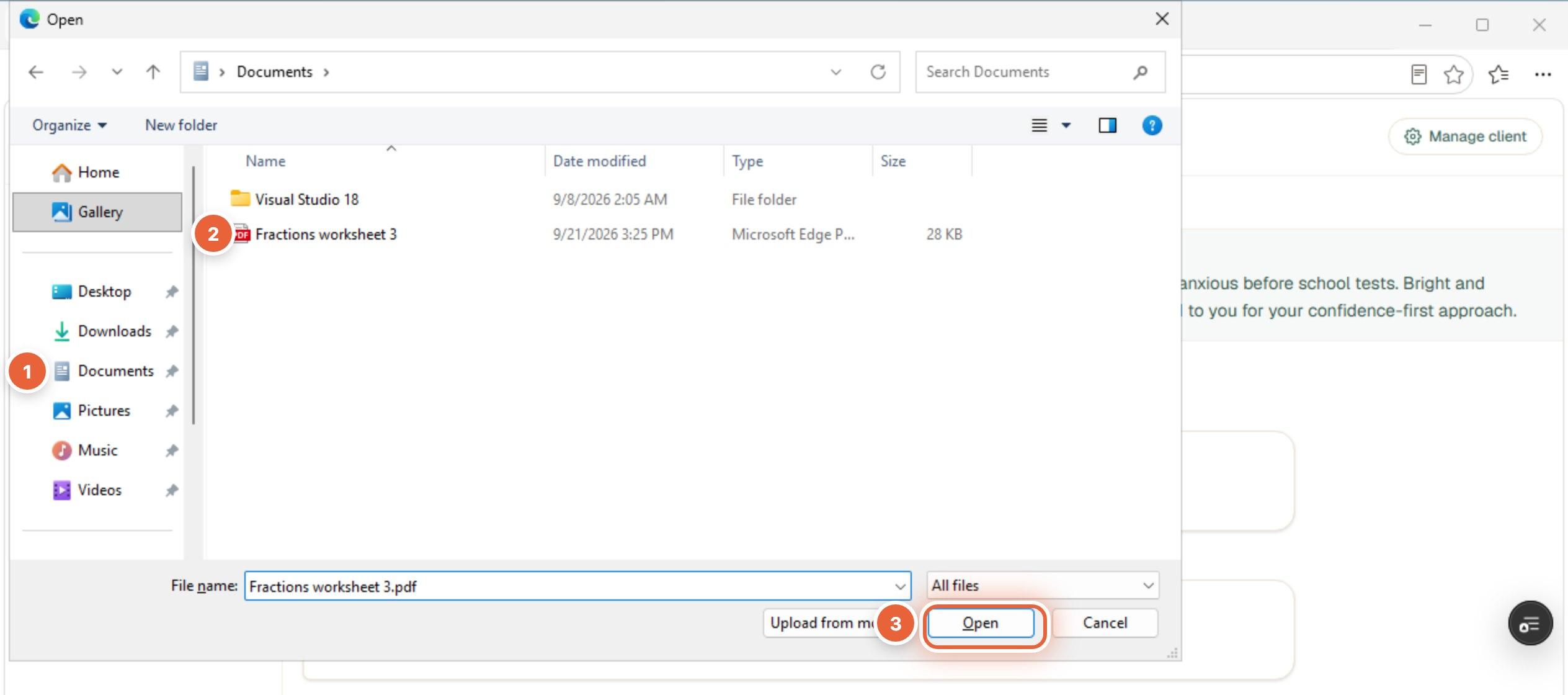
Windows. Not sure where the file is? Try Downloads or Desktop in the left list. 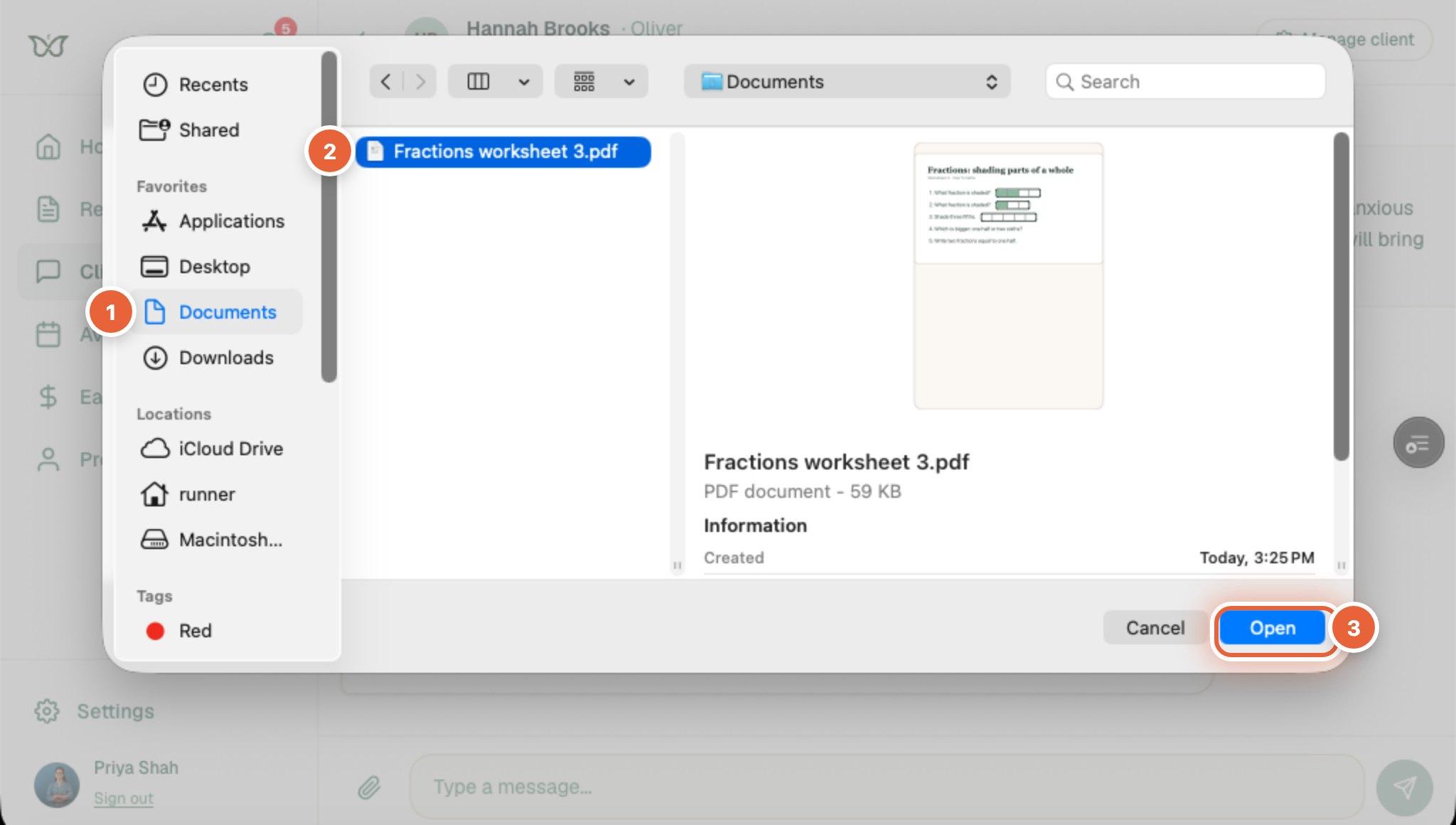
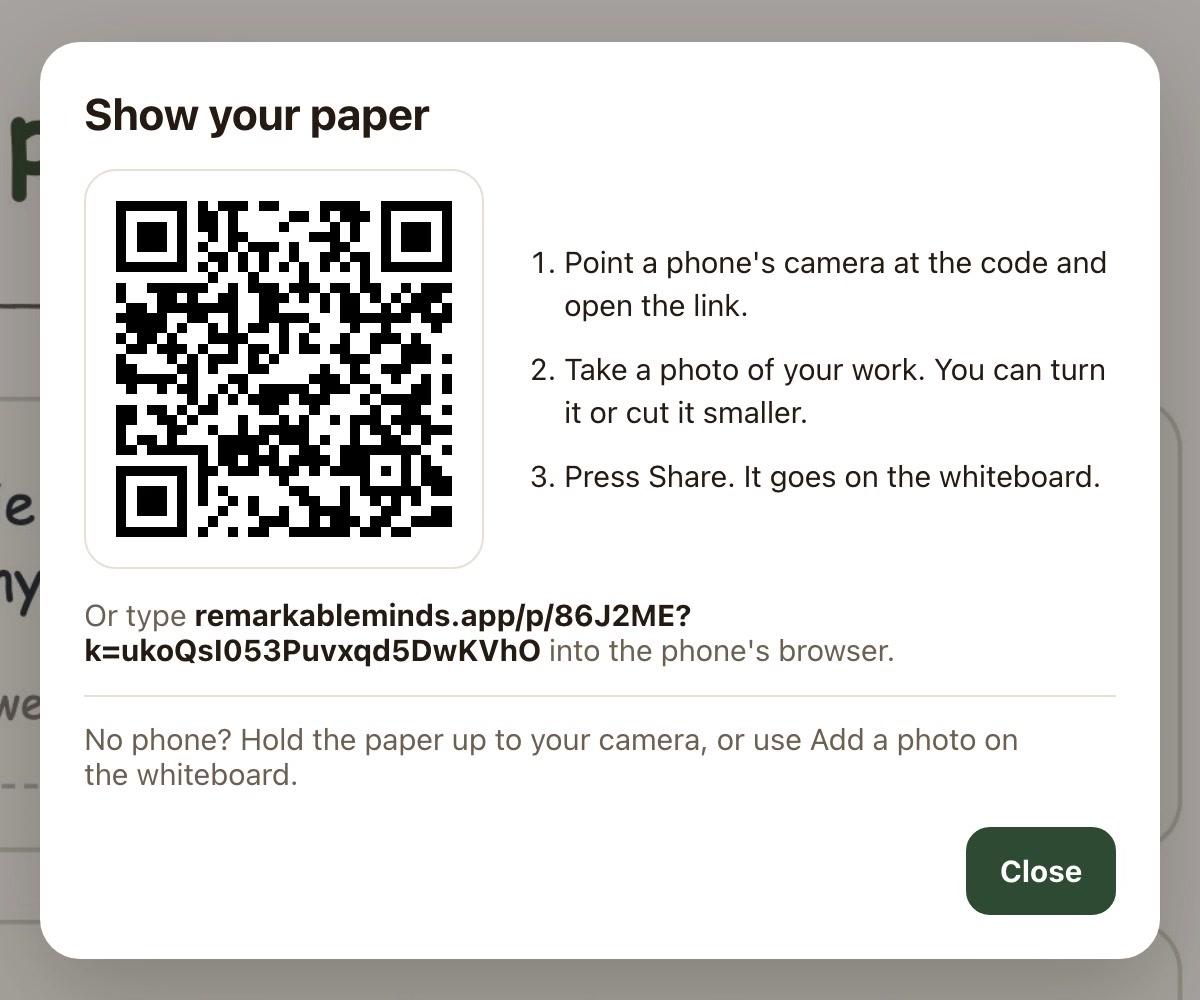
Mac. Not sure where the file is? Try Downloads or Desktop in the sidebar. Dragging a file onto the page does not attach it, so use the paperclip. To send a photo of handwritten work, take the picture on your phone and follow step 6.
Add a note and press send
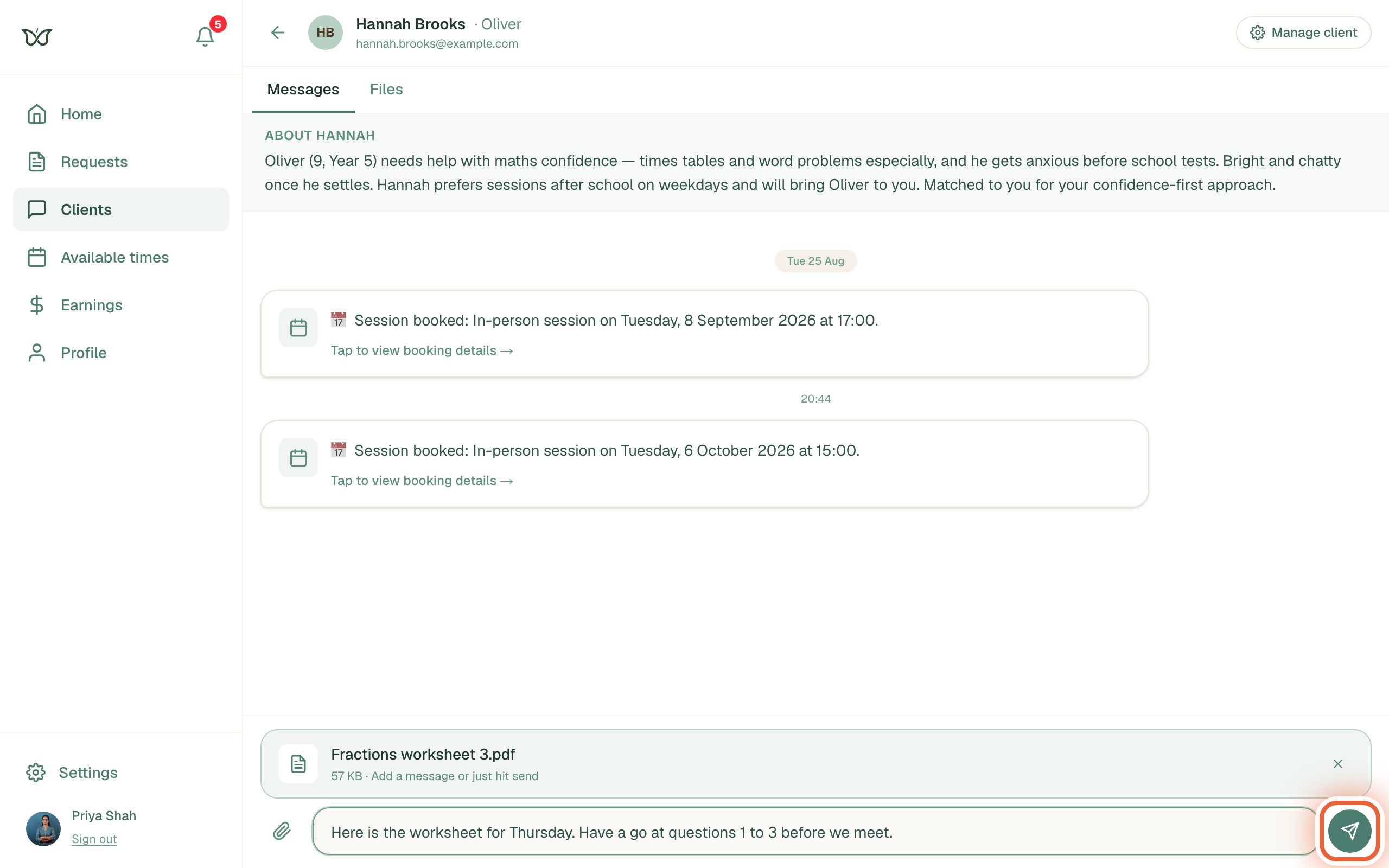
The file appears above the message box once it has uploaded. Add a note if you like, then press the round send button. Press the paperclip again to add more: up to 3 files per message, each up to 25 MB.
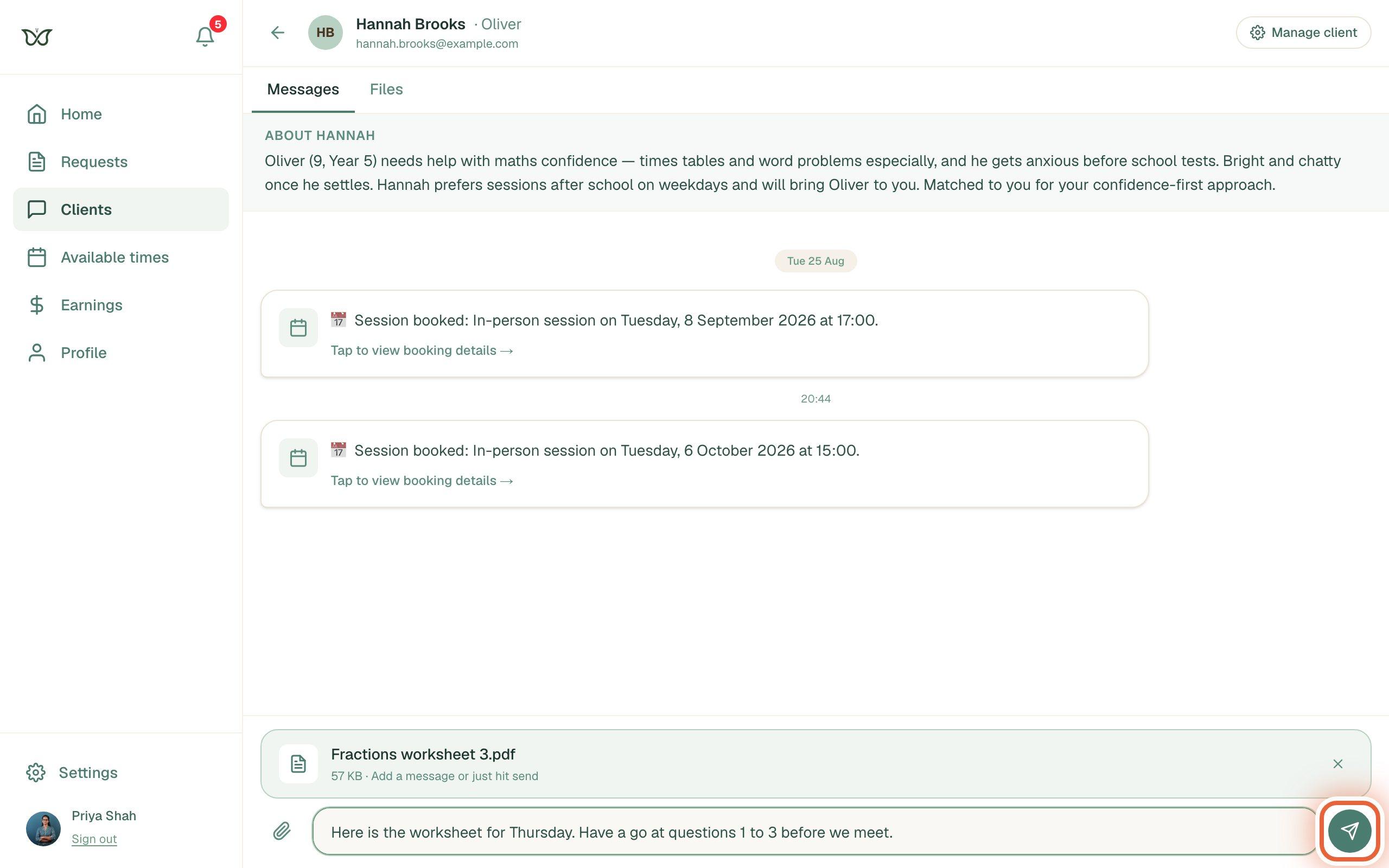
Changed your mind? The small cross removes the file before you send. Your file is in the conversation
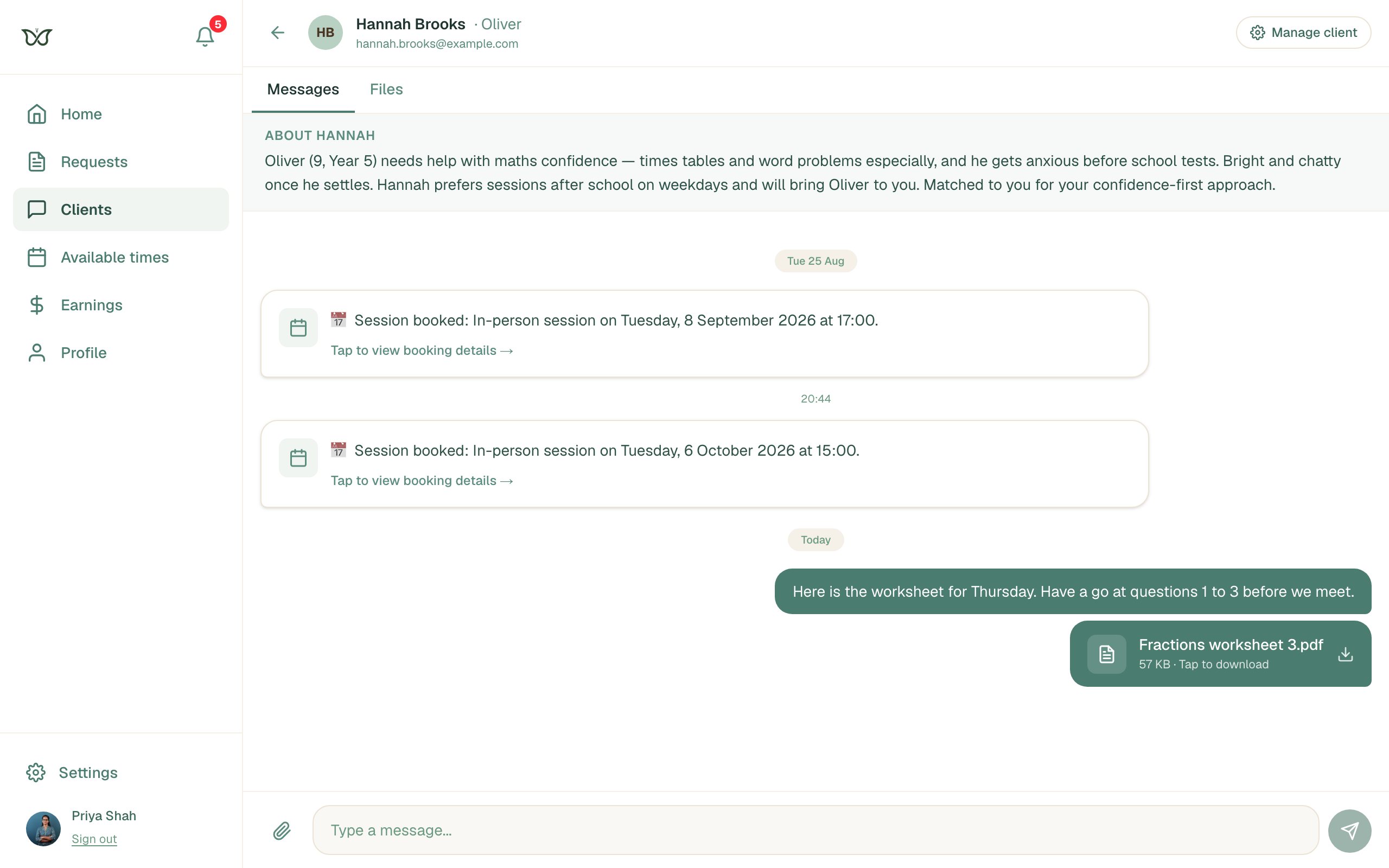
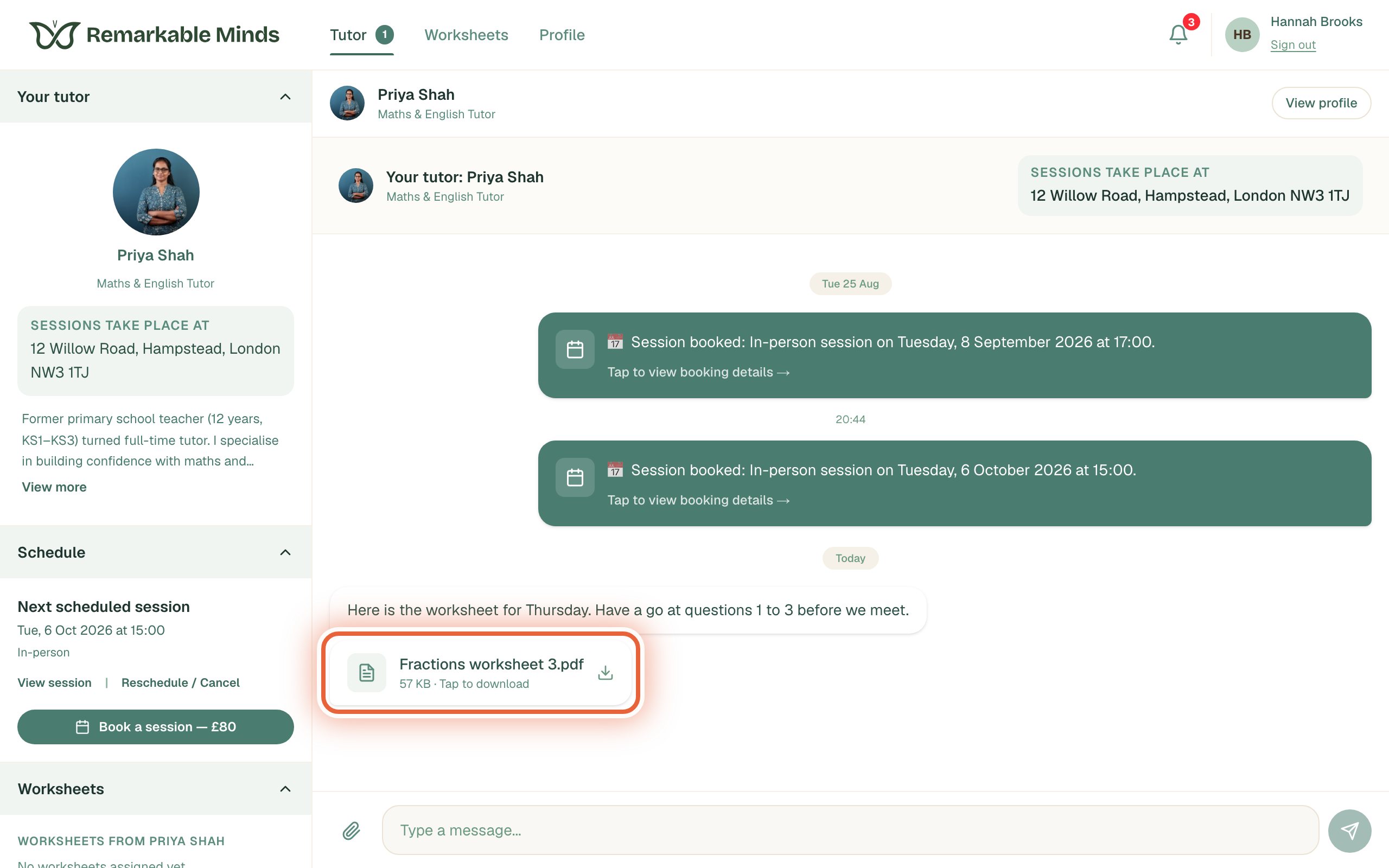
The note and the file appear in the thread. The other person gets a notification that you have sent something.
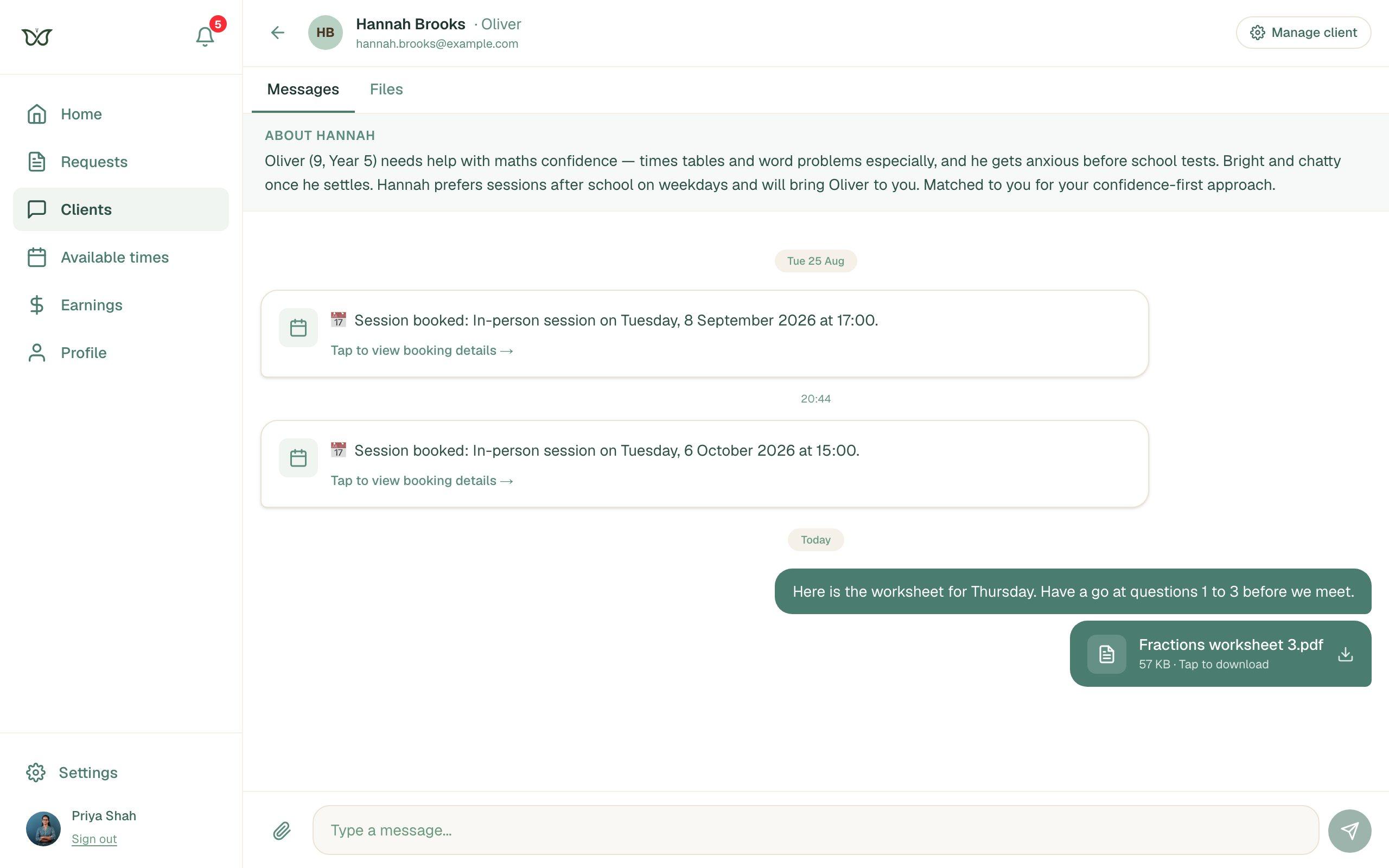
Opening a file someone sent you
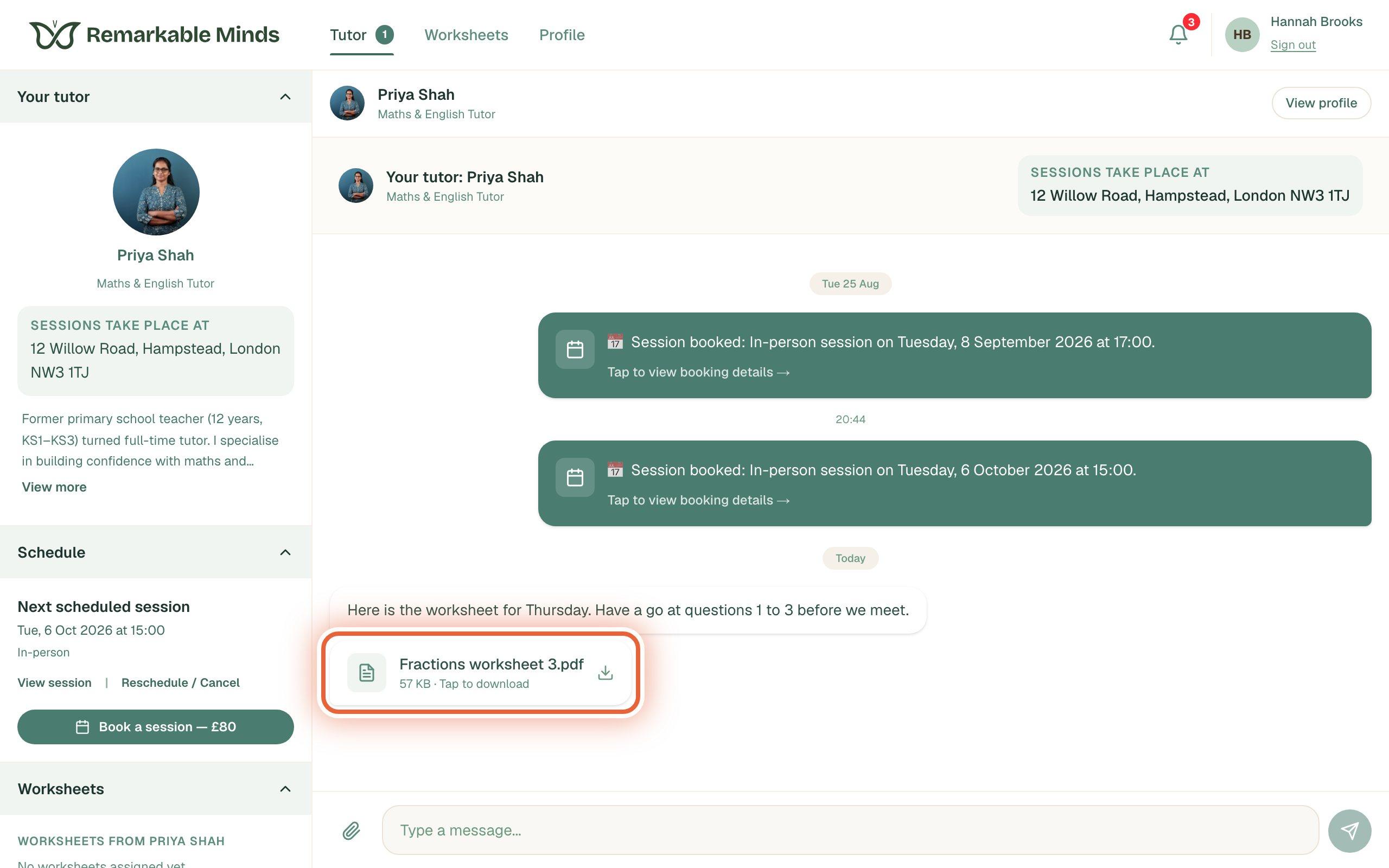
Press the file in the conversation and it downloads to your device.
On Windows it lands in your Downloads folder. Edge and Chrome also show it in a small downloads list at the top right of the browser, where you can click it to open it.
On a Mac it lands in your Downloads folder, which is in the Dock and in the Finder sidebar. Chrome also shows it in a small downloads list at the top right of the browser.
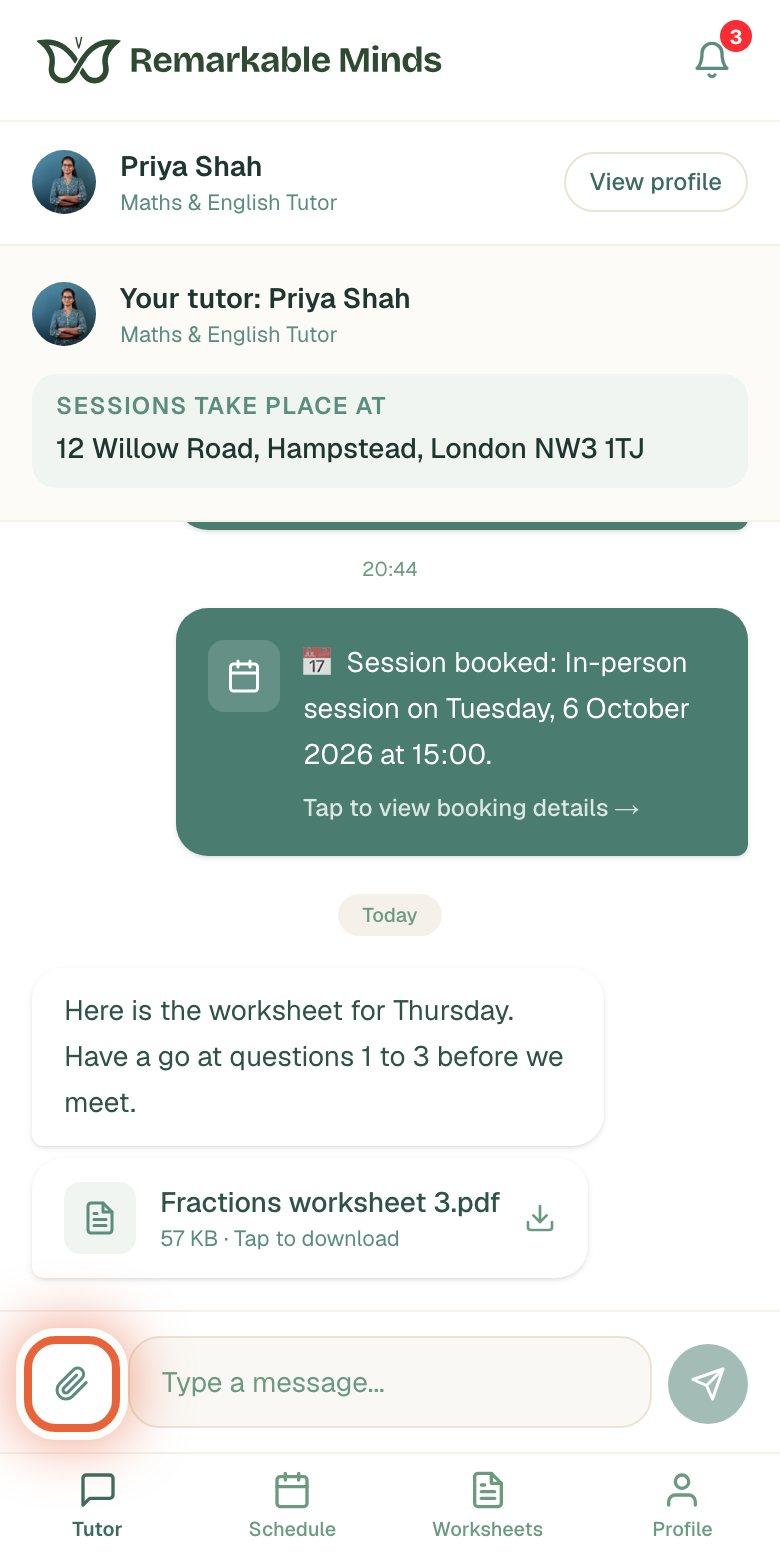
It works on a phone too
The paperclip is in the same place. On a phone it lets you take a photo, pick one from your library, or choose a file, which is handy for sending a picture of handwritten work.
Tutors and specialists: every file in one place
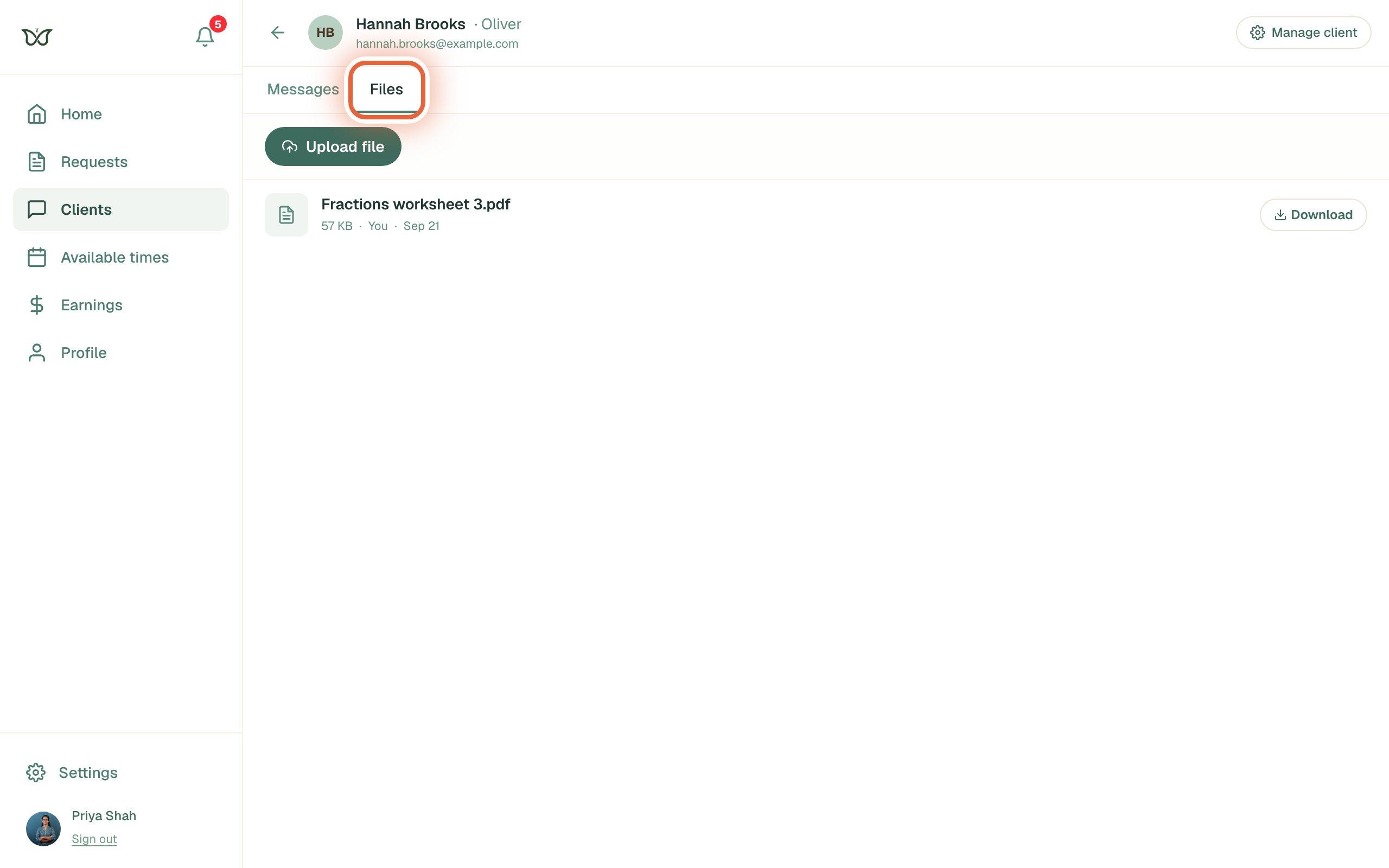
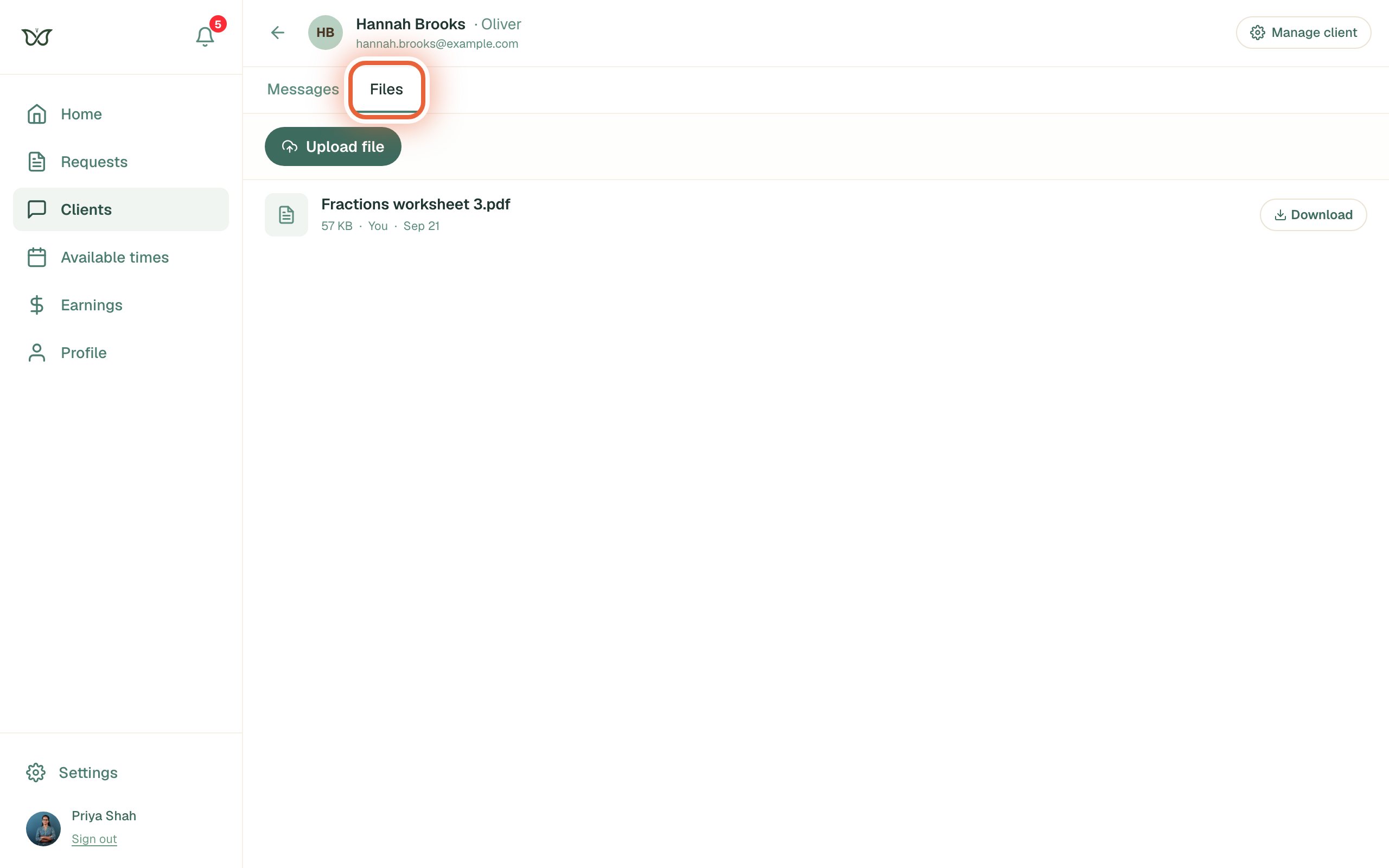
The Files tab next to Messages lists everything shared with that client, with a download button for each file and an Upload file button for adding one without writing a message.
If a file will not send
The upload fails or never finishes
The paperclip is greyed out
Still stuck?
We will sort it out with you
Tell us what you pressed, what you saw, and which device and browser you are using.