During a lesson
Share work on paper in online lessons
Have a phone with a camera and your child's paper ready. You'll use the phone to send a photo to the shared whiteboard in their live online lesson.
Music: “Rise” by Corporate Music Zone, from Free Stock Music, licensed under CC BY 4.0.
Step 1
Press Show my paper
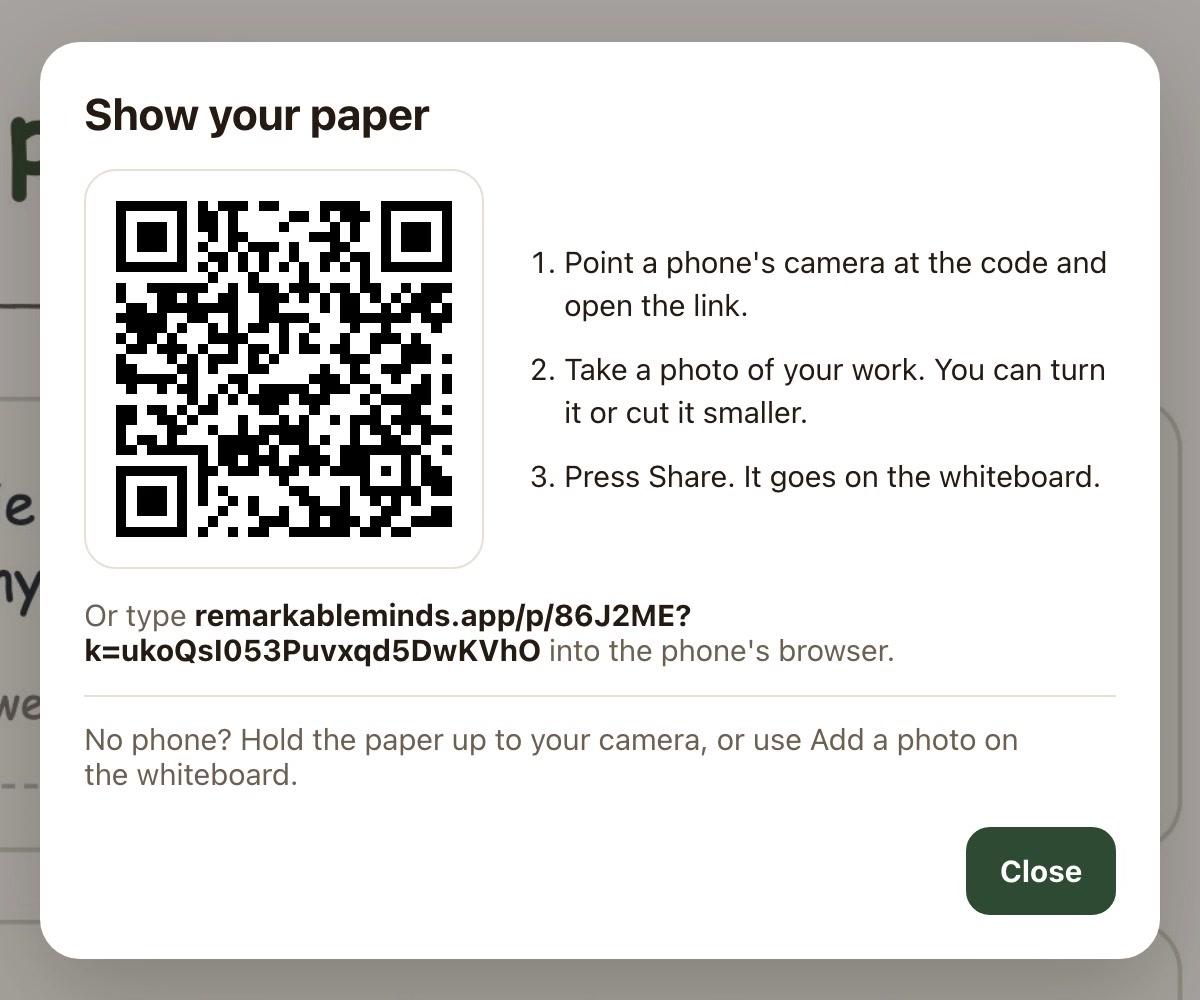
Help your child open the lesson: on the dashboard, press Join video session. Then press Show my paper in the bar along the bottom of the lesson screen. A panel called Show your paper opens with a QR code.
- The tutor can press it too
- The panel shows what to do
Step 2
Scan the code with a phone
Point your phone’s camera at the QR code and open the link. It opens in your phone’s browser. Or type the address below the code into the browser. Once the lesson panel says Phone connected, press Done to close it.
- Any phone with a camera
- No app download or sign in
- Phone works until the lesson ends
Step 3
Check and send the photo
On the phone, press Take a photo. Check that all your child’s work is in the photo, with nothing else showing.
Use Turn it or Cut it smaller if needed. Press Take it again for a new photo. When it’s ready, press Share. Nothing is sent before that.
- Check the photo before sending
- Only include your child's work
- The photo is saved with the lesson
Step 4
See the photo on the whiteboard
The photo goes onto the lesson’s whiteboard in a moment. If the board is closed, the photo waits until the tutor opens it. Your child and their tutor can both draw and write over the photo.
Tutors: press Show me when a photo arrives to jump to it. If the board is closed, press Show the whiteboard to open it.
- Tutor and child both see it
- Draw and write on it
- Saved with the lesson
Good to know
Take back a photo
If you have no phone
The phone works for one lesson
Still stuck?
We will sort it out with you
Tell us what you pressed, what you saw, and which device and browser you are using.