For tutors
Join your online lesson
Your lessons happen one-to-one in your browser. Open the lesson from your dashboard, then check your camera and microphone before you join.
Music: “Rise” by Corporate Music Zone, from Free Stock Music, licensed under CC BY 4.0.
Step 1
Open your lesson
On your dashboard, go to Home. Find your lesson under Upcoming sessions. A green Join label means you can join. Press the session to open its page.
From 10 minutes before the start, a green card at the top says your session starts soon: press Join session. Earlier than that, from 1 hour before (30 minutes for a free intro), the button is Join video session. Then choose Open in the app if you have the Mac app, or Continue in this browser. The camera check opens.
- Start from your dashboard
- Open the session page
Step 2
Check your camera and microphone
If your browser asks to use your camera and microphone, choose Allow. Check that you can see yourself. Talk, and check the bar under Microphone moves.
You can join with your camera off if you prefer: press the camera button at the bottom of your picture.
- Check your picture
- Talk to check the microphone
- Camera off is fine
Step 3
Choose your camera and microphone
Wrong camera or microphone? Open the Camera or Microphone drop-down list and choose the right one. Use the Speaker list to choose your speaker.
To blur your background, tick Blur my background. If it says Not available in this browser, you can’t use blur in that browser.
- Choose the devices you want
- Background blur is optional
Step 4
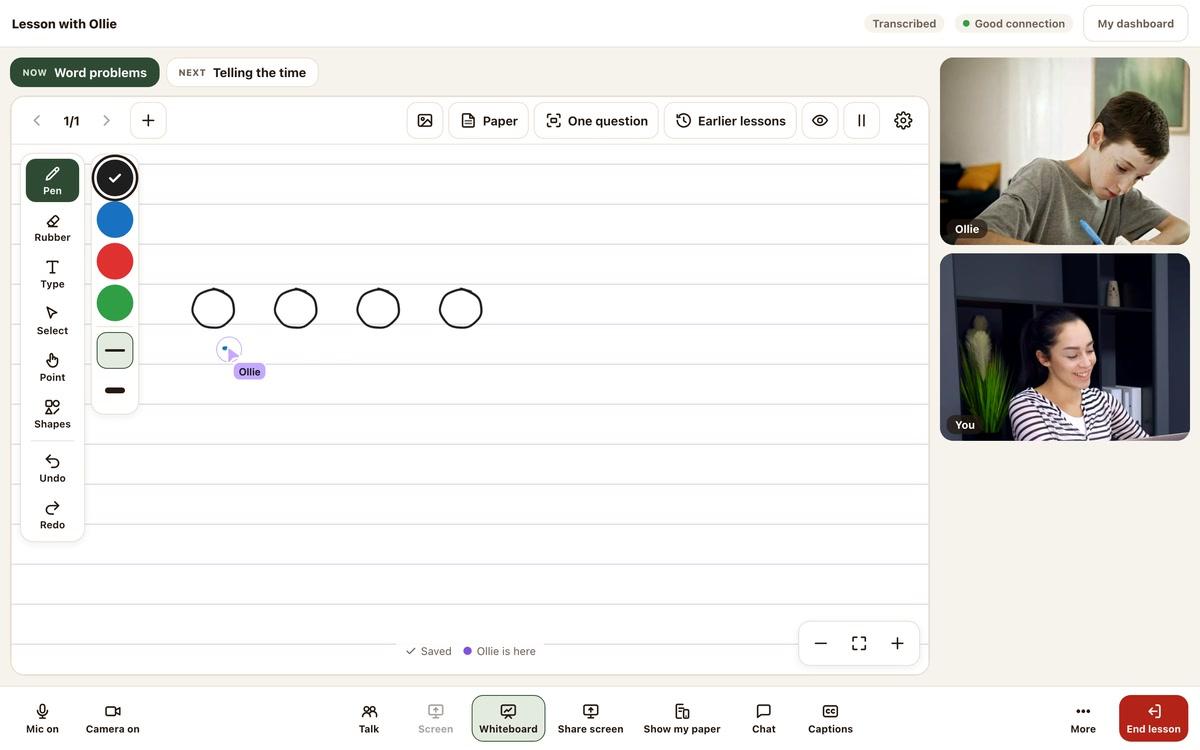
Join your lesson
When you’re ready, press Join the lesson. The button says Joining… while it joins. Then the lesson opens.
If the lesson is full and you have it open somewhere else, close it there and try again.
- Join when you are ready
- Close it elsewhere if full
Good to know
Too early to join?
Allow your camera and microphone
Practise before your first lesson


Still stuck?
We will sort it out with you
Tell us what you pressed, what you saw, and which device and browser you are using.