For tutors
Set a plan the child can see
Set a short plan so the child always knows what's now and what's next. Only you, the tutor, can set it.
Music: “Rise” by Corporate Music Zone, from Free Stock Music, licensed under CC BY 4.0.
Step 1
Open the plan
Press More, then Lesson plan.
The Lesson plan panel opens at the side.
- Open the plan from the menu
- Find the panel at the side
Step 2
Type each step
Type a step in the box. Press Enter to add it. Repeat for each step.
You can also press Add. Each step can be up to 60 characters.
- Type one step at a time
- Add each step to the list
Step 3
See what the child sees
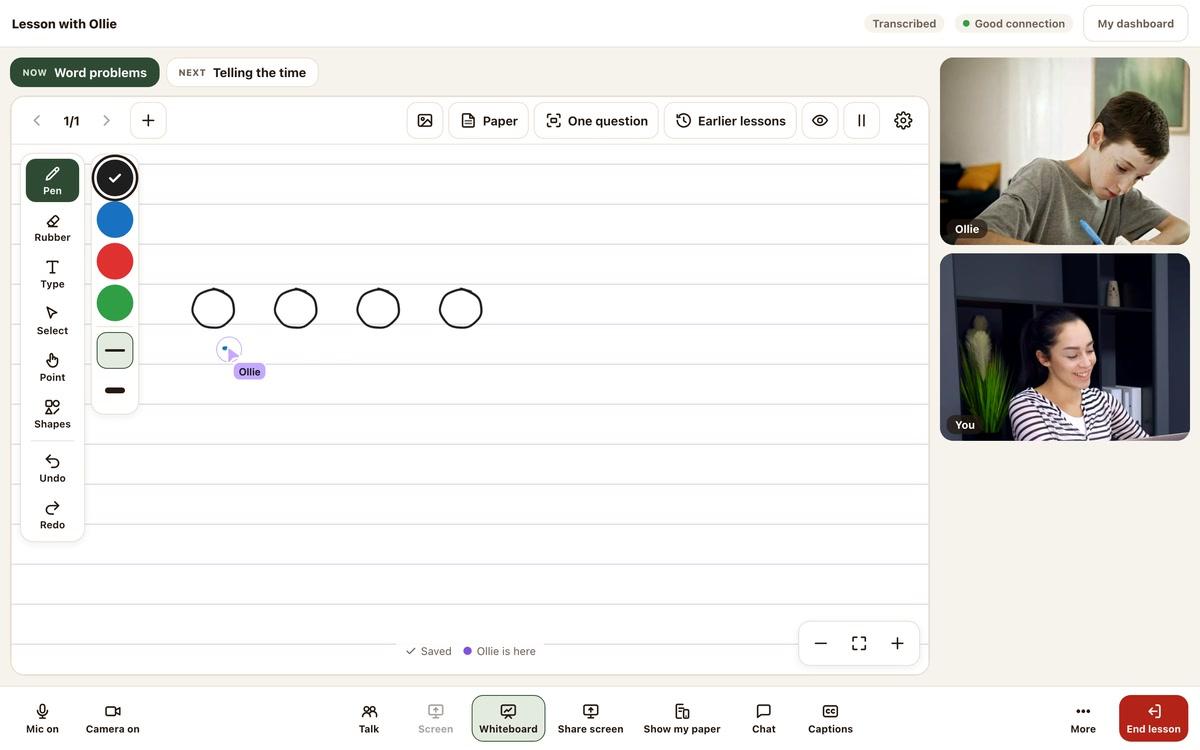
The plan shows as soon as you add a step. It sits along the top of both screens: yours and the child’s.
The step you’re on shows as Now. The next steps show as Next and Then, if you’ve added them.
- You both see the same plan
- See what comes next
Step 4
Move to the next step
When you move on, open the plan again. Press Now for the next step in your list. It becomes the step you’re on.
You can also press Next step at the bottom of the panel to move to the next step.
- Open the plan again
- Choose the step you’re moving to
Good to know
Show or hide the plan
Change the order or remove a step
Your plan is saved


Still stuck?
We will sort it out with you
Tell us what you pressed, what you saw, and which device and browser you are using.